
How to convert 1080p video to 720p
Reduce resolution for smaller files and more compatible playback.
LosslessConverter topics
Find the right workflow for a video or audio file that will not play, import, or edit as expected. Start with the source codec and destination app or device, then choose a compatible output. Browse video and audio guides.
Solution library
Explore formats and codecs, editing software, Apple playback, Android and Windows devices, and 4K/HD workflows.
Reduce resolution for smaller files and more compatible playback.
Keep multichannel sound while improving home theater compatibility.
Transcode unsupported AVI footage into an edit-friendly format.
Prepare MP4 clips for a smoother Final Cut Pro editing timeline.
Choose an MPEG output matched to the TiVo source and destination.
Downscale or transcode demanding 4K footage for smoother editing and playback.
Handle codec, subtitle, and audio compatibility inside MKV files.
Match MP4 video and audio codecs to the app or device you use.
Move VOB content into MP4, MOV, AVI, or another usable format.
Fix codec mismatches for editors, players, and media servers.
Understand when MPEG-1 or MPEG-2 streams need conversion for modern apps, editors, and devices.
Create a more compatible output from an MPG or MPEG source.
Prepare MPEG video as MOV for QuickTime and Apple workflows.
Convert the source to a container and codec supported by the legacy iTunes library.
Create an Apple editing format when iMovie cannot import the original stream.
Prepare MPEG-2 media for a smoother Final Cut Pro editing timeline.
Convert unsupported MPG or MPEG footage into an Avid-friendly intermediate.
Check the codecs inside each file and create a compatible copy only when required.
Convert AVI, VOB, MKV, TiVo, and MPG sources to an iTunes-compatible format.
Test the installed player first, then convert unsupported codecs to a compatible MP4.
Learn how MPEG-1, MPEG-2, compression, and the .mpg extension fit together.
Find another route when a familiar converter no longer fits the job.
Create an edit-friendly 4K workflow for current Final Cut Pro projects.
Prepare 4K source files for responsive Premiere Pro timelines and export.
Match the codec and frame settings to a more reliable VEGAS Pro workflow.
Find current Final Cut Pro and iMovie workflows for AVCHD footage.
Choose a workflow for Canon XF, Panasonic P2, Sony XDCAM, and Avid MXF.
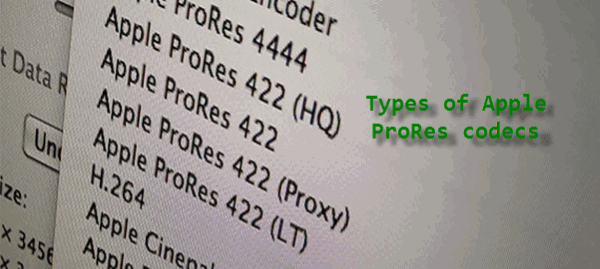
Compare ProRes variants before transcoding footage for an Apple editing pipeline.
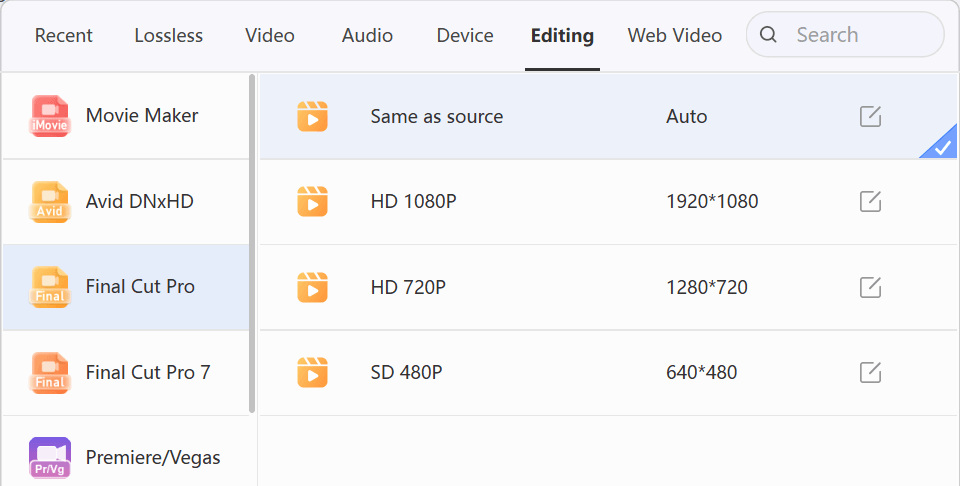
Convert incompatible containers and codecs into files Final Cut Pro can ingest.
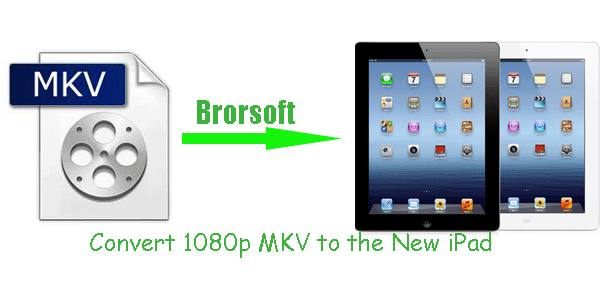
Set resolution, audio, and subtitles for the target iPad and player.
Create a compatible MP4 and verify the selected surround track across the playback path.
Resolve container, video, audio, and subtitle compatibility while preserving Full HD output.
Match resolution, bitrate, codecs, audio, and subtitles to the actual tablet and player.
Copy supported files directly and convert only media the installed player cannot decode.
Choose your path
A reliable conversion starts by identifying the input and its destination. The right format and quality settings follow from those two choices.
Check the container, codec, resolution, frame rate, and audio tracks in the original file.
Match the file to the editor, TV, media server, phone, tablet, or archive that will use it.
Select a format and quality level that solves the problem without wasting time or storage.
Solutions by outcome
Ready to solve the next format problem?