Video and audio guide

Convert TiVo recordings to MP4 for playback

Create an MP4 compatibility copy for authorized TiVo recordings when the destination cannot use the original file.

Updated September 4, 2026By

The free version limits many processing operations to the first three minutes. Check compatibility and trial limits.

  • Media filesVideo or audio files
  • Choose MP4Output matched to this workflow
  • General playback or storage checkVerify before batch processing

Before you begin

Match the output to its destination.

Check the codecs inside the source container and the requirements of the target player, editor, or device before converting.

Use recordings you are authorized to process

TiVo recordings can include account or device restrictions as well as video and audio streams. Confirm that the recording is available to your account and that your intended use is permitted before moving or converting it.

Choose the output by destination

Use MP4 for broad playback, MPEG when a specific legacy workflow requires it, or an editing profile for a timeline. Keep the source resolution and frame rate unless the destination has a known limit. Do not promise unchanged quality when video or audio is being re-encoded.

Keep account credentials and media keys private. Use the supported transfer method for the recorder rather than downloading old utilities from an unverified third-party mirror.

Verify the complete recording

Check the start and end, picture, aspect ratio, audio, captions, and sync before deleting or archiving the original. Long recordings should be inspected at several points because timing problems may appear later in the program.
Workflow direction

Follow the intended workflow below.

Create an MP4 compatibility copy for authorized TiVo recordings when the destination cannot use the original file.

Three-step workflow

Create and verify one test output before processing the full batch.

Create an MP4 compatibility copy for authorized TiVo recordings when the destination cannot use the original file.

01

Add the source

Load the authorized TiVo recordings

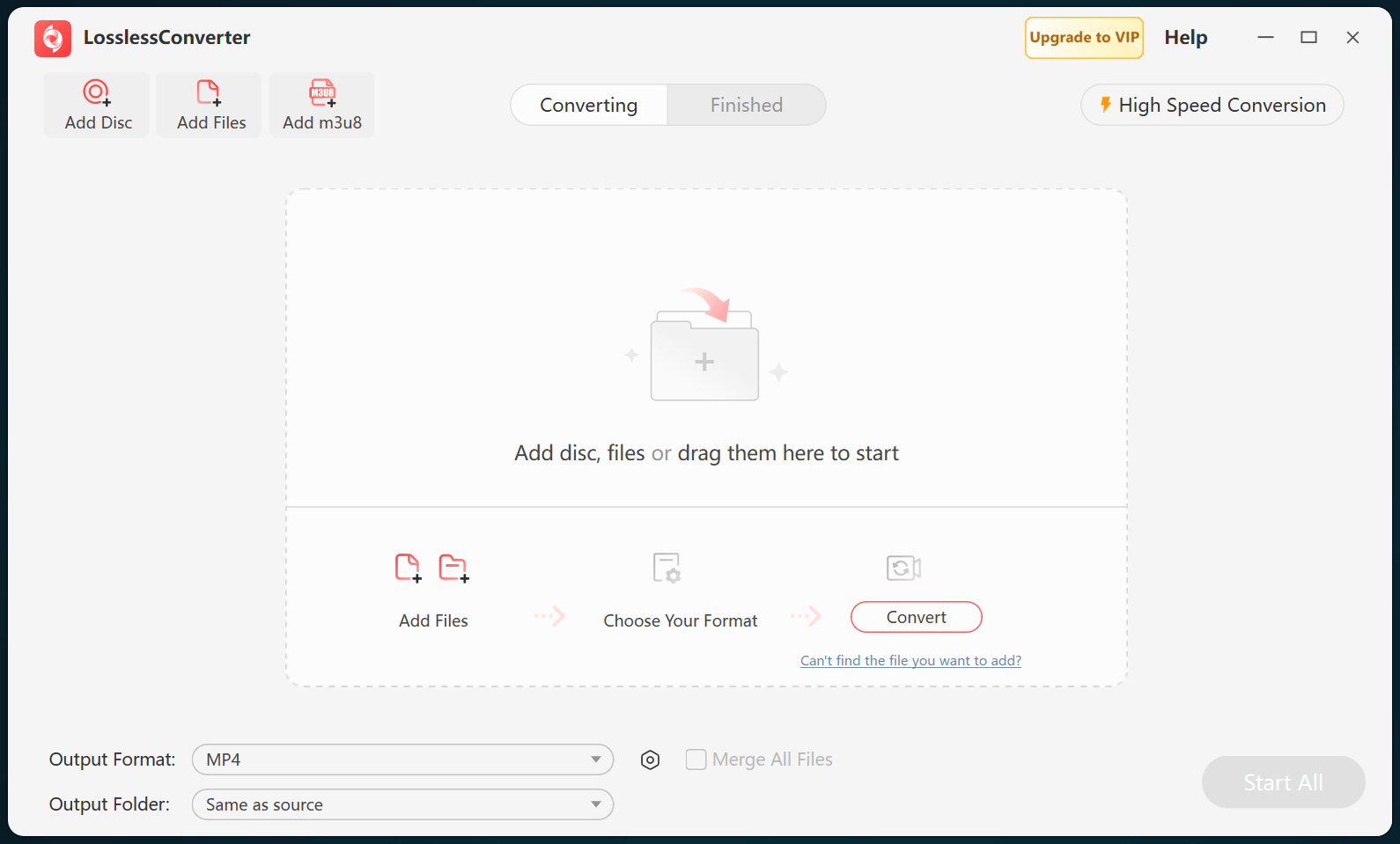
Open LosslessConverter and select Add Files. Add the authorized TiVo recordings and select the files required for this workflow.

LosslessConverter main window with the source controls visible
Source toolbarLoad the source from the main toolbar.
02

Create a broadly compatible file

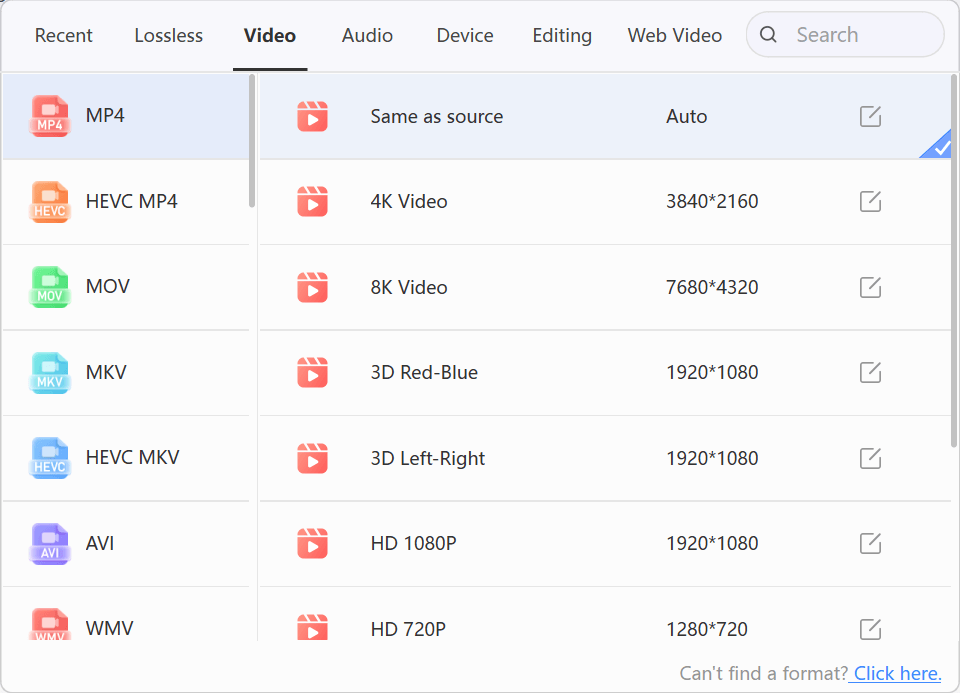
Choose Video > MP4

Open Output Format, select the Video group, and choose MP4. Start with Same as source, then change resolution only when the destination requires it.

LosslessConverter Output Format menu with Video and MP4 selected
MP4Select Video, then choose MP4.
03

Create the current output

Select Start All, then verify in general playback or storage

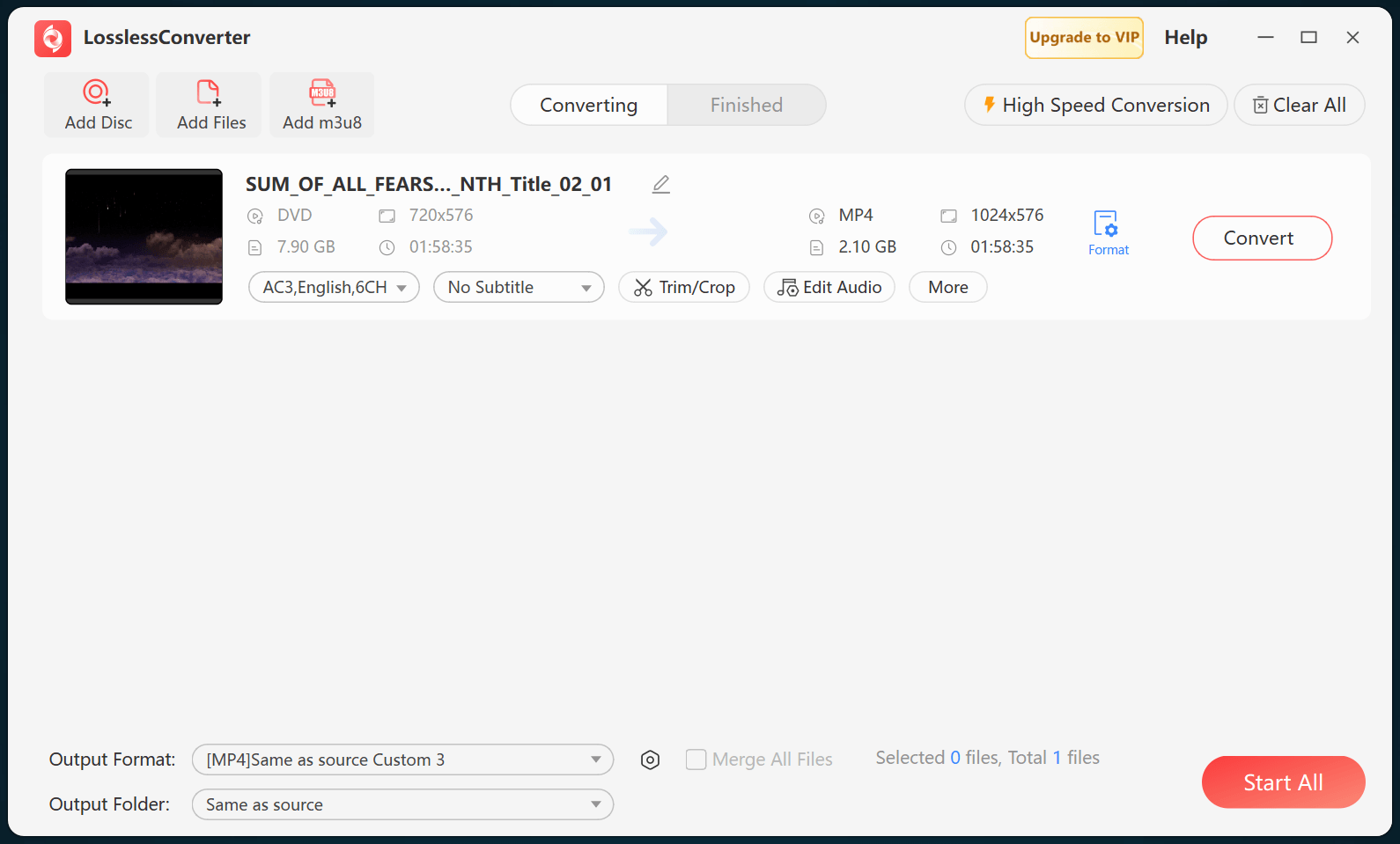
Choose an output folder and select Start All. When processing finishes, open the MP4 file in the destination and verify the complete recording, picture, captions, audio, and sync.

LosslessConverter main window with Start All ready at the lower right
Start AllRun the task, then verify the result.

Try it with your own media

Process one file, verify the result, then run the full batch.

The free version limits many processing operations to the first three minutes. Check compatibility and trial limits.