Video and audio guide

How to convert TiVo recordings to MPEG

Choose an MPEG output matched to the TiVo source and destination.

Updated September 4, 2026By

The free version limits many processing operations to the first three minutes. Check compatibility and trial limits.

  • Media filesVideo or audio files
  • Choose MPEG-2Output matched to this workflow
  • The destination player checkVerify before batch processing

Problem and solution

Match the output to its destination.

Check the codecs inside the source container and the requirements of the target player, editor, or device before converting.

How to Convert TiVo to MPEG without Losing Quality?

TiVo is a great and popular home setup box for recording favorite TV drama programs and movies for later playback. And you can transfer the TV recordings to your personal computer by using the TiVo Desktop Software application. But the problem with the .TiVo files is that they are not always compatible with other multi-media programs and editing software you may want to use to view or edit the TiVo files. As a result, it is required to convert the TiVo files to MPEG format for viewing/editing on your computers.

How to convert TiVo to MPEG at the fastest speed? This converting TiVo to MPEG guide shows you the way to easily enjoy beloved TV shows recorded by TiVo box on your portable devices any time and any where or editing the TiVo shows by cutting off the commercials freely. To convert TiVo to MPEG, please follow the steps below:
Solution direction

Apply the solution in the workflow below.

Choose an MPEG output matched to the TiVo source and destination.

Three-step workflow

Create and verify one test output before processing the full batch.

Choose an MPEG output matched to the TiVo source and destination.

01

Add the source

Load the authorized TiVo recordings

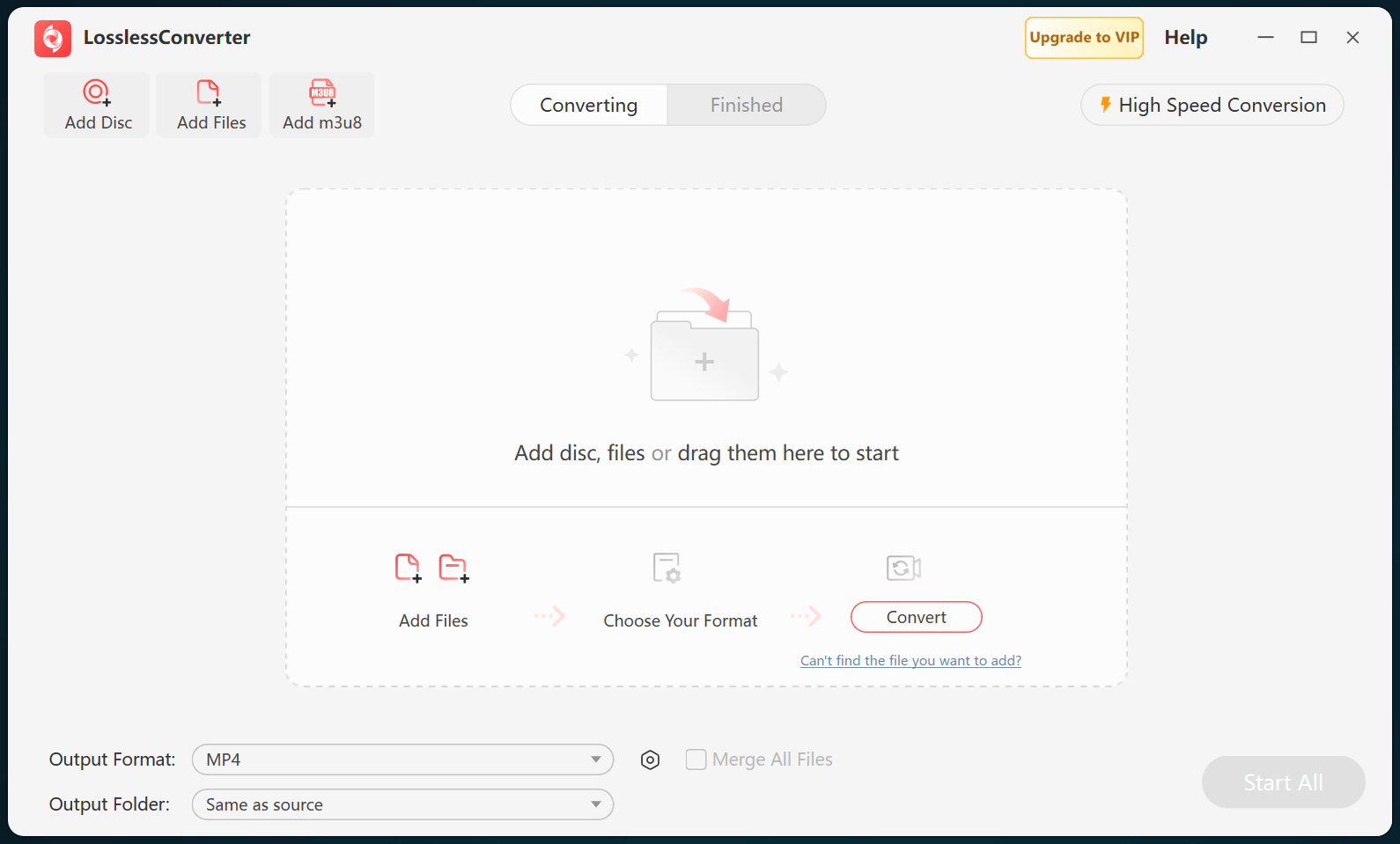
Open LosslessConverter and select Add Files. Add the authorized TiVo recordings and select the files required for this workflow.

LosslessConverter main window with the source controls visible
Source toolbarLoad the source from the main toolbar.
02

Match the editing application

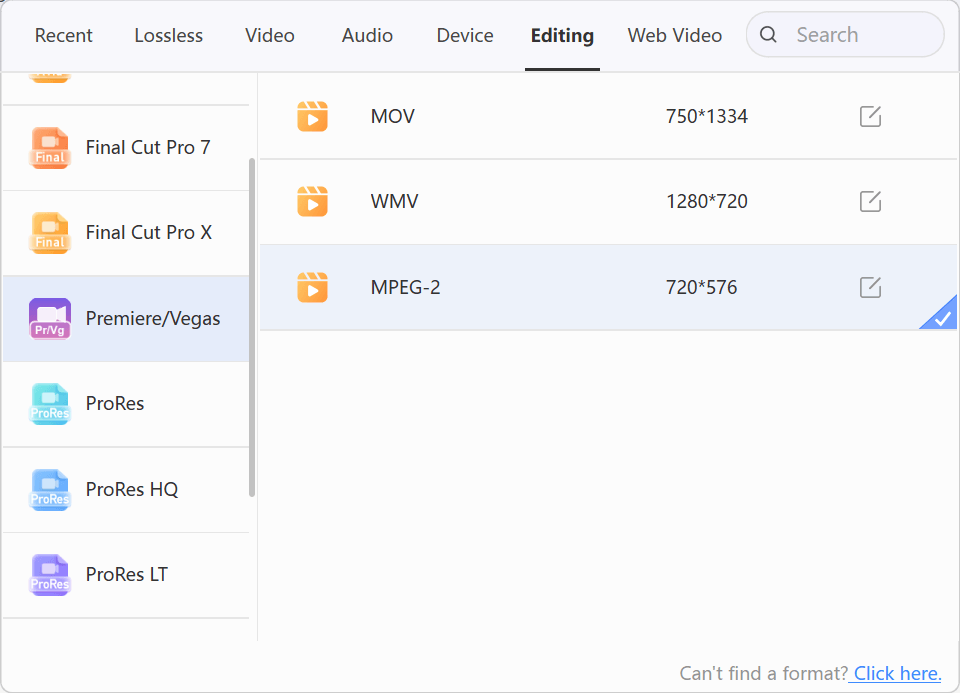
Choose Editing > Premiere/VEGAS > MPEG-2

Open Output Format, select the Editing group, choose Premiere/VEGAS, and select MPEG-2. Match the resolution and frame rate to the editing sequence.

LosslessConverter Output Format menu with Premiere VEGAS and MPEG-2 selected
MPEG-2Select Premiere/VEGAS, then choose MPEG-2.
03

Create the current output

Select Start All, then verify in the destination player

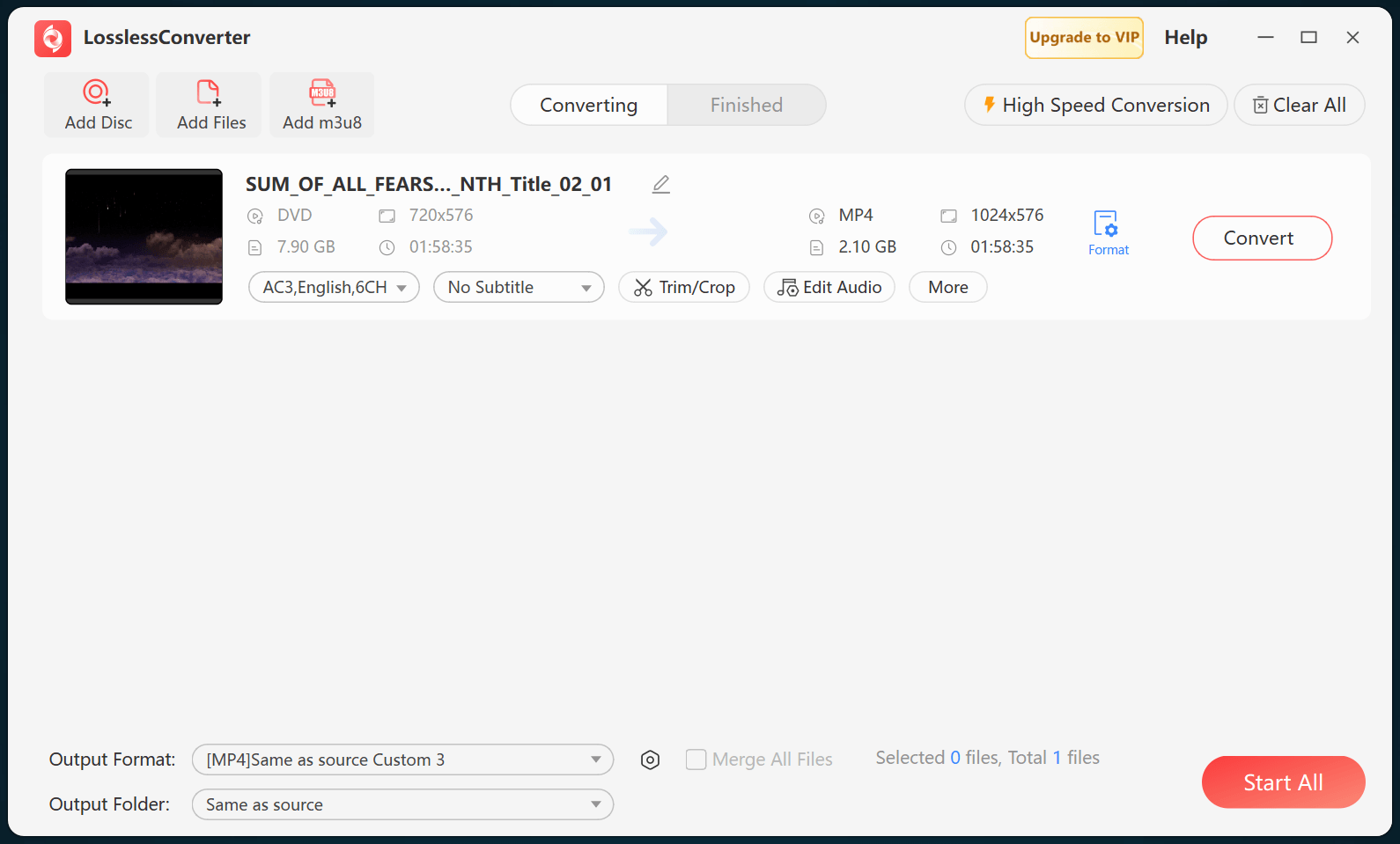
Choose an output folder and select Start All. When processing finishes, open the MPEG-2 files in the destination player and verify picture, aspect ratio, audio, and sync.

LosslessConverter main window with Start All ready at the lower right
Start AllRun the task, then verify the result.

Try it with your own media

Process one file, verify the result, then run the full batch.

The free version limits many processing operations to the first three minutes. Check compatibility and trial limits.