Video and audio guide

Add mixed video formats to a legacy iTunes library

Convert AVI, VOB, MKV, TiVo, and MPG sources to an iTunes-compatible format.

Updated September 4, 2026By

The free version limits many processing operations to the first three minutes. Check compatibility and trial limits.

  • Media filesVideo or audio files
  • Choose MP4Output matched to this workflow
  • The Apple media library checkVerify before batch processing

Before you begin

Match the output to its destination.

Check the codecs inside the source container and the requirements of the target player, editor, or device before converting.

Convert AVI/VOB/MKV/TiVo/MPG to iTunes Supported Video Formats

Convert AVI/VOB/MKV/TiVo/MPG to iTunes-friendly format

iTunes accepts a narrower set of video containers and codecs than the source list in this guide. AVI, VOB, MKV, TiVo, and many MPG files therefore need an iTunes-compatible MP4, MOV, or M4V output before they can be added reliably. The file extension alone does not guarantee compatibility: the video and audio codecs inside the container must also be supported.

Choose Common Video when you need a standard MP4, M4V, or MOV file, or use the matching Apple device preset when the result is intended for an iPhone, iPad, iPod, or Apple TV. Change resolution, frame rate, or bitrate only when the destination requires it, and keep the original media until playback, audio, subtitles, and sync have been checked.
Workflow direction

Follow the intended workflow below.

Convert AVI, VOB, MKV, TiVo, and MPG sources to an iTunes-compatible format.

Three-step workflow

Create and verify one test output before processing the full batch.

Convert AVI, VOB, MKV, TiVo, and MPG sources to an iTunes-compatible format.

01

Add the source

Load the AVI, VOB, MKV, TiVo, or MPG files

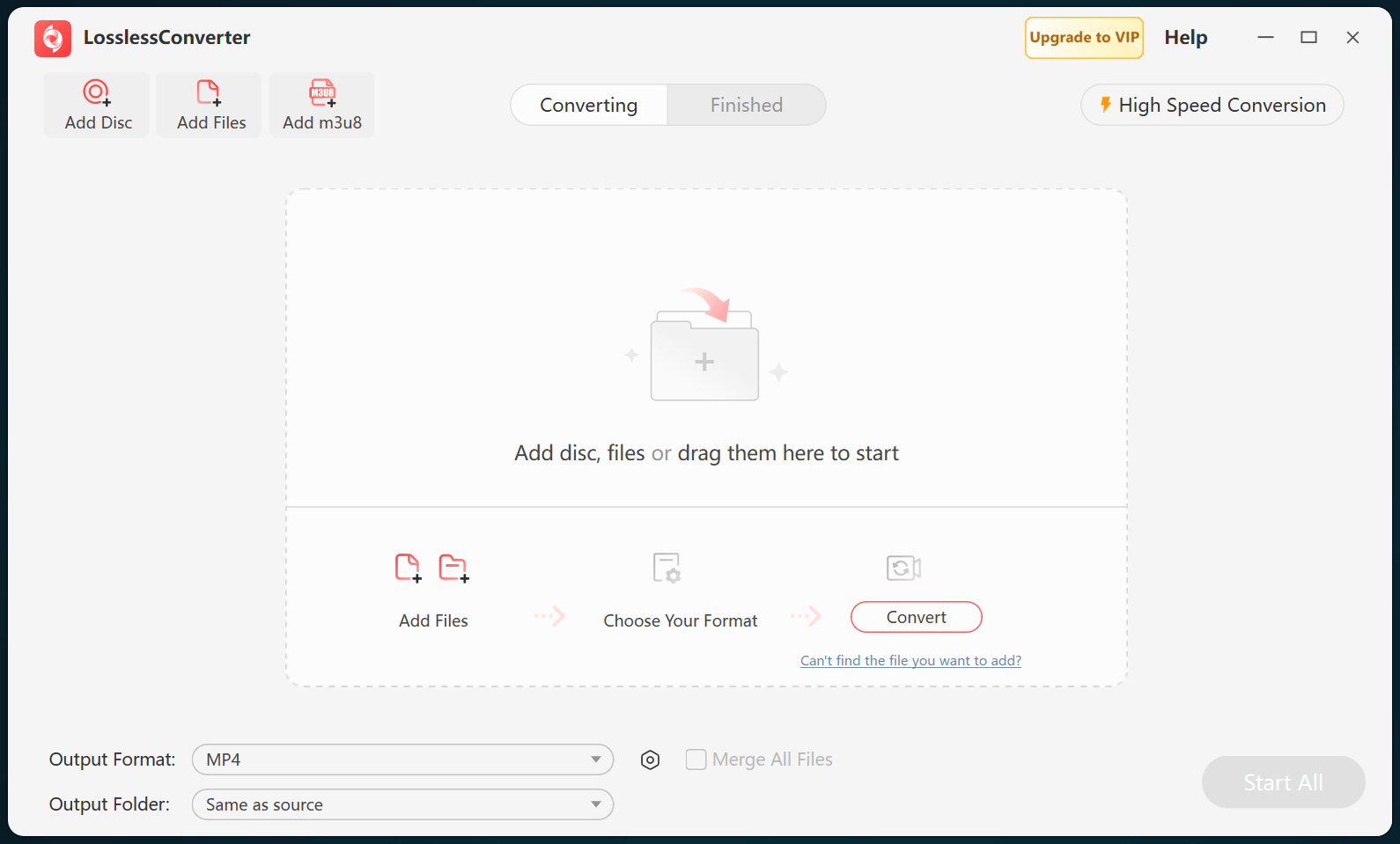
Open LosslessConverter and select Add Files. Add the AVI, VOB, MKV, TiVo, or MPG files and select the files required for this workflow.

LosslessConverter main window with the source controls visible
Source toolbarLoad the source from the main toolbar.
02

Create a broadly compatible file

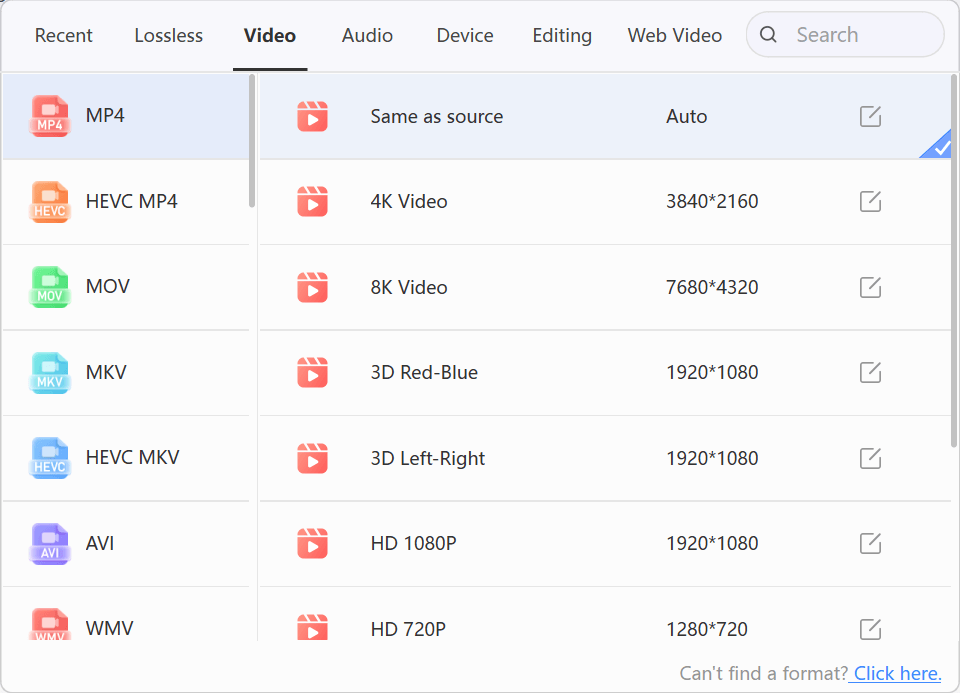
Choose Video > MP4

Open Output Format, select the Video group, and choose MP4. Start with Same as source, then change resolution only when the destination requires it.

LosslessConverter Output Format menu with Video and MP4 selected
MP4Select Video, then choose MP4.
03

Create the current output

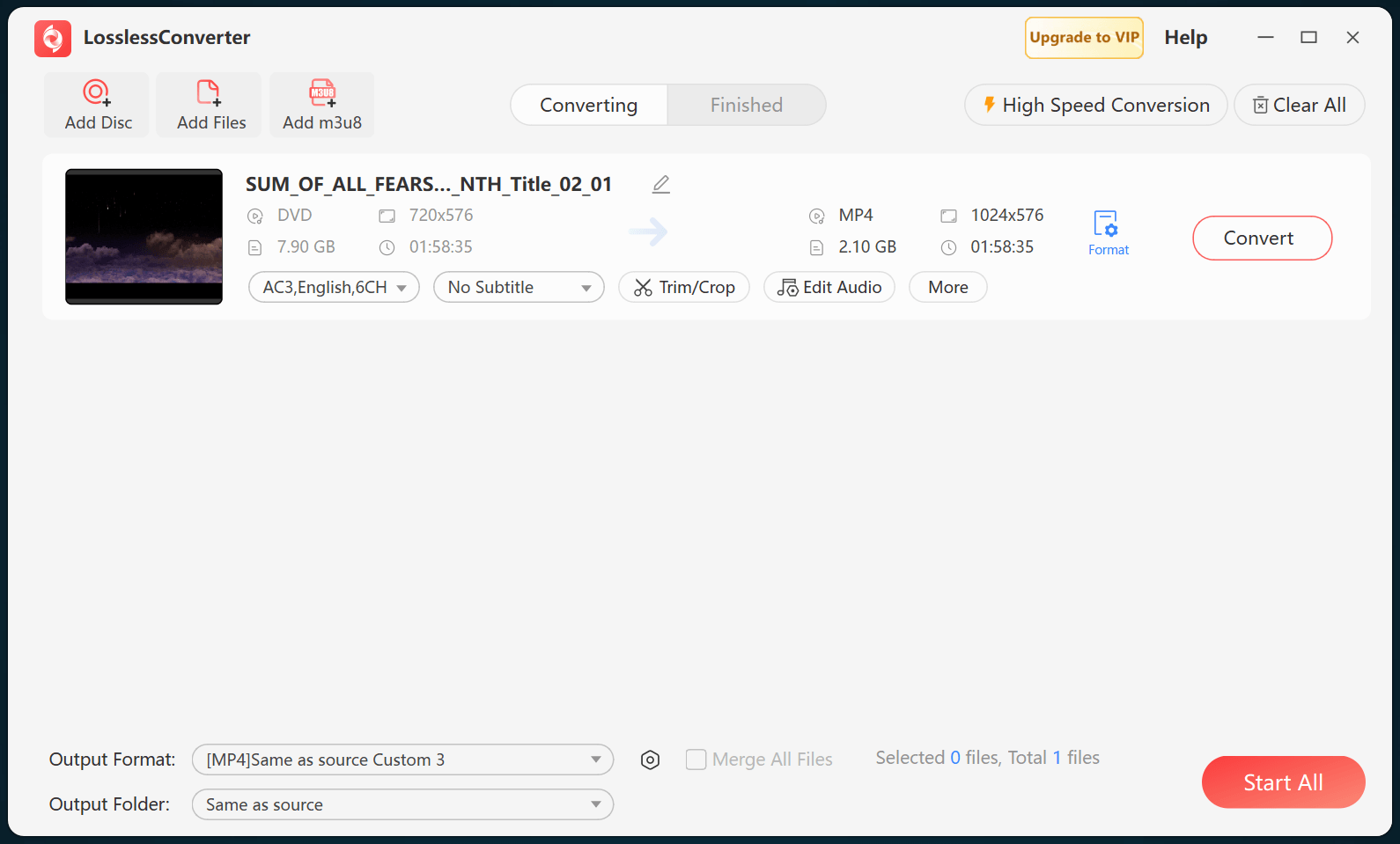
Select Start All, then verify in the Apple media library

Choose an output folder and select Start All. When processing finishes, add the MP4 files to the Apple media library and verify picture, audio, and sync on the intended Apple device.

LosslessConverter main window with Start All ready at the lower right
Start AllRun the task, then verify the result.

Try it with your own media

Process one file, verify the result, then run the full batch.

The free version limits many processing operations to the first three minutes. Check compatibility and trial limits.