
Video and audio guide

How to convert MKV DTS to AC3 5.1

Keep multichannel sound while improving home theater compatibility.
Updated September 4, 2026By

The free version limits many processing operations to the first three minutes. Check compatibility and trial limits.

  • Media filesVideo or audio files
  • Choose MKVOutput matched to this workflow
  • AC-3 5.1 playback checkVerify before batch processing

Problem and solution

Match the output to its destination.

Check the codecs inside the source container and the requirements of the target player, editor, or device before converting.

How to convert MKV with DTS sound to AC3 with 5.1 channel sound

Question 1: MKV - DTS to AC3 nightmare

Nearly all my MKVs are DTS only but unfortunately because I'm routing everything through a 4x2 HDMI Matrix box DTS doesn't work and can only get PCM or DD 5.1 which to be honest I'd be happy with as I really can't tell the difference! So what is the quickest easiest and cheapest way to convert a DTS MKV to a DD MKV preferably?

Question 2: Anyway to convert MKV DTS to AC3 5.1 surround sound?

I have been wondering and searching the net and there doesn't seem to be a confirmed answer on whether it is possible to convert MKV DTS to AC3 5.1 surround sound? I have done DTS to AC3 2 channel a ton of times. Would be nice to be able to get 5.1 sound out of my sound system. Thanks.

How to convert MKV DTS to AC3 5.1

Solution direction

Keep multichannel sound while improving home theater compatibility.
Recommended output

Use the output parameters required by this guide.

Only parameters stated by this workflow are shown. Match any remaining settings to the source and destination.

Container
MKV
Video
H.264 / AVC
Audio
AC-3 5.1

Three-step workflow

Create and verify one test output before processing the full batch.

Keep multichannel sound while improving home theater compatibility.

01

Add the source

Load the MKV files with DTS audio

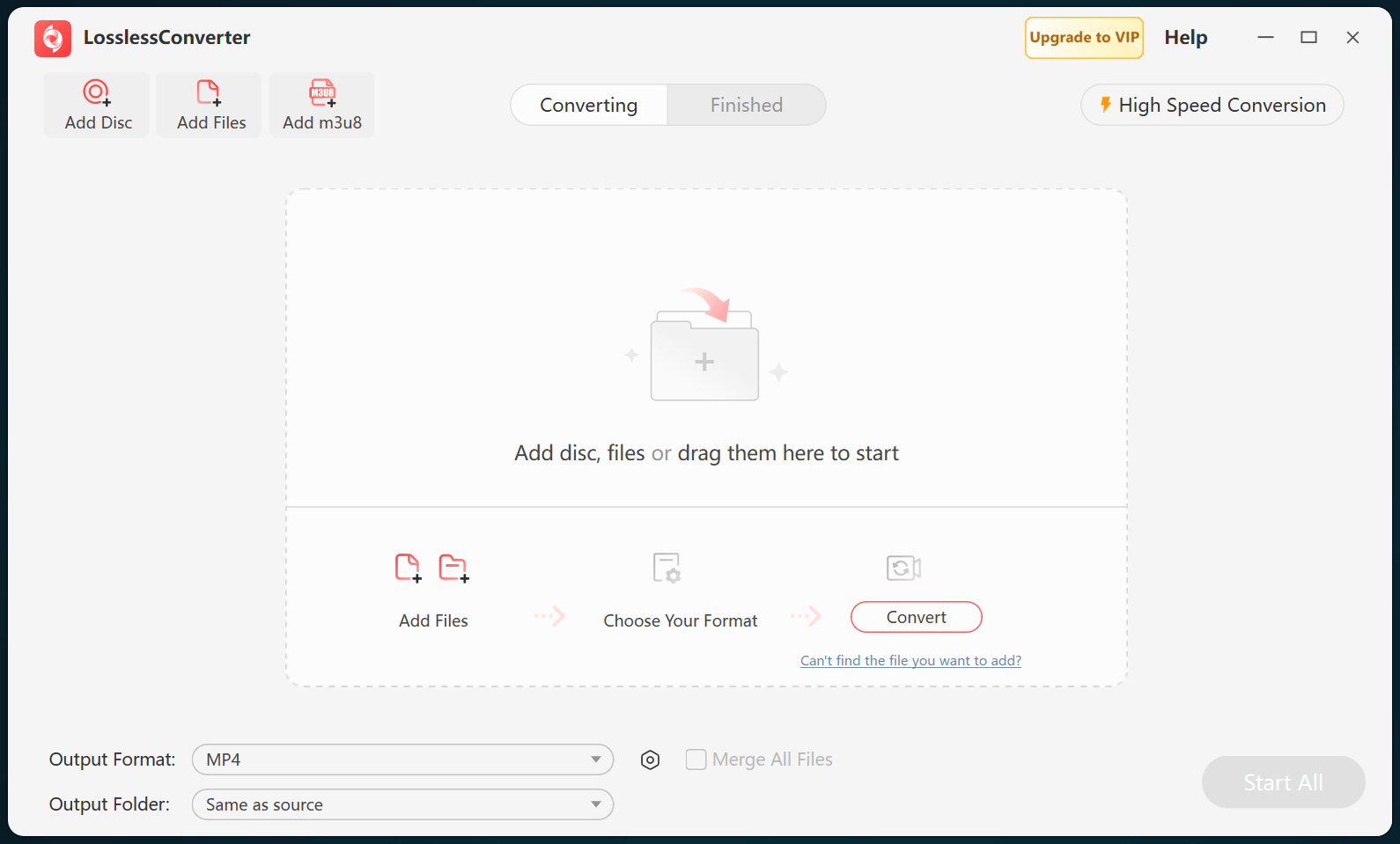
Open LosslessConverter and select Add Files. Add the MKV files with DTS audio and select the files required for this workflow.

LosslessConverter main window with the source controls visible
Source toolbarLoad the source from the main toolbar.
02

Keep flexible tracks and quality

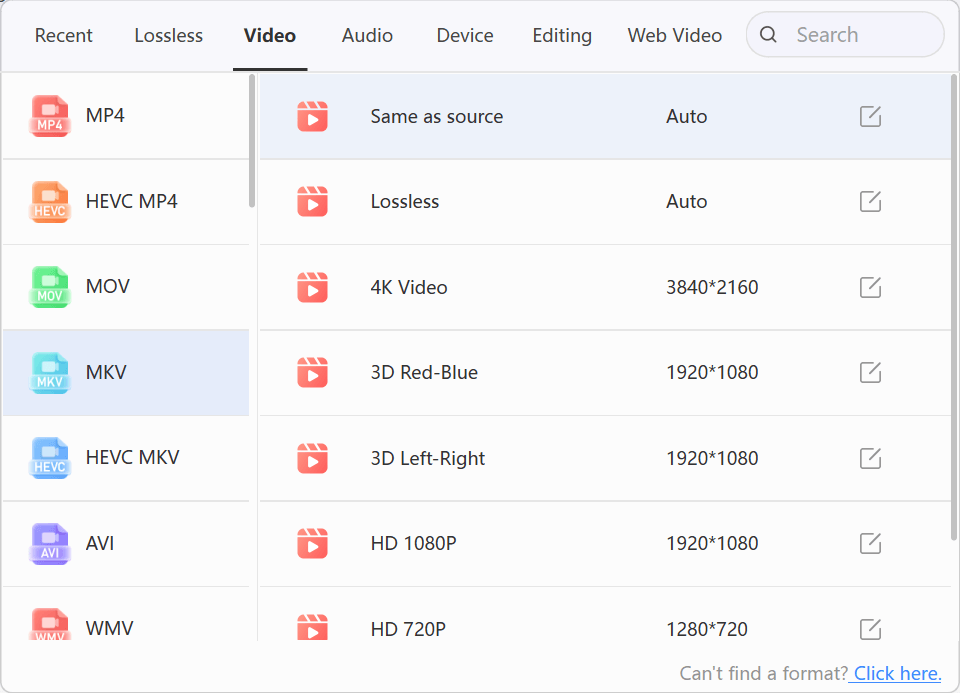
Choose Video > MKV

Open Output Format, select the Video group, and choose MKV. Select Lossless when preserving source quality is the priority, or use an HD profile when file size matters.

LosslessConverter Output Format menu with Video and MKV selected
MKVSelect Video, then choose MKV.
03

Create the current output

Select Start All, then verify in AC-3 5.1 playback

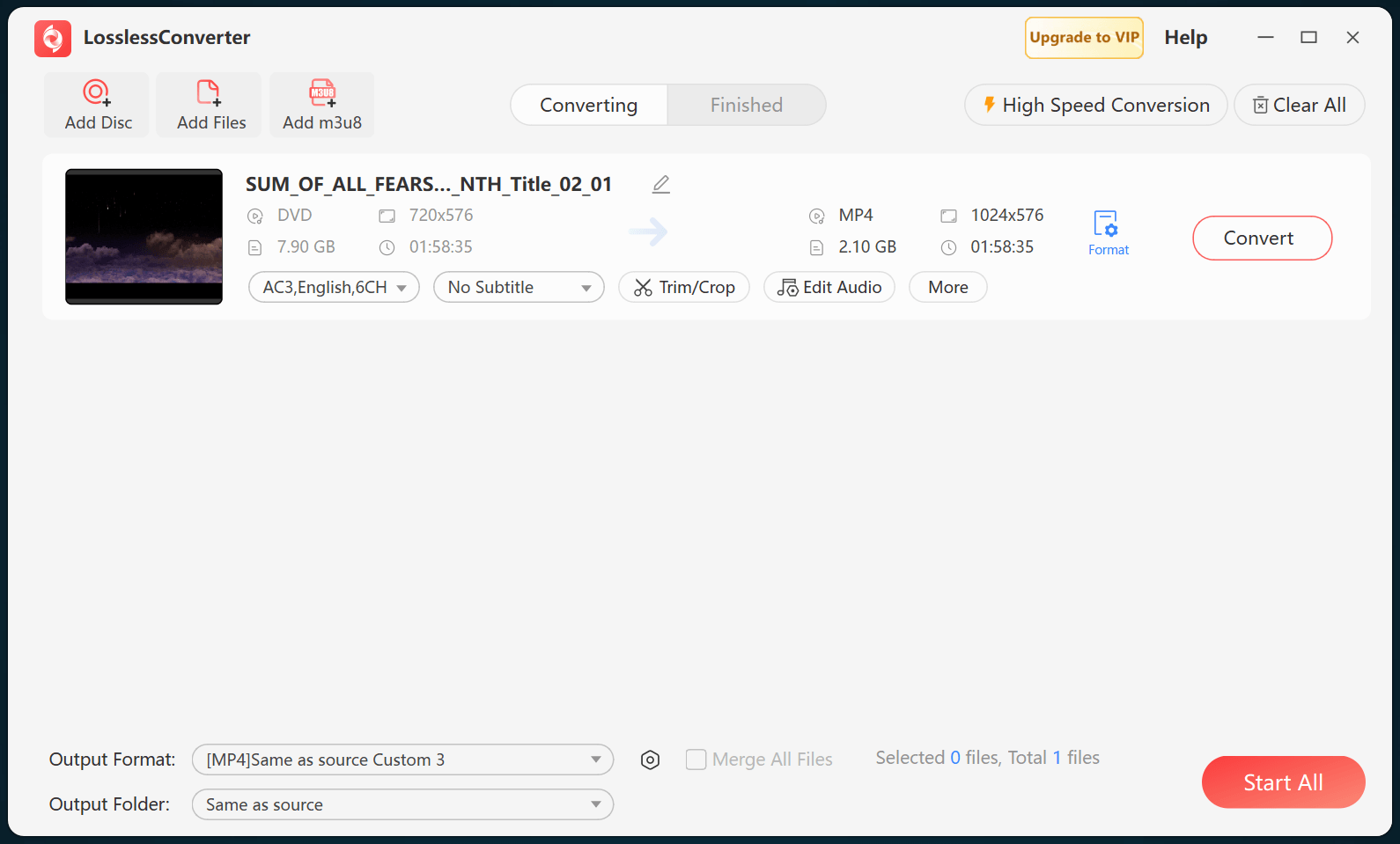
Choose an output folder and select Start All. When processing finishes, open the MKV file in the destination player and confirm that the AC-3 5.1 track and channel layout are detected correctly.

LosslessConverter main window with Start All ready at the lower right
Start AllRun the task, then verify the result.

Try it with your own media

Process one file, verify the result, then run the full batch.

The free version limits many processing operations to the first three minutes. Check compatibility and trial limits.