Blu-ray guide

How to rip Blu‑ray with the right audio tracks

Select the language and soundtrack that belong in the output.

Updated September 4, 2026By

The free version limits many processing operations to the first three minutes. Check compatibility and trial limits.

  • Blu-ray sourceDisc, folder, or ISO
  • Choose Multi-track MKVOutput matched to this workflow
  • A multitrack MKV file checkVerify before batch processing

Before you begin

Confirm the disc source and playback goal.

Select the correct title, audio, and subtitle tracks, then match the output to the player, device, or archive workflow.

Select the required Blu-ray audio tracks

A disc can contain the main soundtrack, alternate languages, commentary, descriptive audio, and different channel layouts. Identify tracks by language, codec, channels, and role instead of assuming the first stream is the desired one.

Use Multi-track MKV when the goal is to retain several compatible original streams. Use a playback-focused output only when the destination requires another codec or channel layout. Verify dialogue, language, channel mapping, and sync in the intended player.

When a supported physical Blu-ray is loaded, LosslessConverter handles AACS and BD+ protection and removes AACS Bus Encryption when it is present on the drive-to-computer data path. Audio-track selection is applied after the disc has been read.
Workflow direction

Follow the intended workflow below.

Select the language and soundtrack that belong in the output.

Three-step workflow

Create and verify one test output before processing the full batch.

Select the language and soundtrack that belong in the output.

01

Add the source

Load the Blu-ray disc

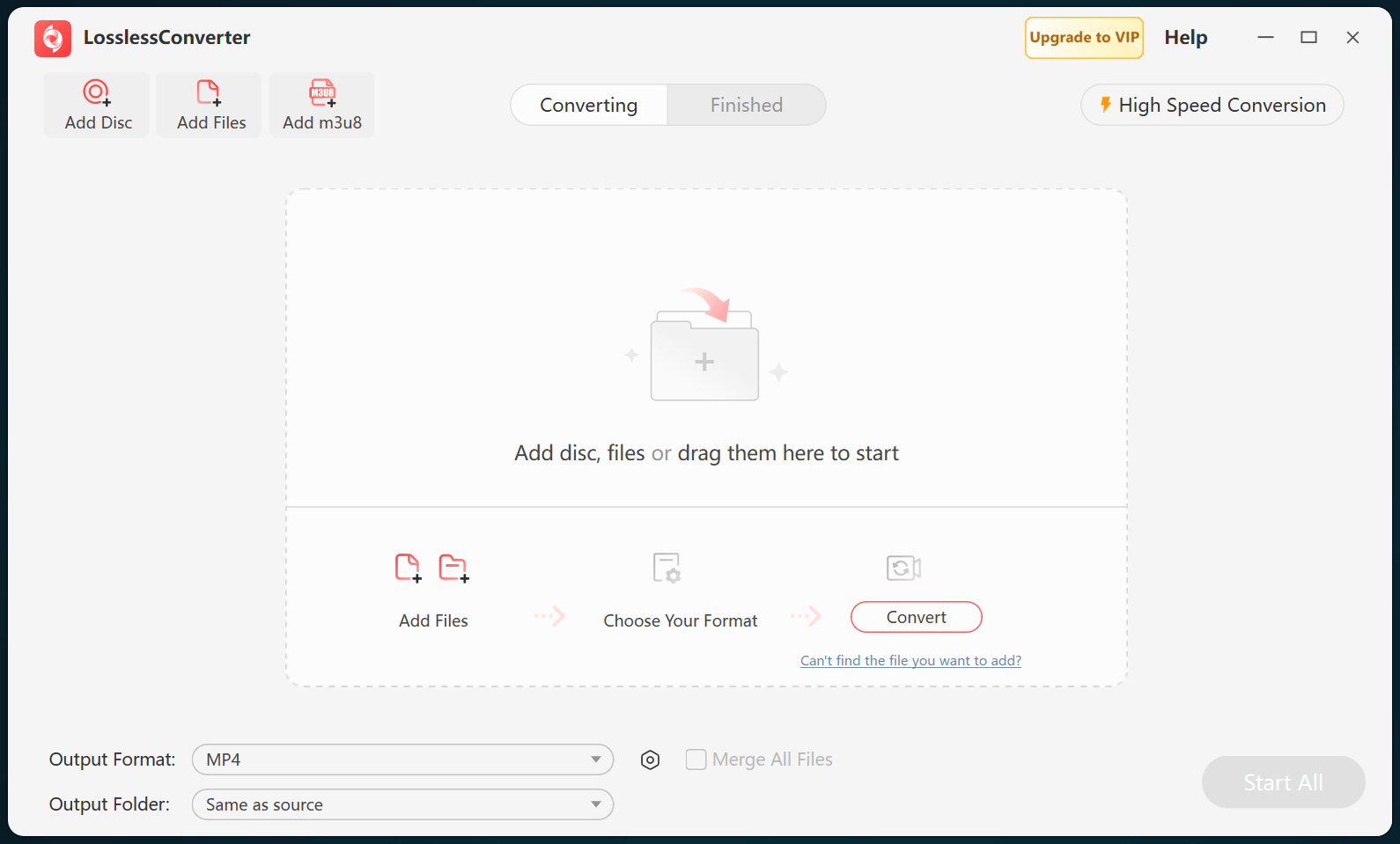
Open LosslessConverter and select Add Disc. Add the Blu-ray disc, then select the required title, audio, and subtitle tracks.

LosslessConverter main window with the source controls visible
Source toolbarLoad the source from the main toolbar.
02

Preserve selected tracks

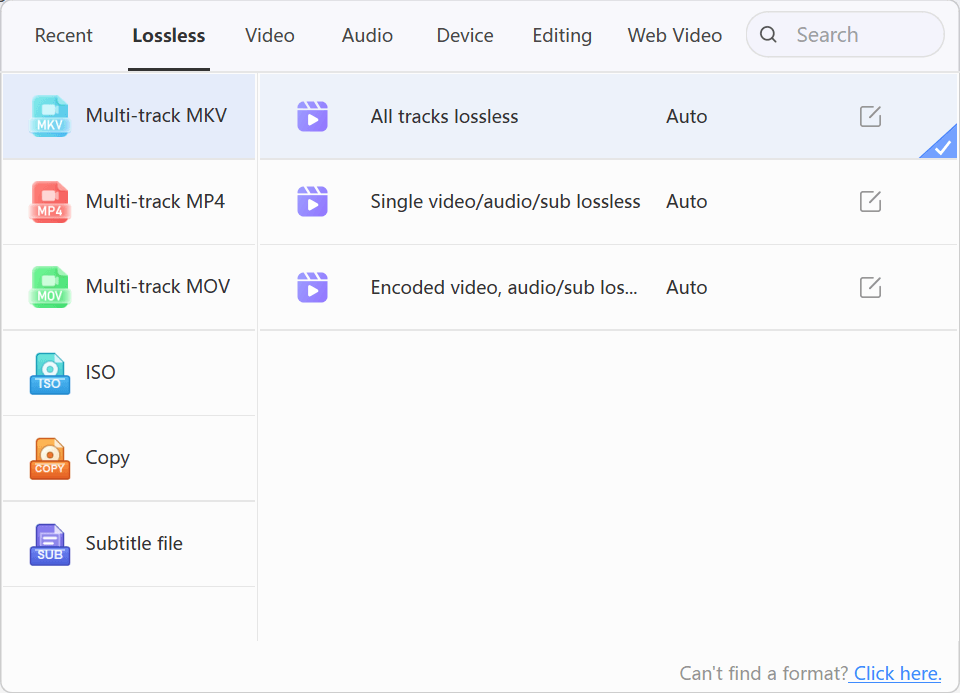
Choose Lossless > Multi-track MKV

Open Output Format, select the Lossless group, and choose Multi-track MKV. Keep the audio and subtitle tracks required by the destination.

LosslessConverter Output Format menu with Lossless and Multi-track MKV selected
Multi-track MKVSelect Lossless, then choose Multi-track MKV.
03

Create the current output

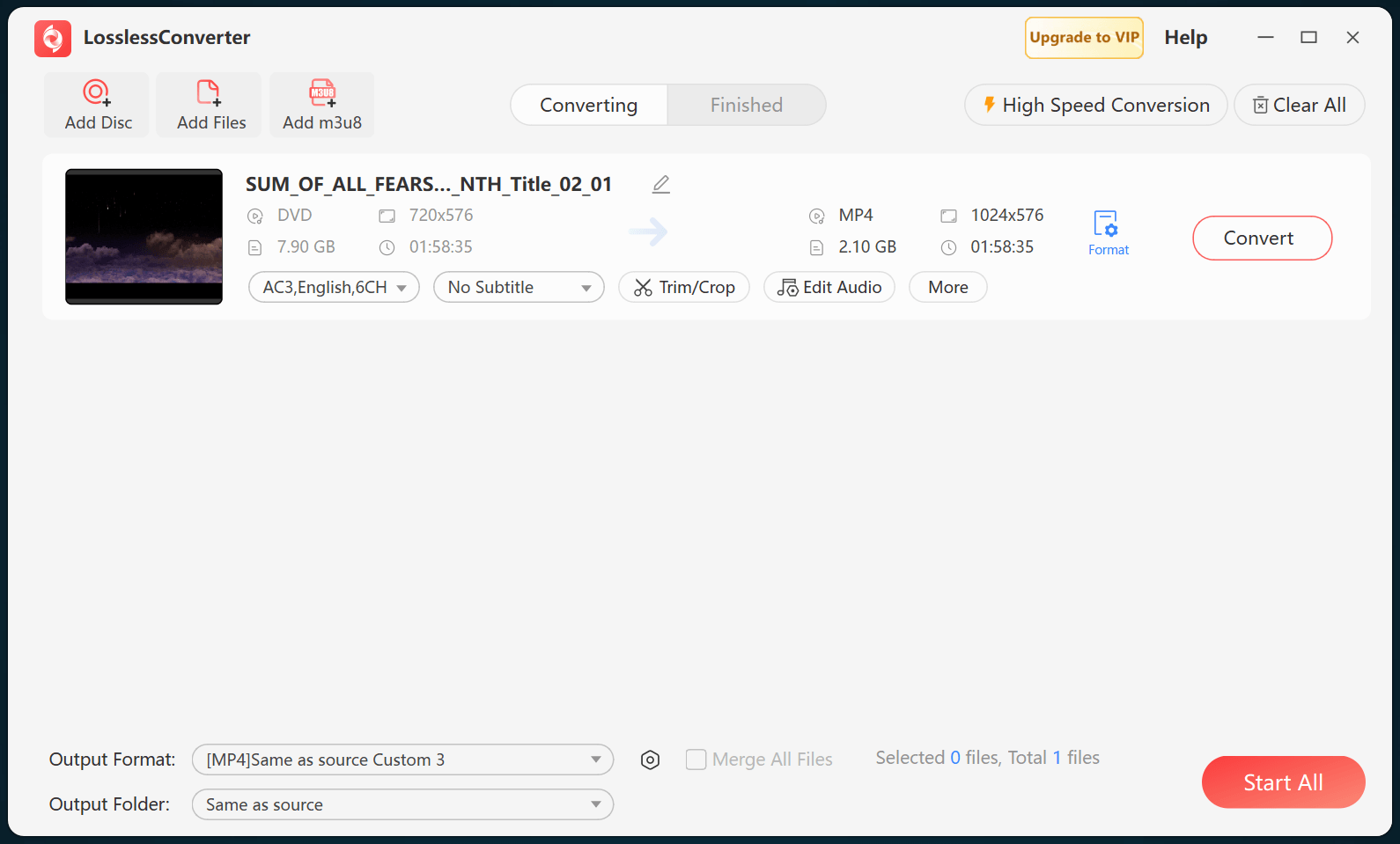
Select Start All, then verify in a multitrack MKV file

Choose an output folder and select Start All. When processing finishes, inspect the MKV in a media-information tool and confirm that every selected audio and subtitle track is present.

LosslessConverter main window with Start All ready at the lower right
Start AllRun the task, then verify the result.

Try it with your own media

Process one file, verify the result, then run the full batch.

The free version limits many processing operations to the first three minutes. Check compatibility and trial limits.