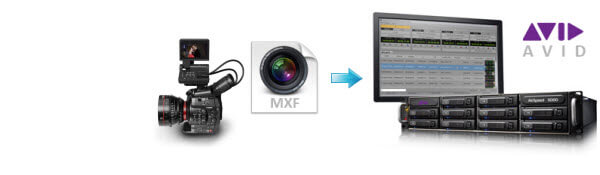
MXF workflow

Transcode Canon MXF to DNxHD for Avid

Convert Canon camera media into an Avid-friendly DNxHD workflow.

Updated September 4, 2026By

The free version limits many processing operations to the first three minutes. Check compatibility and trial limits.

  • MXF mediaCamera or broadcast MXF
  • Choose DNxHDOutput matched to this workflow
  • Avid Media Composer checkVerify before batch processing

Problem and solution

Identify the MXF codec before choosing a workflow.

Check the codec, audio layout, metadata, and camera folder structure, then confirm what the destination can import directly.

Current Avid Media Composer releases can link to supported Canon MXF media through the appropriate media component. Try the original card structure first; do not describe MXF itself as unable to preserve quality during effects work.

Use DNxHD MOV as a fallback for an HD project when the source remains unsupported or difficult to decode. Match the project resolution and frame rate and verify timecode, picture, and audio before processing a batch.
Solution direction

Apply the solution in the workflow below.

Convert Canon camera media into an Avid-friendly DNxHD workflow.

Three-step workflow

Create and verify one test output before processing the full batch.

Convert Canon camera media into an Avid-friendly DNxHD workflow.

01

Add the source

Load the Canon MXF clips

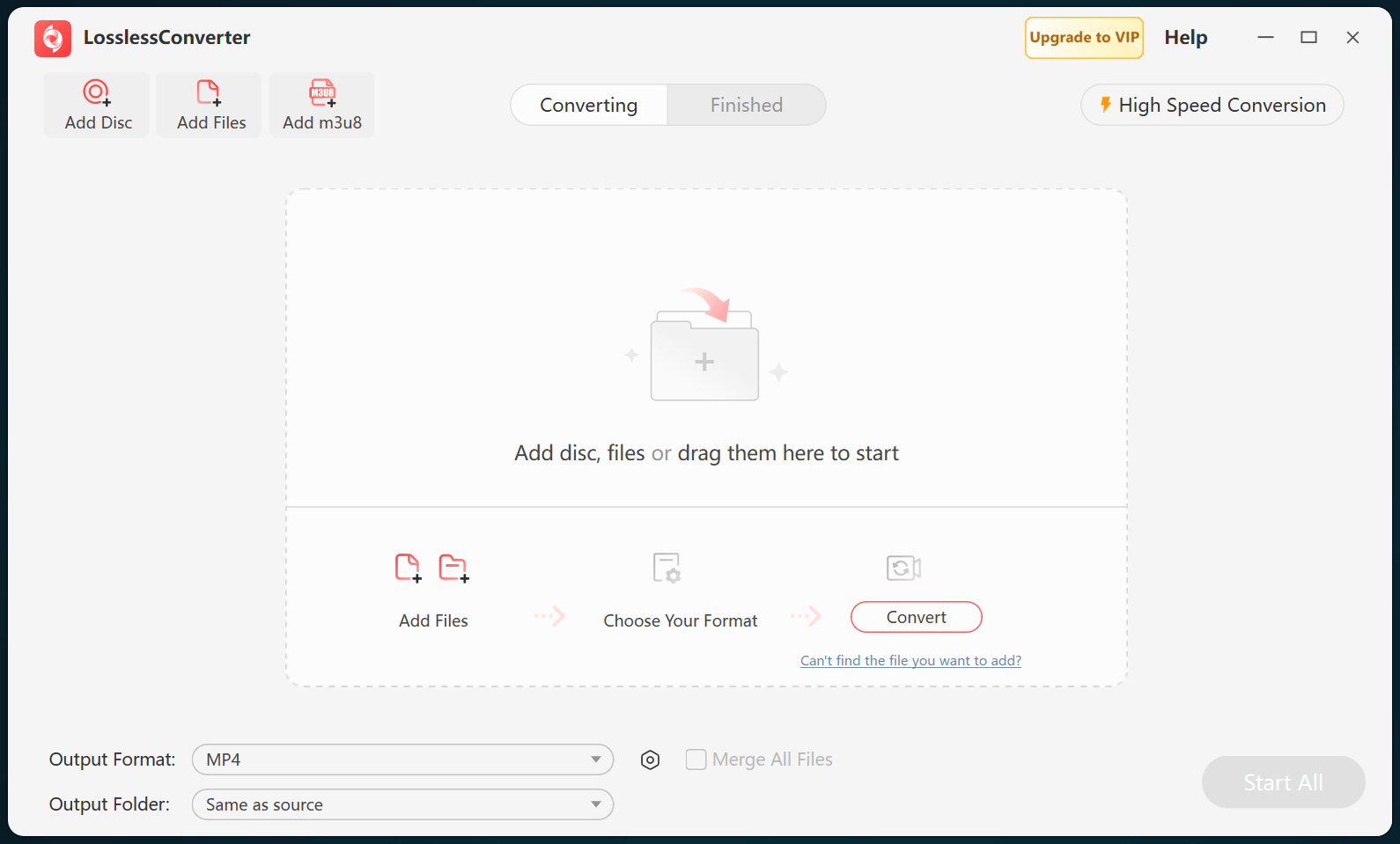
Open LosslessConverter and select Add Files. Add the Canon MXF clips and select the files required for this workflow.

LosslessConverter main window with the source controls visible
Source toolbarLoad the source from the main toolbar.
02

Match the Avid editor

Choose Editing > Avid DNxHD

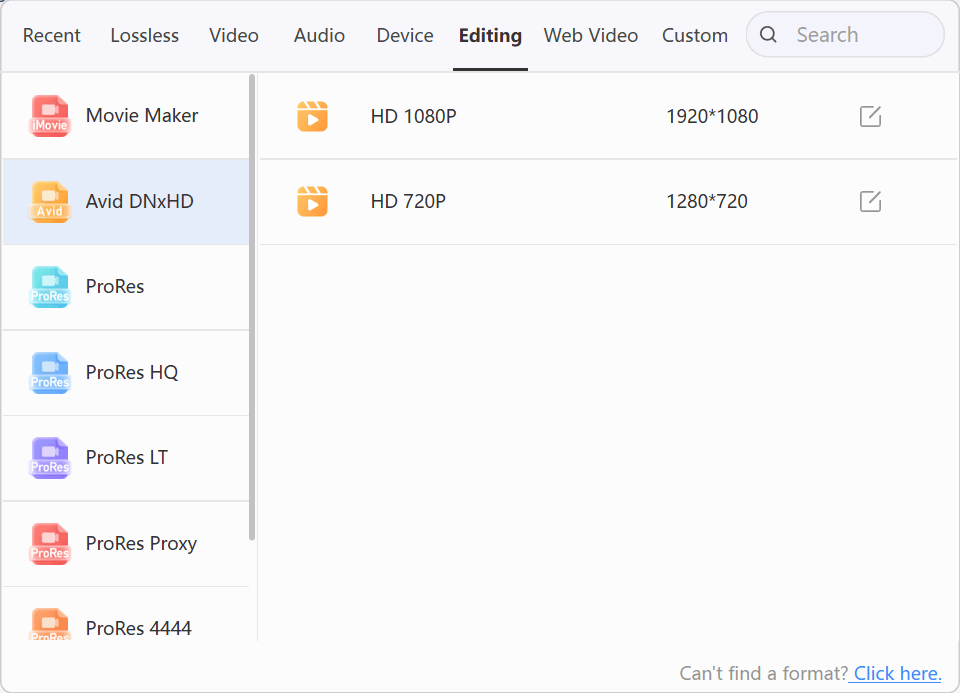
Open Output Format, select the Editing group, and choose Avid DNxHD. Use HD 1080P or HD 720P to match the project resolution.

LosslessConverter Output Format menu with Editing and Avid DNxHD selected
Avid DNxHDSelect Editing, then choose Avid DNxHD.
03

Create the current output

Select Start All, then verify in Avid Media Composer

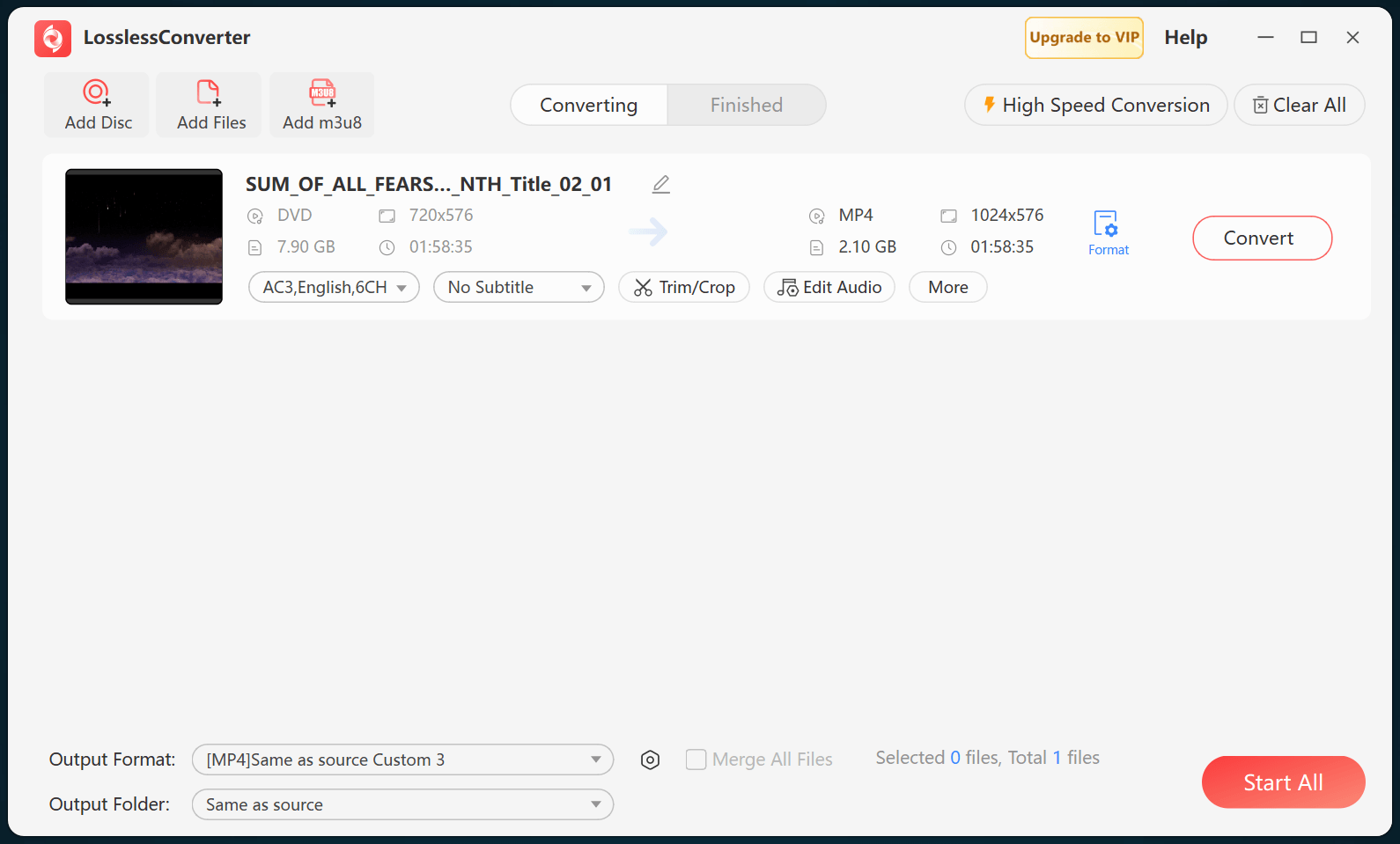
Choose an output folder and select Start All. When processing finishes, import the DNxHD MOV files into Avid Media Composer and verify picture, frame rate, timecode, and audio.

LosslessConverter main window with Start All ready at the lower right
Start AllRun the task, then verify the result.

Try it with your own media

Process one file, verify the result, then run the full batch.

The free version limits many processing operations to the first three minutes. Check compatibility and trial limits.

Primary sources

Official references for this workflow

Use these first-party references to confirm current format, application, or device support. Capabilities can change after this guide is updated.