MTS and M2TS guide

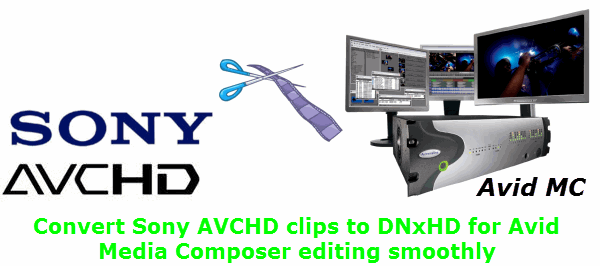
Transcode Sony AVCHD to DNxHD MOV

Move MTS/M2TS clips into an Avid-friendly editing workflow.

Updated September 4, 2026By

The free version limits many processing operations to the first three minutes. Check compatibility and trial limits.

  • MTS/M2TS footageAVCHD or M2TS files
  • Choose DNxHDOutput matched to this workflow
  • Avid Media Composer checkVerify before batch processing

Problem and solution

Check the AVCHD source before choosing a workflow.

Keep the original camera folder when available, then confirm the recording mode, frame rate, and destination support before converting.

Transcoding Sony AVCHD MTS/M2TS clips to DNxHD MOV for Avid Media Composer smooth editing


When you are on a special day with your family&friends such as birthday, Thanksgiving day or Graduation ceremony and so on, you may need some digital camcorders to keep the memory for you. Many camcorder manufactories are trying their best to make their camcorders preciser and more portable. Sony also takes up much area in the market. They produce a number of camcorders which are popular around the world, such as Sony Cyber-shot RX100, Sony A77, Sony A57, Sony A65, Sony NEX-5n, NEX-VG20, NEX FS100 .etc. It's common for these users to have hundreds of MTS footage clips stored in the camera shotted in the journey or some special occasions. But problem turns up. If you are eager to edit these stored AVCHD videos in Avid Media Composer on you Mac to share with your friends&family members on computer or some portable devices, you may meet importing issues as the user below.


I am about to cut a half hour documentary from about 30 hours of AVCHD footage, shot on Sony FS100. I need to import the AVCHD mts clips into Avid Media Composer 5.5.3 but I am not sure exactly what codec is acceptable for them. Any suggestion are appreciated. Thank you!


Then how to bypass this kind of situation?


How to Convert Sony AVCHD MTS/M2TS clips to DNxHD MOV for Avid Media Composer?


Notes: If you are a Windows user and also want to make the MTS clips compatible with Avid Media Composer, LosslessConverter for Windows is your best choice. The steps are the same with above.
Solution direction

Apply the solution in the workflow below.

Move MTS/M2TS clips into an Avid-friendly editing workflow.

Three-step workflow

Create and verify one test output before processing the full batch.

Move MTS/M2TS clips into an Avid-friendly editing workflow.

01

Add the source

Load the Sony AVCHD clips

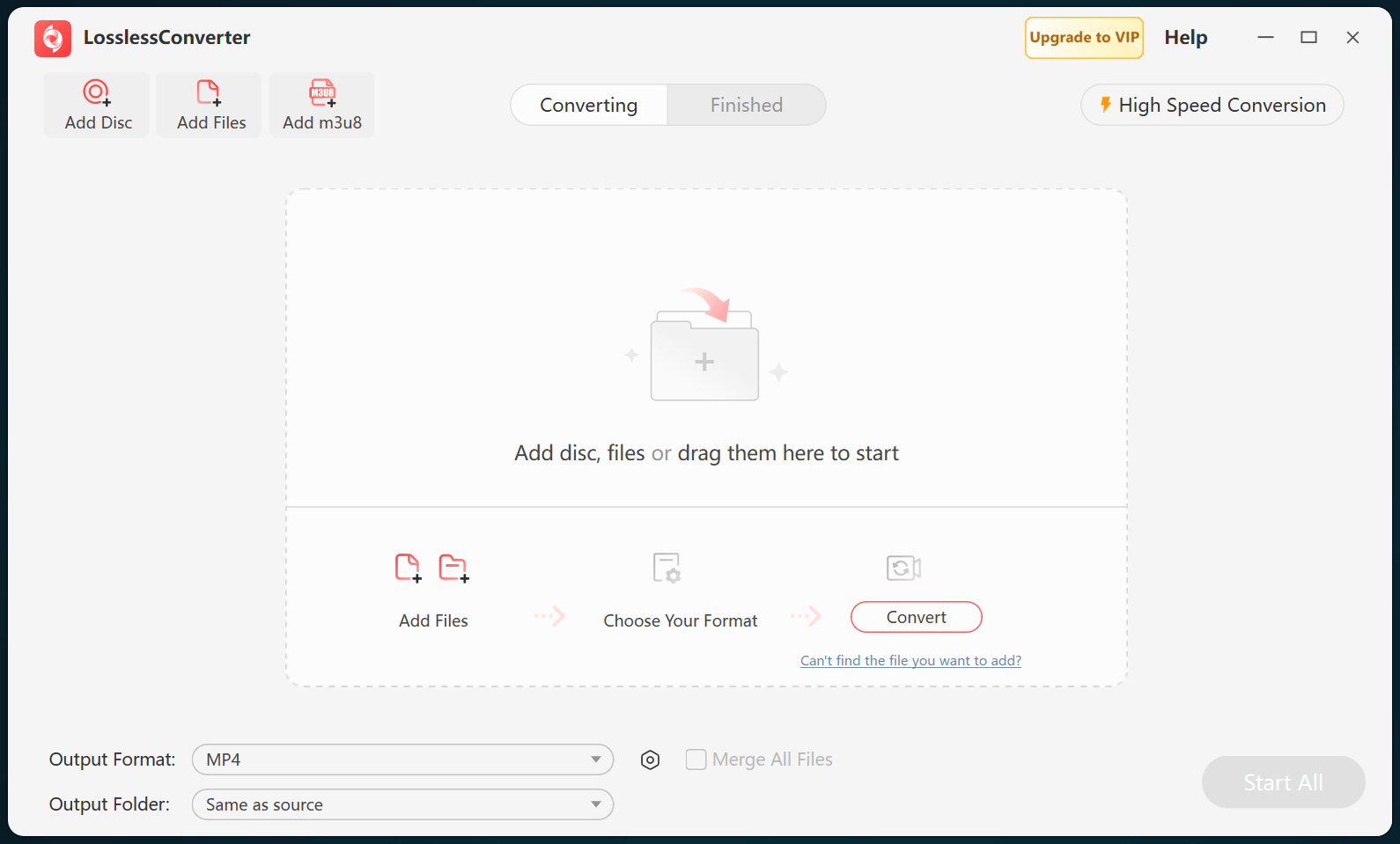
Open LosslessConverter and select Add Files. Add the Sony AVCHD clips and select the files required for this workflow.

LosslessConverter main window with the source controls visible
Source toolbarLoad the source from the main toolbar.
02

Match the Avid editor

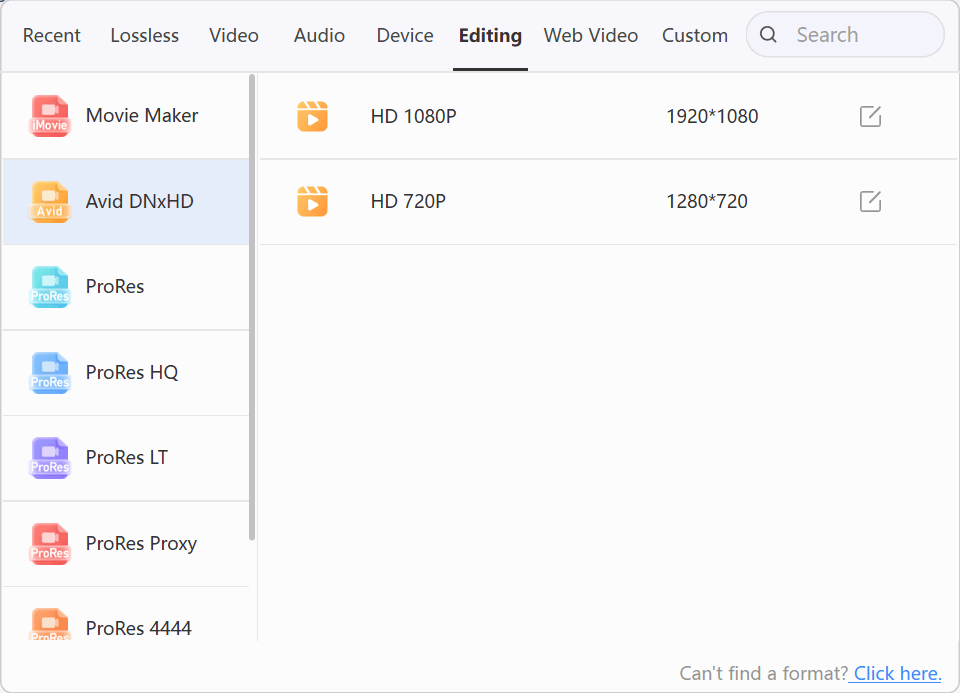
Choose Editing > Avid DNxHD

Open Output Format, select the Editing group, and choose Avid DNxHD. Use HD 1080P or HD 720P to match the project resolution.

LosslessConverter Output Format menu with Editing and Avid DNxHD selected
Avid DNxHDSelect Editing, then choose Avid DNxHD.
03

Create the current output

Select Start All, then verify in Avid Media Composer

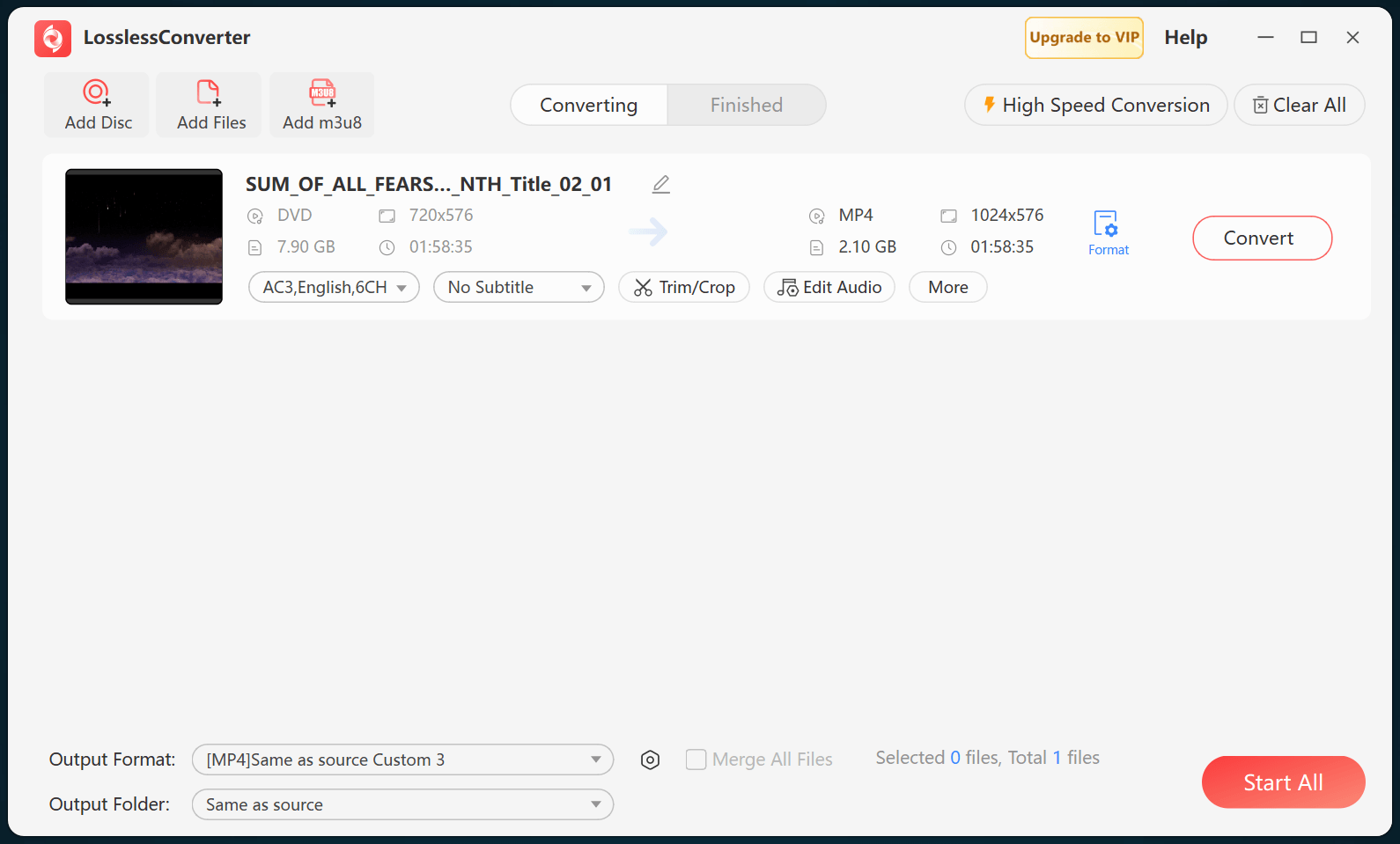
Choose an output folder and select Start All. When processing finishes, import the DNxHD MOV files into Avid Media Composer and verify picture, frame rate, and audio.

LosslessConverter main window with Start All ready at the lower right
Start AllRun the task, then verify the result.

Try it with your own media

Process one file, verify the result, then run the full batch.

The free version limits many processing operations to the first three minutes. Check compatibility and trial limits.

Primary sources

Official references for this workflow

Use these first-party references to confirm current format, application, or device support. Capabilities can change after this guide is updated.