
DVD guide

How to rip a DVD to MKV

Create an MKV copy with flexible video, audio, and subtitle tracks.

Updated September 4, 2026By

The free version limits many processing operations to the first three minutes. Check compatibility and trial limits.

  • DVD sourceDisc, VIDEO_TS, or ISO
  • Choose MKVOutput matched to this workflow
  • MKV playback or storage checkVerify before batch processing

Before you begin

Confirm the DVD title and intended output.

Check the disc structure, aspect ratio, audio, subtitles, and destination requirements before creating a copy.

Choose between a remux and an encoded MKV

MKV can hold video, multiple audio and subtitle tracks, and chapters, but the container does not make every workflow lossless. A stream-preserving profile keeps compatible DVD streams, while an encoded profile creates new video or audio and may change quality and file size.

Select the correct authorized title and required tracks. Verify aspect ratio, interlaced motion, chapters, audio language, subtitles, and sync in the intended player before processing another disc.
Workflow direction

Follow the intended workflow below.

Create an MKV copy with flexible video, audio, and subtitle tracks.

Three-step workflow

Create and verify one test output before processing the full batch.

Create an MKV copy with flexible video, audio, and subtitle tracks.

01

Add the source

Load the DVD disc

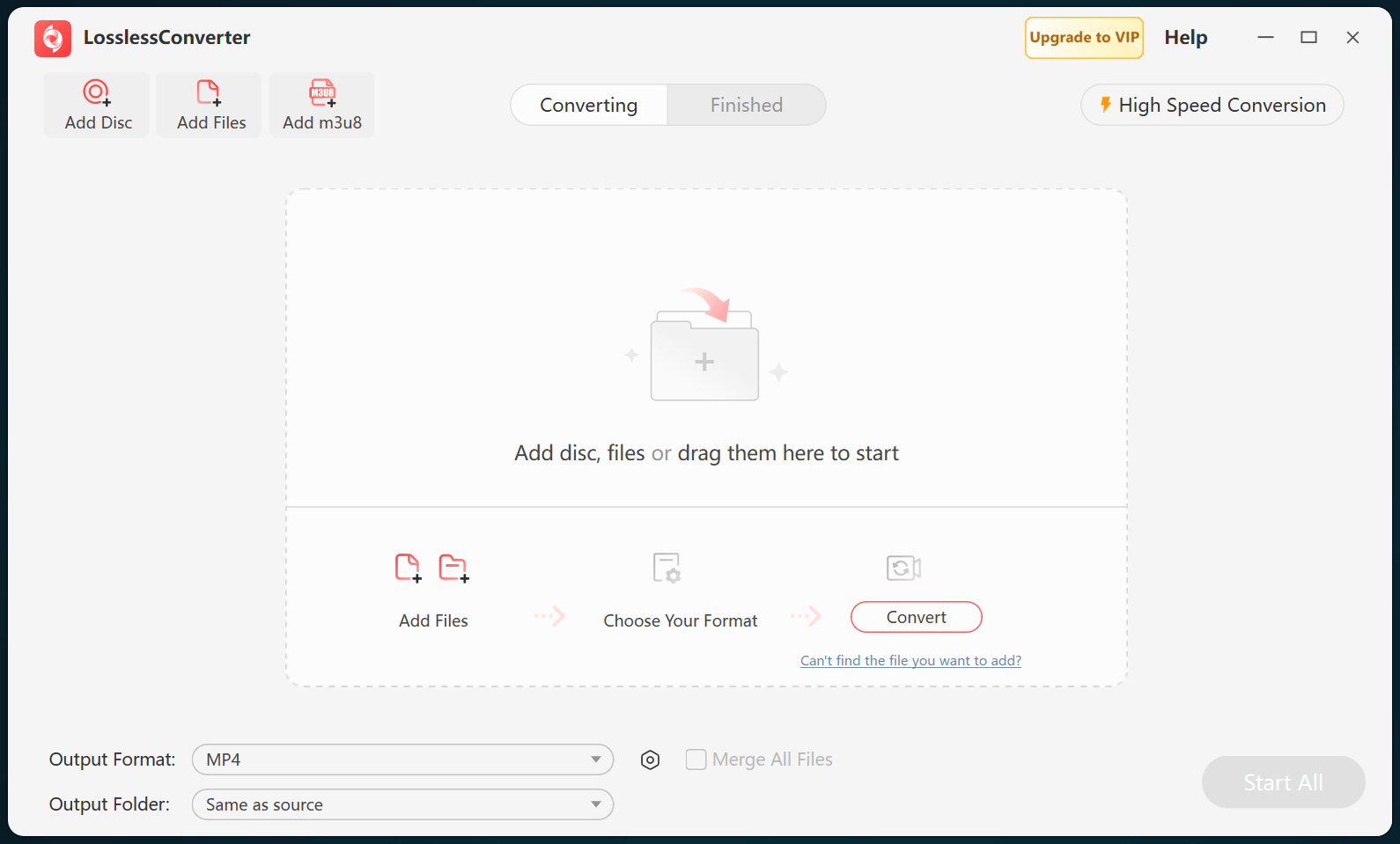
Open LosslessConverter and select Add Disc. Add the DVD disc, then select the required title, audio, and subtitle tracks.

LosslessConverter main window with the source controls visible
Source toolbarLoad the source from the main toolbar.
02

Keep flexible tracks and quality

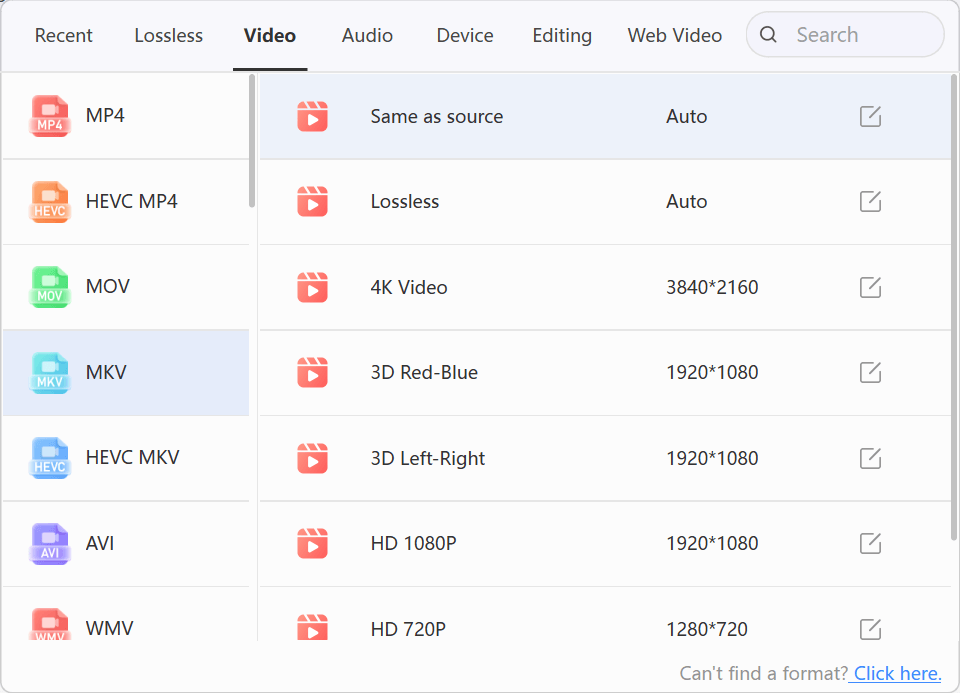
Choose Video > MKV

Open Output Format, select the Video group, and choose MKV. Select Lossless when preserving source quality is the priority, or use an HD profile when file size matters.

LosslessConverter Output Format menu with Video and MKV selected
MKVSelect Video, then choose MKV.
03

Create the current output

Select Start All, then verify in MKV playback or storage

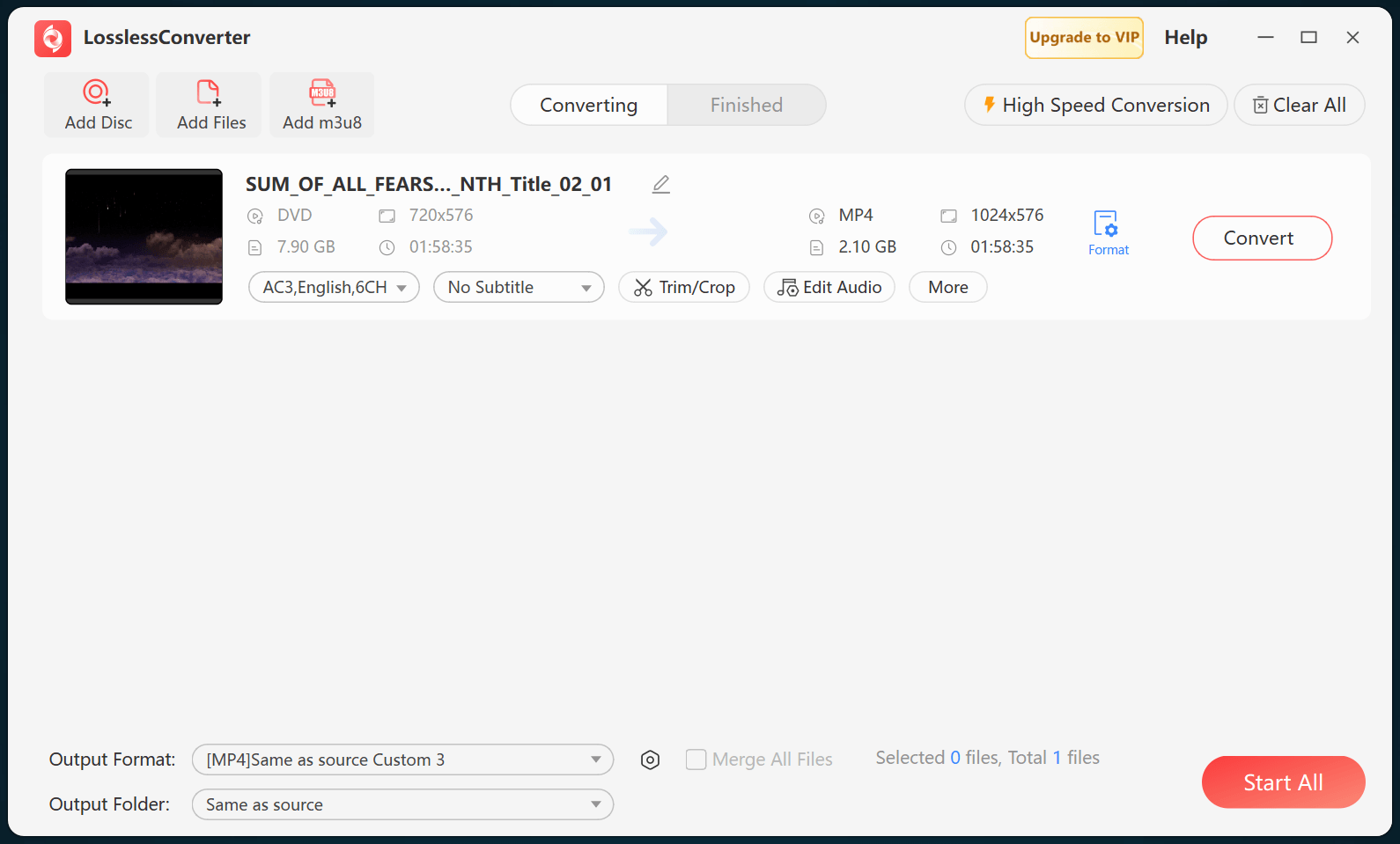
Choose an output folder and select Start All. When processing finishes, open the MKV file in the destination player and verify the selected title, audio tracks, subtitles, chapters, and sync.

LosslessConverter main window with Start All ready at the lower right
Start AllRun the task, then verify the result.

Try it with your own media

Process one file, verify the result, then run the full batch.

The free version limits many processing operations to the first three minutes. Check compatibility and trial limits.