
Keep DVD and Blu-ray concert menus on a NAS

To retain the original DVD or Blu-ray navigation, choose a full-disc ISO or disc-folder backup, then use a player that supports that backup and its menu system. If you mainly need chapter skips and audio-track selection, a multi-track MKV may be more convenient. Storing either on a NAS does not determine which controls your player can provide.

Audience silhouettes beneath blue and green concert lights

From audio tracks to complete concerts

You may already extract audio from concert DVDs and Blu-rays. Moving the complete performances to a NAS introduces a different requirement: you want to choose the concert or an extra, jump to a song, and switch between the available soundtracks without returning to the physical disc. Trying several output formats can still leave you without the controls you expected. A file can contain the concert and sound excellent while no longer behaving like the disc. The useful starting point is deciding which parts of the disc-player experience you want to keep.

Menus, chapters, and tracks

An original disc menu is the authored navigation: buttons, backgrounds, title selection, and links to features or extras. A player's chapter list and audio selector are separate controls.

  • Title selection chooses a program, such as the main concert, an interview, or another performance. A concert can be one title with several song chapters; each song does not have to be a separate title.
  • Chapter skips move between marked positions within a program. A player may offer these even when the original graphical menu is absent.
  • Audio and subtitle selection chooses among tracks preserved in the backup, provided the player supports them.

LosslessConverter's multi-track MKV title output does not recreate the original disc menu. It can retain supported source streams and chapter information for access through the player's own controls. Matroska documents chapters as part of its container structure; chapter support is not a promise that a title export will reproduce a DVD or Blu-ray interface. Matroska chapter specification

Choose how you will watch

Choose a backup for your playback needs
Your priorityOutput to considerWhat to verify
Keep the complete disc and its authored navigationFull Disc Backup to ISOThe target player opens that disc image and supports its menu system
Keep the complete disc as foldersFull Disc Backup to Blu-ray/DVD FolderThe player recognizes the complete disc structure, rather than opening an individual video segment
Keep selected performances, audio tracks, subtitles, and chapter marksMulti-track MKV title outputRequired tracks and chapters survive, and the client can select and play them
Make a smaller or more compatible viewing copyAn encoded MP4 or another supported profilePicture, sound, and subtitle behavior meet the destination's requirements; original menus are not the goal

Lossless Copy for selected titles and Full Disc Backup serve different purposes. Keeping a title without re-encoding does not make it a complete disc archive. Likewise, choosing MKV as a container alone does not tell you whether the video will be copied or encoded.

Check the NAS playback app before backing up the collection

The NAS stores the files. The server software, playback app, device, operating system, and connection determine how you can use them.

For example, Plex states that its apps do not support ISO, VIDEO_TS, BDMV, and related disc-image content. Putting an ISO in a NAS folder will not add disc-menu playback to Plex. For a Plex library, keep a full-disc archive separately if needed and prepare a compatible title file for viewing. Plex disc-image support

Even a disc-aware player needs checking. Kodi's documentation explains that full Blu-ray menus depend on the operating system and the disc's menu system; a simplified menu may appear instead. Confirm the behavior of your installed version and actual disc before relying on it for the rest of the collection. Kodi disc playback settings

If full menus are essential and your current client cannot use them, changing the ripper's video format will not supply the missing player functionality.
Create a complete disc backup

Use this route when you want to retain the complete disc structure, including the concert, extras, and navigation data. Work only with media you own or are authorized to copy, where permitted by local law.

Load a concert disc

Open LosslessConverter and select Add Disc. Load the DVD or Blu-ray from a compatible drive and confirm that the intended source has been recognized. Begin with one concert disc so you can check the whole playback route before processing a collection.

Choose Full Disc Backup

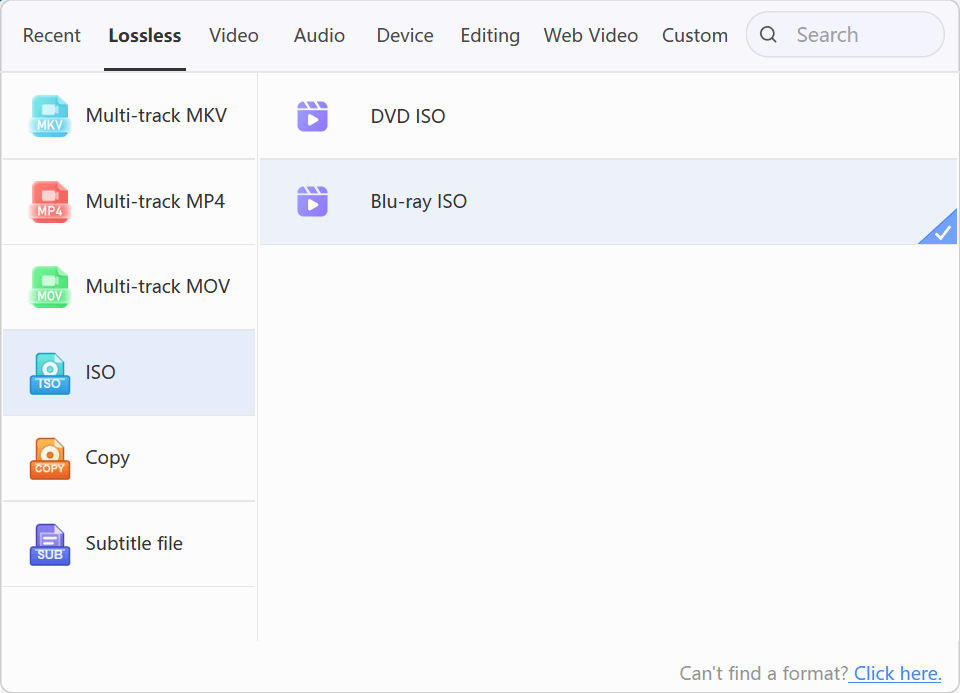
Open Output Format, select Lossless, then choose Full Disc Backup. Select the output you need:

  • DVD ISO for a DVD disc image.
  • Blu-ray ISO for a Blu-ray disc image.
  • Blu-ray/DVD Folder for a complete disc-folder backup.

Use the full-disc mode for this task, rather than a selected-title copy or a Video-category conversion profile.

LosslessConverter Full Disc Backup with Blu-ray ISO selected
Blu-ray ISO is selected. The same menu lists DVD ISO and Blu-ray/DVD Folder.

Create the backup

Choose an Output Folder with enough free space for the complete backup, then select Start All. A local output folder lets you inspect the completed result before transferring it to the NAS. Keep the source disc available until verification is finished.

Copy to the NAS

Copy the completed ISO or the entire output folder. Keep each disc in its own directory, and preserve the folders and files inside the backup. Do not flatten a DVD or Blu-ray structure into a collection of individual video segments.

Check the player

Access the backup on the NAS using the same device, app, and connection you plan to use regularly. Open it in the player's supported disc-image or disc-folder mode. Opening a single VOB or M2TS file tests that segment, not the complete navigation.

Check the menus, main performance, extras, song chapters, audio choices, subtitles, and playback continuity. The ability to mount an ISO or start the first video is not enough to establish that the complete disc experience works.

For more detail, see the Blu-ray ISO guide or the DVD full-backup guide.

Use MKV for player-based controls

If selecting a performance from your library, jumping chapters, and changing audio tracks meets your needs, a title-based file can be easier to manage than disc images.

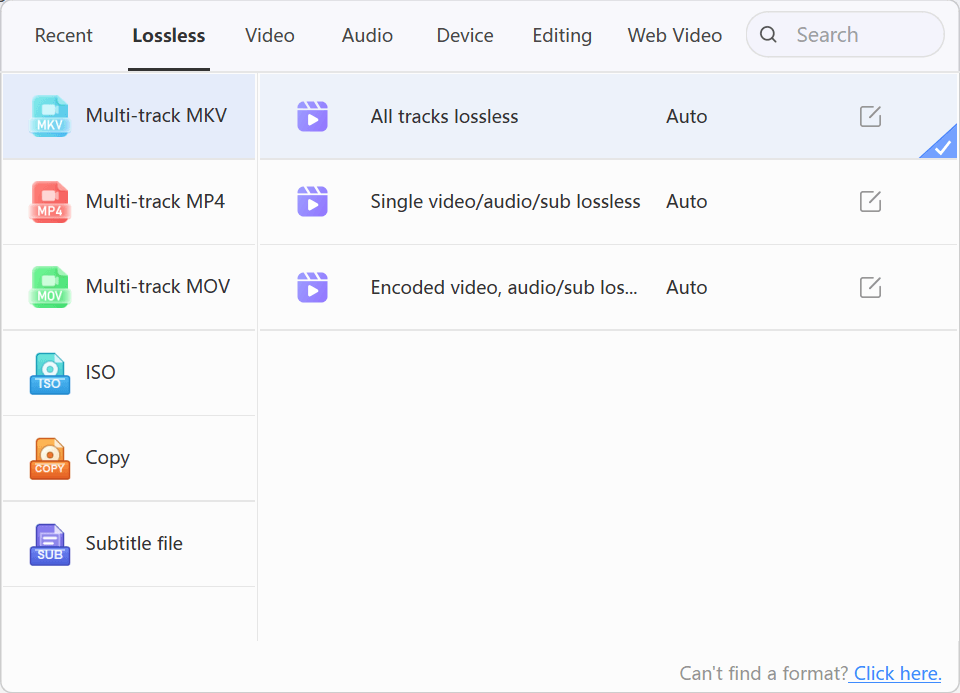
For the Windows workflow, load the disc, select the required title and tracks, then open Output Format > Lossless > Multi-track MKV > All tracks lossless. Choose the output folder and select Start All. Keep separate required titles, such as interviews or bonus performances, rather than assuming that one main-concert file includes every extra.

LosslessConverter Multi-track MKV with All tracks lossless selected
This title-file output does not rebuild the original disc menu.

Check the output in your actual NAS playback client. The selected source codecs must be supported by the playback chain; copying a stream does not change its codec. If a retained audio format is unsupported, use a compatible playback setup or create a separate encoded compatibility copy.

Subtitle handling differs by platform. The Mac conversion output currently supports one hard-coded subtitle track, so do not assume it provides the same selectable-subtitle result as the Windows multi-track workflow. This conversion limitation should not be confused with the separate full-disc ISO/folder backup mode. Review the disc and subtitle specifications before choosing an output.

Why does the backup look different?

A different-looking destination does not, by itself, establish whether content is missing. Compare the same kind of output first.

An ISO is one file containing a disc image. Compare the internal structure after opening or mounting the image with suitable software, rather than comparing its outer folder with the physical disc's directory listing.

A title file is not a folder replica. An MKV or MP4 export contains the selected program and supported tracks. It is not expected to recreate the original DVD or Blu-ray directory tree. A selected-title copy also differs from a full-disc backup.

A complete playback backup is not proof of a byte-identical clone. Decryption, where supported and permitted, can change file contents. Keeping the complete playable disc structure and reproducing every original encrypted byte or sector are different claims. This does not explain away missing titles or folders: those still require investigation.

If you selected Full Disc Backup and the expected structure or content is absent, check that the task completed, confirm the exact output profile, and compare source and output directory listings. An incomplete read, a different mode, and a failed transfer require different remedies; the folder appearance alone cannot identify the cause.

To check the NAS transfer itself, compare the completed local ISO with its NAS copy by file size and, if needed, a checksum. That checks whether the same generated file transferred intact. It does not prove that the generated backup is byte-identical to the original disc.

Verify the functions that matter

Before applying the workflow to another disc, check:

  • Programs and extras: the required performances and supplementary titles are present.
  • Navigation: for a full-disc backup, the player can open the required menus and select titles; for MKV, the expected files and chapter controls are available.
  • Song chapters: skip forward and backward at several points and confirm where playback lands.
  • Soundtracks: switch between each required track, including stereo or surround versions when present, and listen through the intended audio setup.
  • Subtitles: select and disable them where the chosen output and platform support selectable tracks.
  • Continuity: compare the beginning, middle, and end for picture, sound sync, and interruptions using the actual NAS connection.

If something fails, keep the original disc and note the LosslessConverter version, operating system, source disc type, selected profile, output structure, and exact playback app/device. These details help distinguish a backup issue from a player or network limitation. Contact technical support

Build the backup your player can use

Choose Full Disc Backup when original disc navigation is the requirement. Choose Multi-track MKV when selected performances and the player's chapter and track controls are sufficient. Start with one disc and verify that choice on your viewing setup before preparing the rest of your concert library.

About the author

Evan Carter

Editorial pen name ยท Blu-ray guides

Blu-ray guides covering full-disc backups, ISO images, playback formats, audio tracks, and subtitles.

Published by . Editorial policy.