DVD guide

Convert DVD video for iPad playback

Create an MP4 copy for iPad while preserving the DVD aspect ratio, frame rate, audio, and subtitles.

Updated September 11, 2026By

The free version limits many processing operations to the first three minutes. Check compatibility and trial limits.

  • DVD sourceDisc, VIDEO_TS, or ISO
  • Choose MP4Output matched to this workflow
  • IPad checkVerify before batch processing

Problem and solution

Confirm the DVD title and intended output.

Check the disc structure, aspect ratio, audio, subtitles, and destination requirements before creating a copy.

Prepare DVD video for iPad

iPad models do not read DVD-Video discs, so the disc title must be prepared as a media file for the intended iPad app or library. Load only content you are authorized to copy, then identify the main title, language tracks, subtitles, aspect ratio, and frame rate before choosing an output.

Use H.264 MP4 for broad compatibility, preserve the DVD aspect ratio and source frame rate, and avoid enlarging standard-definition video without a delivery reason. Test one title on the actual iPad workflow before processing another disc.

Select the correct DVD title and tracks

Commercial and episodic DVDs can contain menus, extras, previews, and multiple versions of the same program. Choose the intended feature or episode instead of assuming that the longest title is correct. Select the dialogue language, commentary or descriptive track, and subtitle type required by the viewer; forced subtitles may be separate from the full-language subtitle track.

Choose iPad-compatible video settings

Open Output Format > Video > MP4 and start with the source dimensions and frame rate. H.264 with AAC audio is a practical baseline, but the app that will play the file remains the final authority. Do not upscale DVD video to 1080p unless a specific delivery workflow requires it, because upscaling cannot restore detail.

Verify the iPad copy before batch processing

Transfer the test file to the same iPad app or library that will receive the rest of the collection. Check picture geometry, dialogue, subtitles, seeking, chapter or title selection where available, and audio sync from beginning to end. Keep the original disc until the converted title has passed that check.
Solution direction

Apply the solution in the workflow below.

Create an MP4 copy for iPad while preserving the DVD aspect ratio, frame rate, audio, and subtitles.

Three-step workflow

Create and verify one test output before processing the full batch.

Create an MP4 copy for iPad while preserving the DVD aspect ratio, frame rate, audio, and subtitles.

01

Add the source

Load the DVD disc

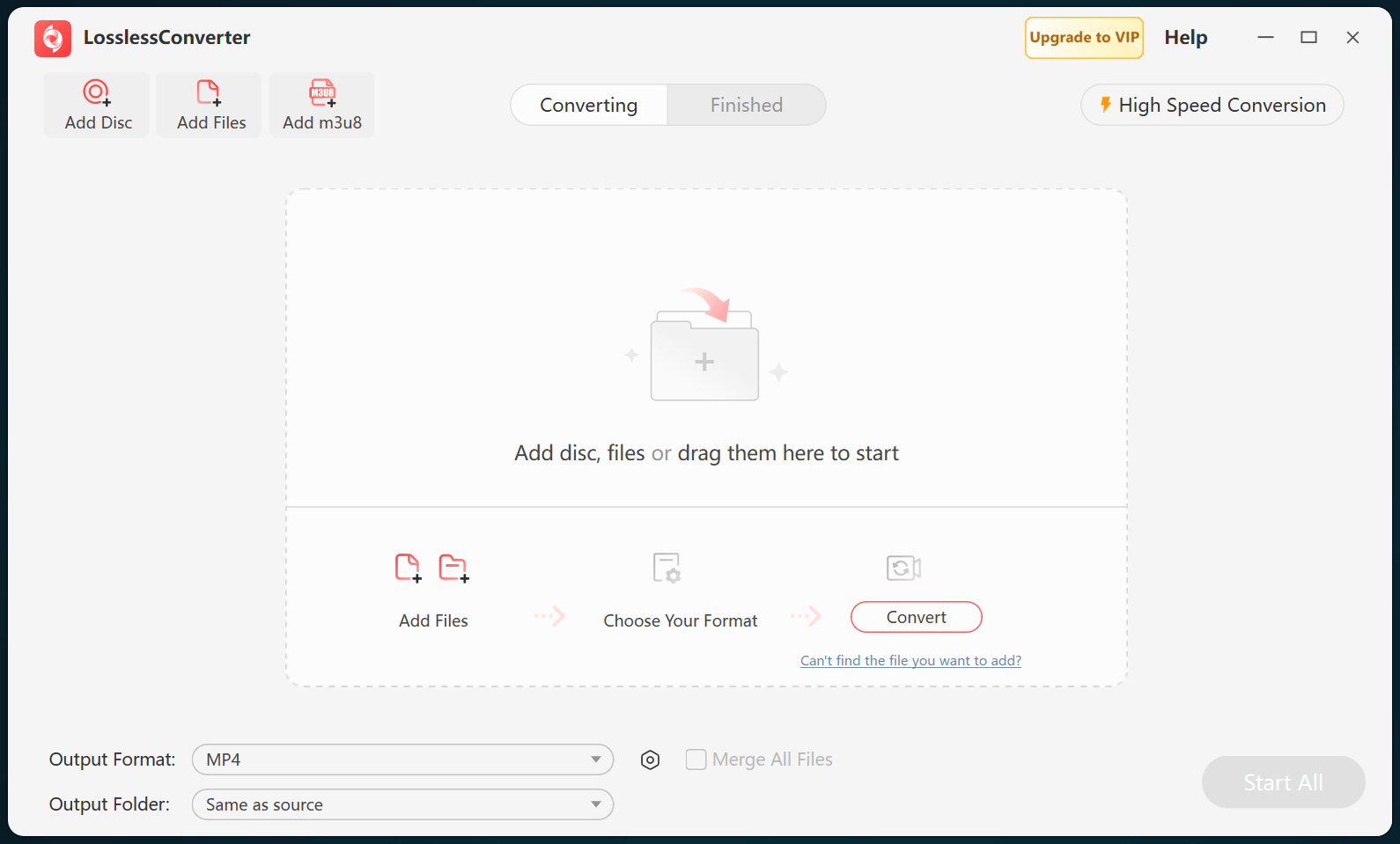
Open LosslessConverter and select Add Disc. Add the DVD disc, then select the required title, audio, and subtitle tracks.

LosslessConverter main window with the source controls visible
Source toolbarLoad the source from the main toolbar.
02

Create a broadly compatible file

Choose Video > MP4

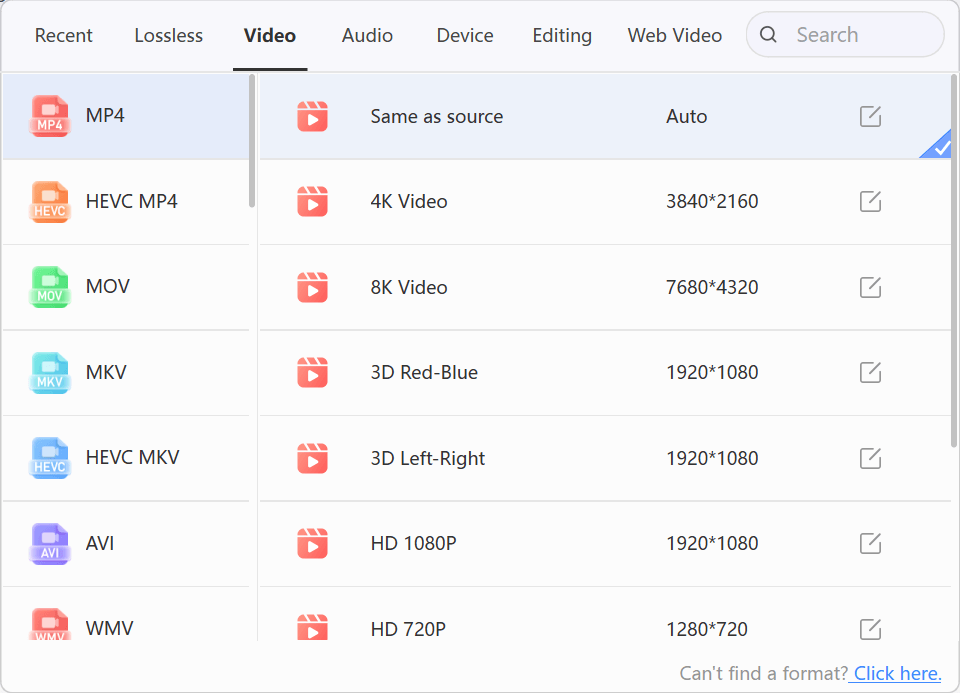
Open Output Format, select the Video group, and choose MP4. Start with Same as source, then change resolution only when the destination requires it.

LosslessConverter Output Format menu with Video and MP4 selected
MP4Select Video, then choose MP4.
03

Create the current output

Select Start All, then verify on iPad

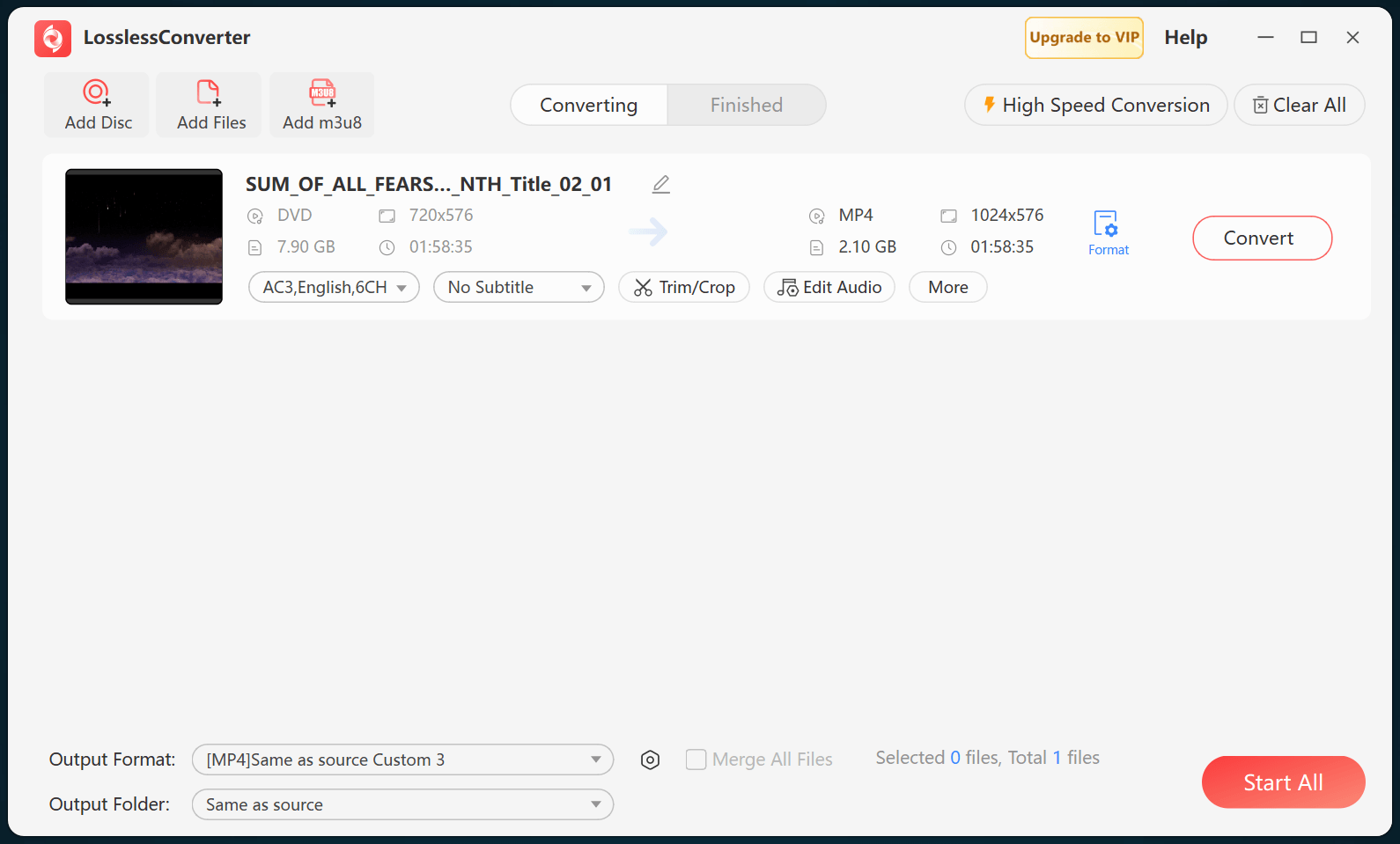
Choose an output folder and select Start All. When processing finishes, transfer the MP4 file to the iPad and verify picture, audio, subtitles, and sync.

LosslessConverter main window with Start All ready at the lower right
Start AllRun the task, then verify the result.

Try it with your own media

Process one file, verify the result, then run the full batch.

The free version limits many processing operations to the first three minutes. Check compatibility and trial limits.

Primary sources

Official references for this workflow

Use these first-party references to confirm current format, application, or device support. Capabilities can change after this guide is updated.