Blu-ray guide

Convert Blu‑ray video for iPad playback

Create an MP4 copy for iPad while preserving the selected Blu-ray title, audio, subtitles, and source frame rate.

Updated September 4, 2026By

The free version limits many processing operations to the first three minutes. Check compatibility and trial limits.

  • Blu-ray sourceDisc, folder, or ISO
  • Choose MP4Output matched to this workflow
  • IPad checkVerify before batch processing

Before you begin

Confirm the disc source and playback goal.

Select the correct title, audio, and subtitle tracks, then match the output to the player, device, or archive workflow.

Prepare Blu-ray video for iPad

iPad models do not read physical Blu-ray discs. Load the required title and create an MP4 copy for the iPad app or media library you plan to use.

Keep the source frame rate and choose a resolution appropriate for the device and available storage. Confirm the title, audio, and subtitles before processing the full disc.

When a supported physical Blu-ray is loaded, LosslessConverter handles AACS and BD+ protection and removes AACS Bus Encryption when it is present on the drive-to-computer data path. The selected iPad-compatible output is then created from the readable disc content.
Workflow direction

Follow the intended workflow below.

Create an MP4 copy for iPad while preserving the selected Blu-ray title, audio, subtitles, and source frame rate.

Three-step workflow

Create and verify one test output before processing the full batch.

Create an MP4 copy for iPad while preserving the selected Blu-ray title, audio, subtitles, and source frame rate.

01

Add the source

Load the Blu-ray disc

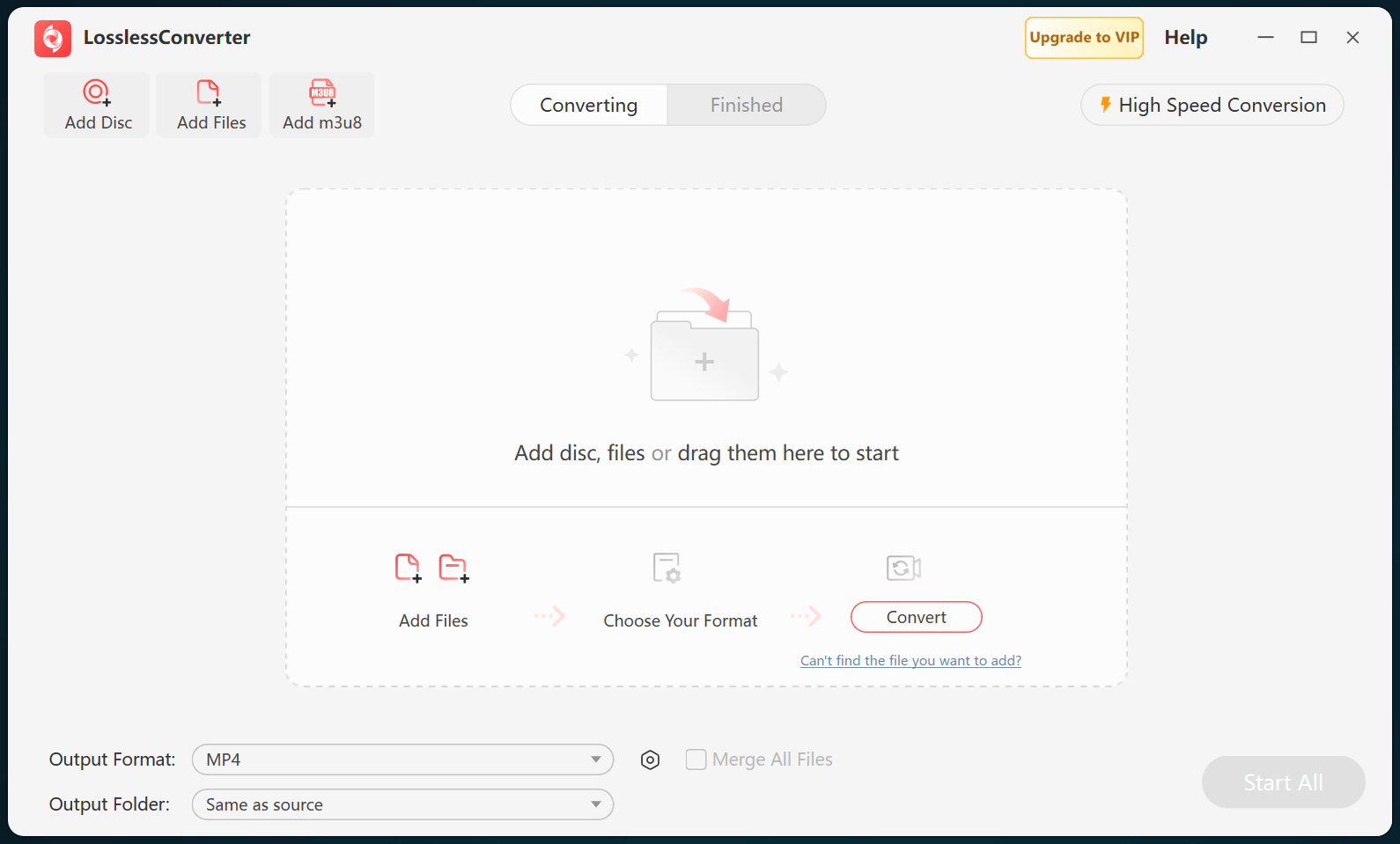
Open LosslessConverter and select Add Disc. Add the Blu-ray disc, then select the required title, audio, and subtitle tracks.

LosslessConverter main window with the source controls visible
Source toolbarLoad the source from the main toolbar.
02

Create a broadly compatible file

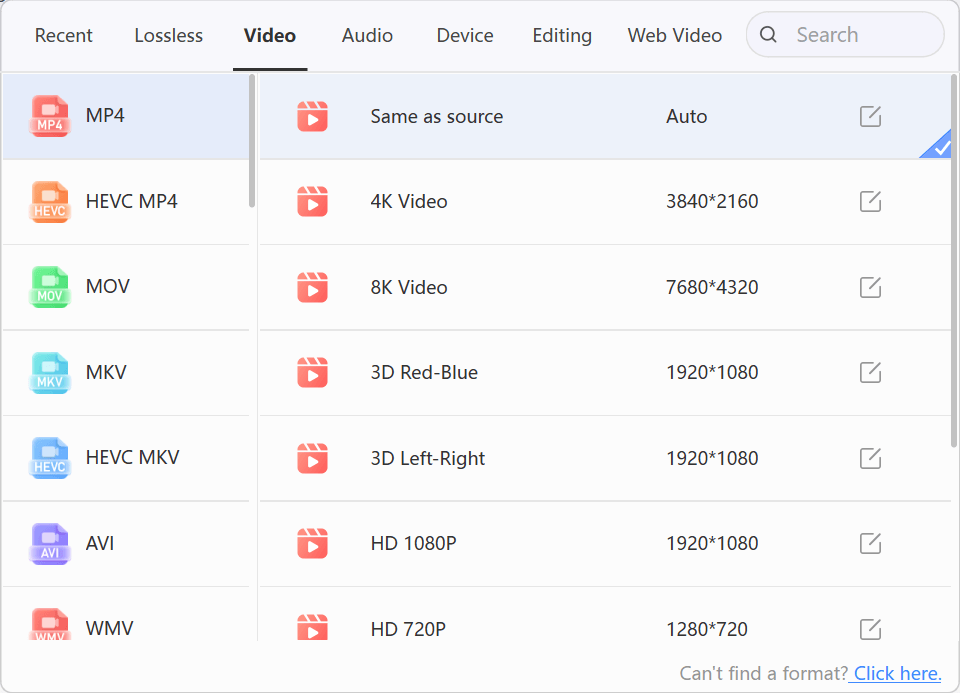
Choose Video > MP4

Open Output Format, select the Video group, and choose MP4. Start with Same as source, then change resolution only when the destination requires it.

LosslessConverter Output Format menu with Video and MP4 selected
MP4Select Video, then choose MP4.
03

Create the current output

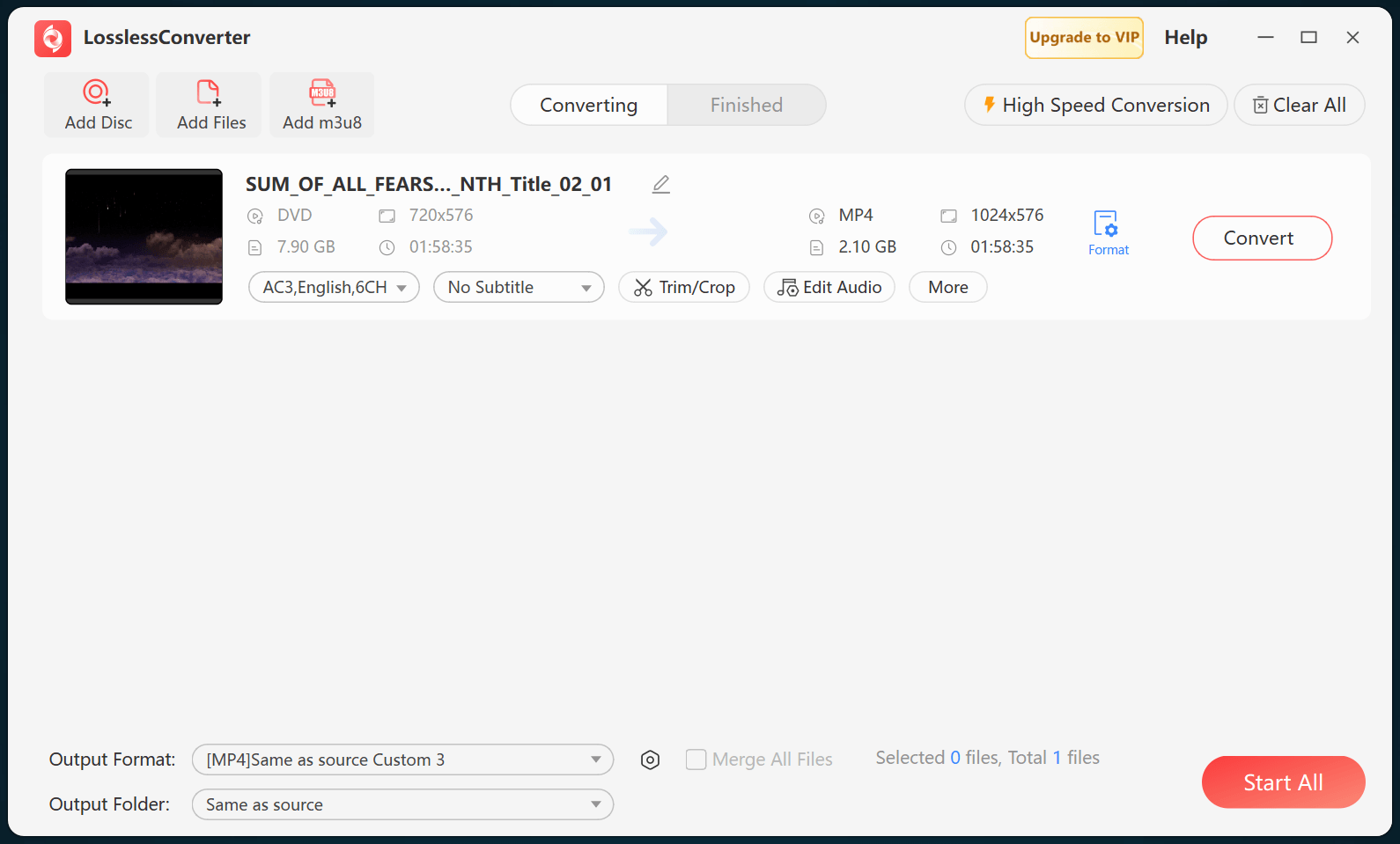
Select Start All, then verify on iPad

Choose an output folder and select Start All. When processing finishes, transfer the MP4 file to the iPad and verify picture, audio, subtitles, and sync.

LosslessConverter main window with Start All ready at the lower right
Start AllRun the task, then verify the result.

Try it with your own media

Process one file, verify the result, then run the full batch.

The free version limits many processing operations to the first three minutes. Check compatibility and trial limits.

Primary sources

Official references for this workflow

Use these first-party references to confirm current format, application, or device support. Capabilities can change after this guide is updated.