Blu-ray conversion on macOS 27 Golden Gate
To watch a Blu-ray movie as a normal video file on your Mac, load the disc in LosslessConverter and convert the required title to MP4 with H.264 video and AAC audio. You need a Blu-ray-capable drive for a physical disc; an existing supported disc folder or ISO does not require the original drive to remain connected.
Apple currently presents macOS 27 Golden Gate as a preview coming in fall 2026. LosslessConverter compatibility testing for macOS 27 is not yet complete, so this page does not claim verified support for the preview. Use the workflow below to prepare your installer, drive and representative test file before upgrading.
LosslessConverter has been verified compatible with the current public macOS release, macOS Tahoe 26. Apple's security release list identifies Tahoe 26.6.2 at the September 10, 2026 review. Use Tahoe for production work until macOS 27 testing is complete. Operating-system compatibility does not mean that every optical drive, damaged disc or playback application has been tested.
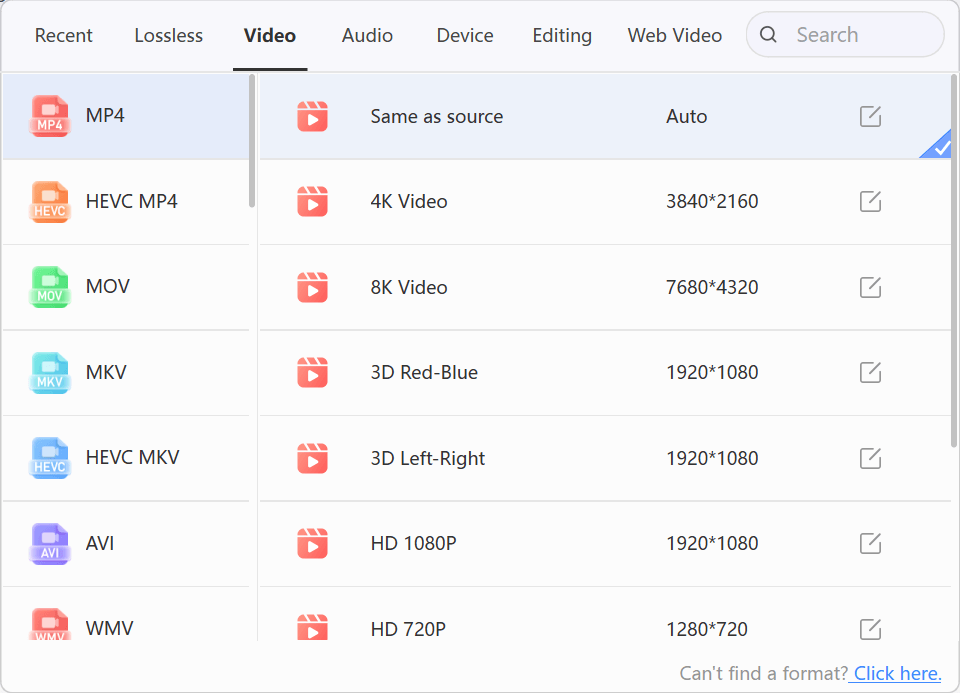
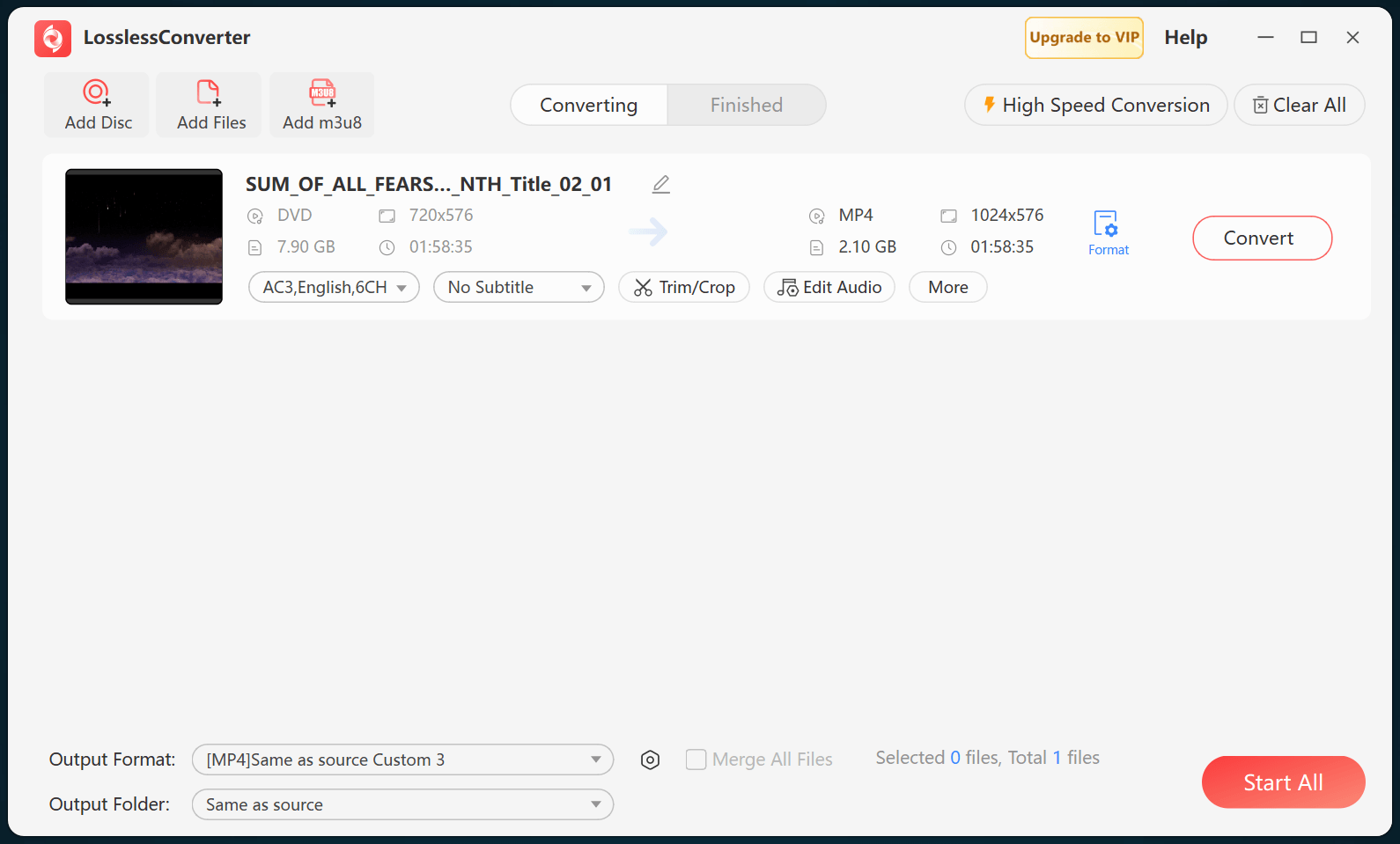
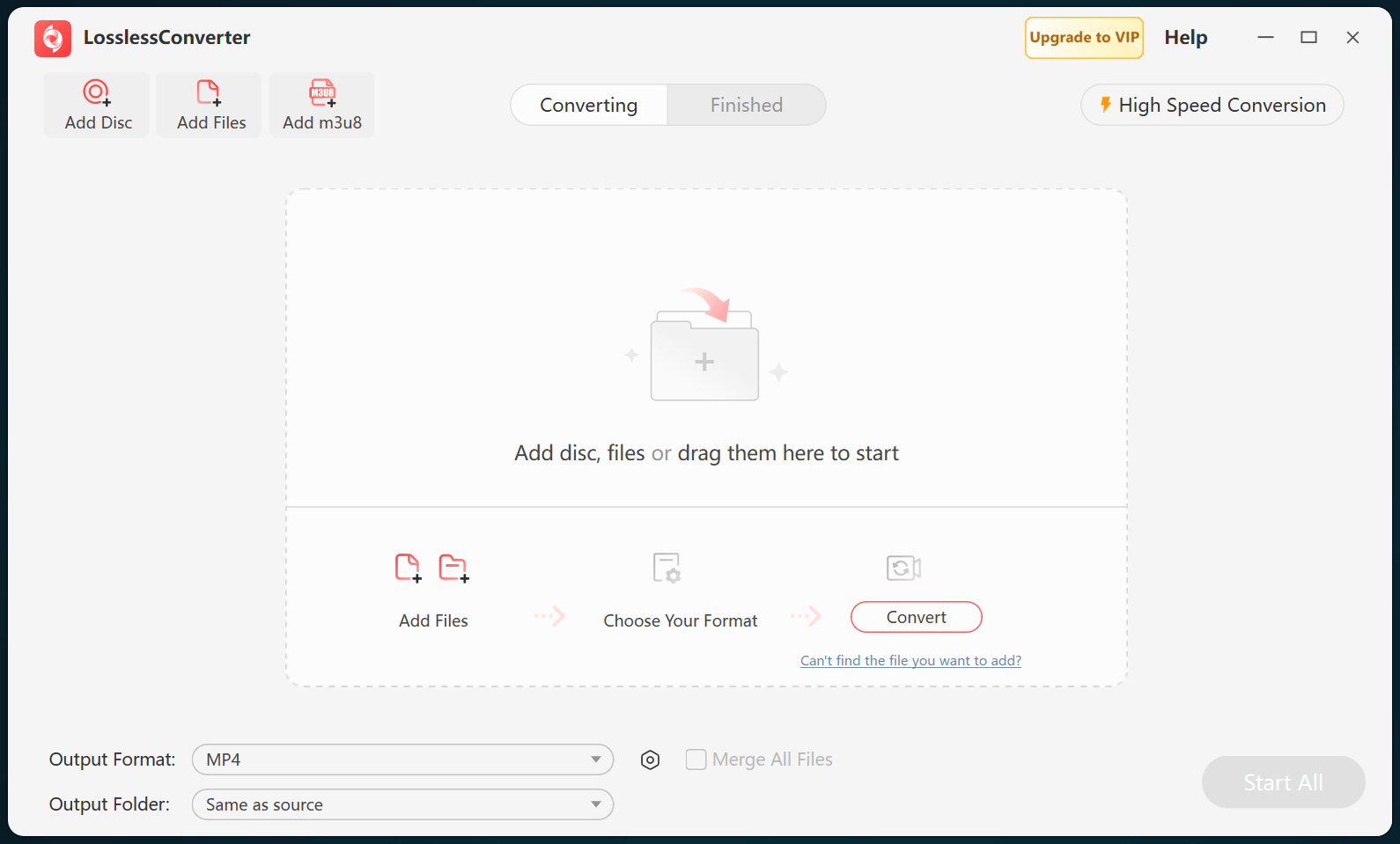
The screenshots below illustrate the Windows interface. Use the same named conversion controls on Mac; the window layout can differ.
Prepare your Mac and disc
- Choose the correct installer. In About This Mac, check whether your Mac has an Apple chip or an Intel processor. Choose the Apple Silicon or Intel option from Download for Mac; both download a DMG directly.
- Connect a suitable drive. Use a drive that reads the disc type you have. A DVD-only drive cannot read Blu-ray. Check the drive's USB connection and power supply before starting a long conversion.
- Keep enough working space. Choose a writable output folder with room for the finished file. A smaller MP4 and a full-disc archive have very different storage requirements; check the expected output size before processing a collection.
- Use authorized media. Process only media you own or have permission to use, subject to applicable law. The conversion workflow does not grant rights to copy or distribute protected content.
Choose playback or archive output
For normal Mac playback: H.264 MP4 with AAC audio is a practical compatibility choice. Retain the source resolution, aspect ratio and frame rate unless you intentionally need a smaller file. Converting video to H.264 re-encodes it; it is not a bit-for-bit or lossless copy of the disc.
For original tracks or a full-disc backup: use a workflow designed for that purpose instead of expecting MP4 to preserve everything. A compatible MKV workflow can retain selected tracks, while the Blu-ray ISO guide covers a disc-image archive. Neither an MKV nor an ISO should be assumed to play directly in QuickTime Player.
Select audio and subtitles before conversion
Preview the title and select the intended audio language. For broad playback compatibility, use AAC and select stereo when the destination does not support the original multichannel layout. Keeping a surround track requires support throughout the playback path, not just in the output container.
Check dialogue, commentary and forced subtitles separately. Blu-ray subtitles may be image-based, and selectable subtitles are not supported by every MP4 player. When subtitles must always appear, use the supported burn-in option and verify the result; for selectable tracks, choose a container and player that support them. See the Blu-ray subtitle guide before converting a multilingual collection.
Check these points if conversion or playback fails
- The disc is not detected: confirm that the drive supports Blu-ray, reconnect its cable and power, and check whether macOS can see the inserted disc. Do not assume a format preset can fix a drive or disc-reading problem.
- The wrong title or language appears: return to the source preview and verify the selected title, audio and subtitle tracks. The longest title is not always the intended program.
- The MP4 has no sound or will not open: check the codecs inside the output, not only the filename extension. Try H.264 video with AAC audio and open the result in the intended player.
- Writing the output fails: choose a local folder you can write to and check free space. Keep the Mac powered and the source drive connected until processing has finished.
Start with a representative title or short test. The free version limits many processing jobs to the first three minutes, so use it to check source access and output compatibility before purchasing. Keep the original disc or source files until the finished movie has been checked from beginning to end.
Prepare an authorized Blu-ray-to-MP4 workflow for macOS 27 Golden Gate. Check preview support status, the correct Mac installer, drive, audio, and subtitles.