Blu-ray guide

Keep Dolby 5.1 and TrueHD 7.1 when ripping Blu‑ray

Keep original Dolby TrueHD tracks in Multi-track MKV, or create Dolby Digital 5.1 when the playback path requires a compatibility-focused output.

Updated September 4, 2026By

The free version limits many processing operations to the first three minutes. Check compatibility and trial limits.

  • Blu-ray sourceDisc, folder, or ISO
  • Choose Multi-track MKVOutput matched to this workflow
  • Playback-ready mediaVerify before batch processing

Before you begin

Confirm the disc source and playback goal.

Select the correct title, audio, and subtitle tracks, then match the output to the player, device, or archive workflow.

Choose the right multichannel audio output

Blu-ray discs can contain PCM, Dolby TrueHD, Dolby Digital, Dolby Digital Plus, DTS-HD Master Audio, and other audio streams. The container and output profile determine whether LosslessConverter keeps an original stream or creates a compatibility-focused audio track.

Use Lossless > Multi-track MKV when the goal is to retain the original Blu-ray audio tracks, including Dolby TrueHD when present. MKV can hold the selected video, multiple audio streams, and subtitle tracks together without converting the supported streams.

MP4 and MOV do not retain Dolby TrueHD in this workflow. Choose those containers only when the destination needs them, and use Dolby Digital 5.1 or another compatible multichannel output supported by the playback path.
Workflow direction

Follow the intended workflow below.

Keep original Dolby TrueHD tracks in Multi-track MKV, or create Dolby Digital 5.1 when the playback path requires a compatibility-focused output.

Three-step workflow

Create and verify one test output before processing the full batch.

Keep original Dolby TrueHD tracks in Multi-track MKV, or create Dolby Digital 5.1 when the playback path requires a compatibility-focused output.

01

Load the disc

Load the Blu-ray and select the required tracks

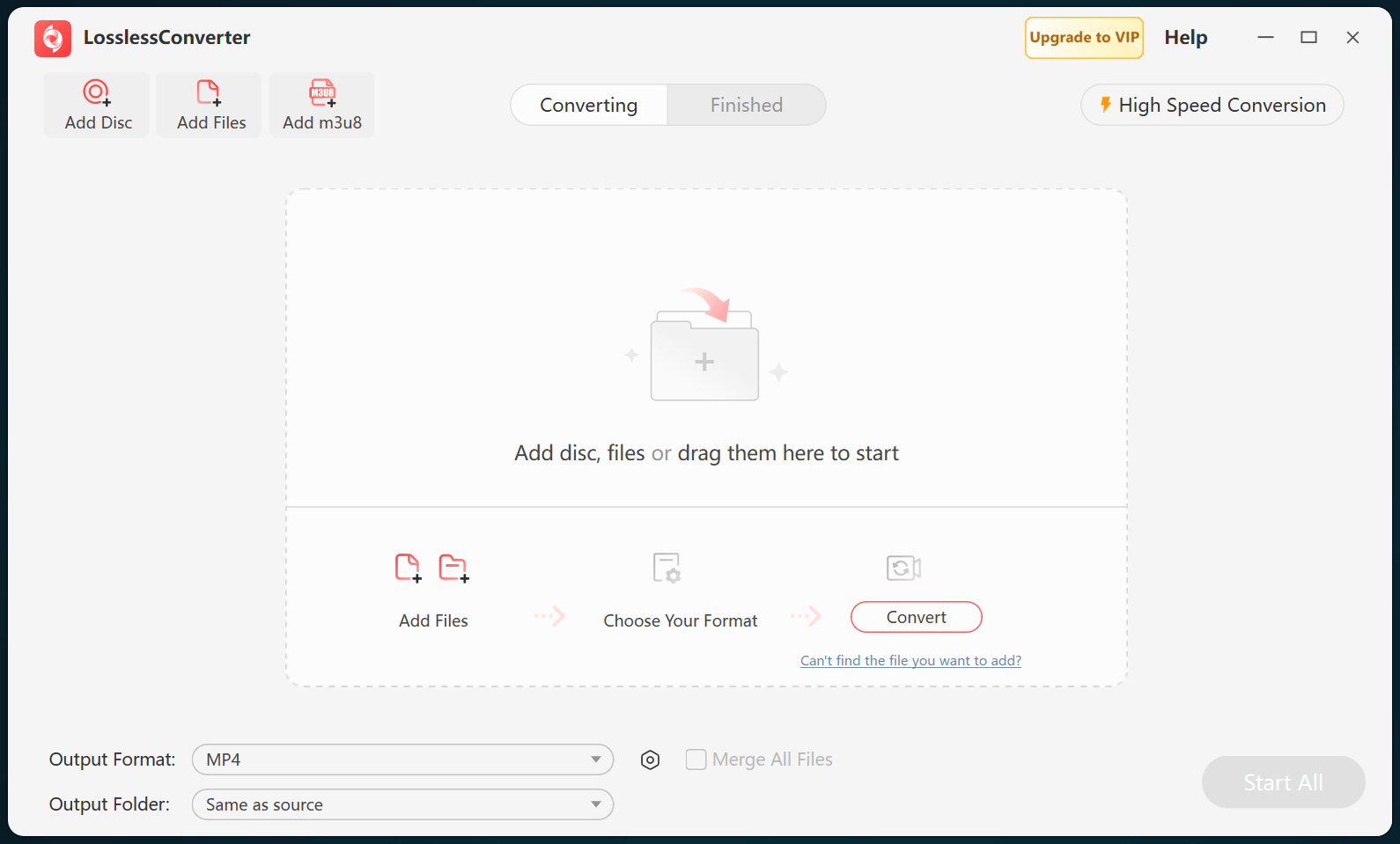
Open LosslessConverter and select Add Disc. Choose the main title, then keep the audio and subtitle tracks required in the finished file.

LosslessConverter main window with the source controls visible
Source toolbarLoad the source from the main toolbar.
02

Preserve the original audio

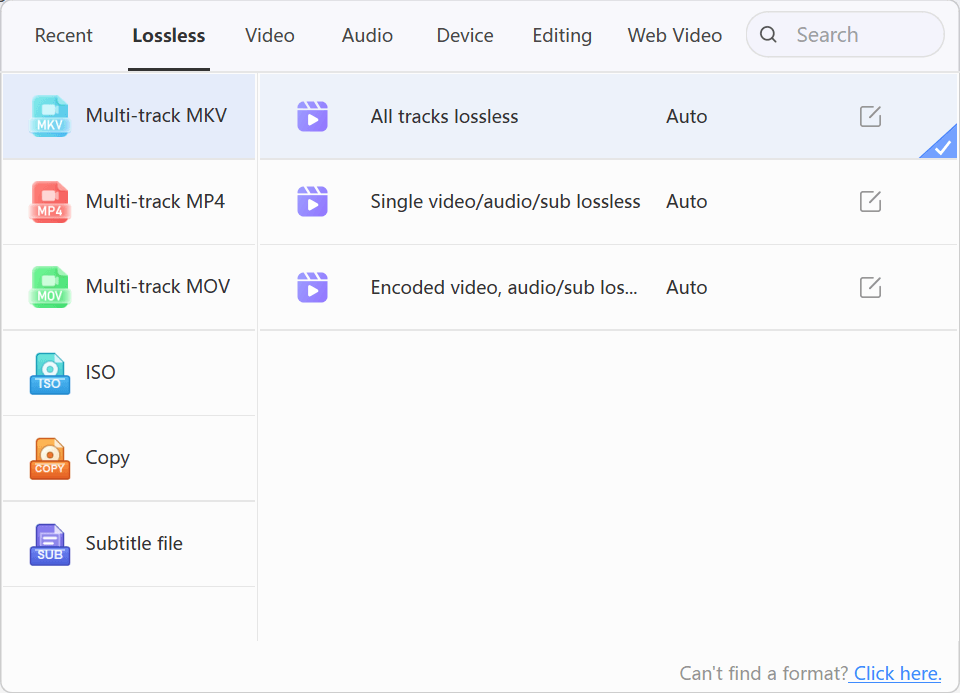
Choose Lossless > Multi-track MKV

Open Output Format, select Lossless, and choose Multi-track MKV. This profile keeps the original Blu-ray audio streams, including Dolby TrueHD when it is present, together with the selected video and subtitle tracks. MP4 and MOV do not retain TrueHD in this workflow; use Dolby Digital 5.1 or another compatible multichannel output only when the destination requires it.

LosslessConverter Output Format menu with Lossless and Multi-track MKV selected
Multi-track MKVSelect Lossless, then choose Multi-track MKV.
03

Create the lossless container

Select Start All, then verify the audio tracks

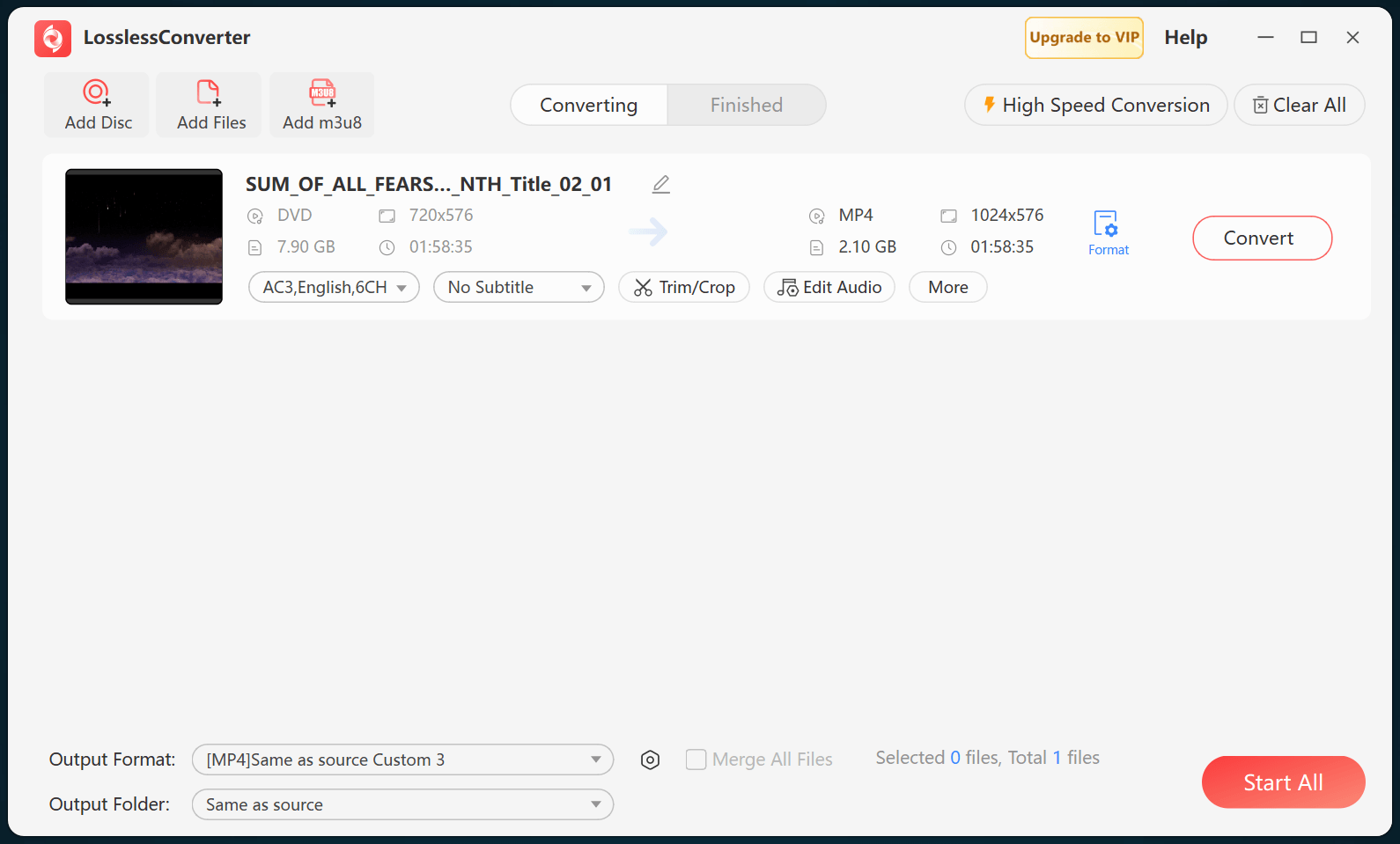
Choose an output folder and select Start All. When processing finishes, inspect the MKV in a player or media-information tool and confirm that the expected Dolby TrueHD, Dolby Digital, and other selected tracks are present.

LosslessConverter main window with Start All ready at the lower right
Start AllRun the task, then verify the result.

Try it with your own media

Process one file, verify the result, then run the full batch.

The free version limits many processing operations to the first three minutes. Check compatibility and trial limits.