Conversion basics
Use a preset or control every detail
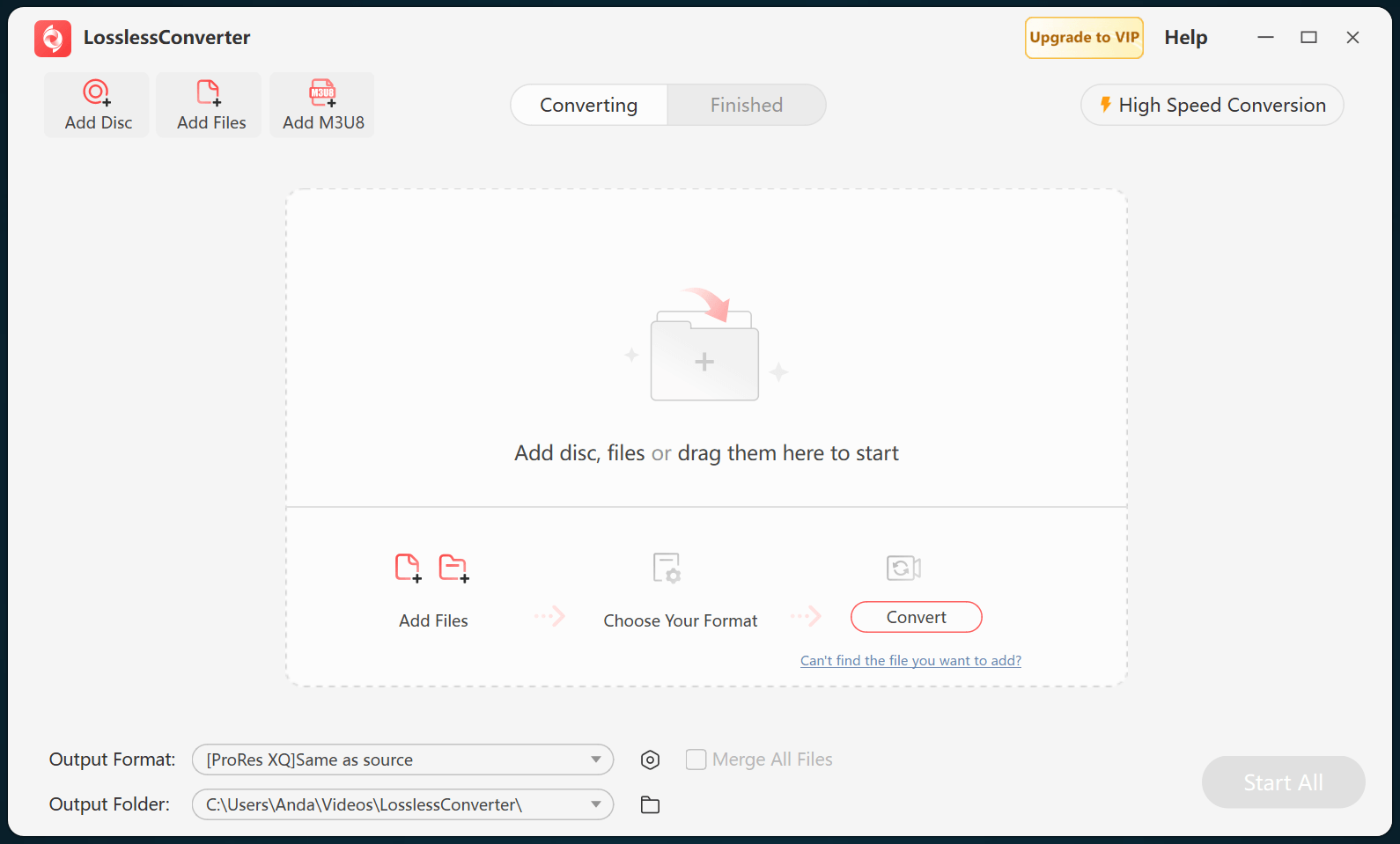
LosslessConverter handles common and specialized video and audio formats. For a quick job, choose a format or device preset. For precise output, customize the codec, sampling rate, bit depth, resolution, frame rate, bitrate, quality, and encoding options.
The same workflow can prepare a video for editing, make a file play on a specific device, remove the visual track to save audio only, or convert an entire batch in one run.
Video to video
Convert a video to another format
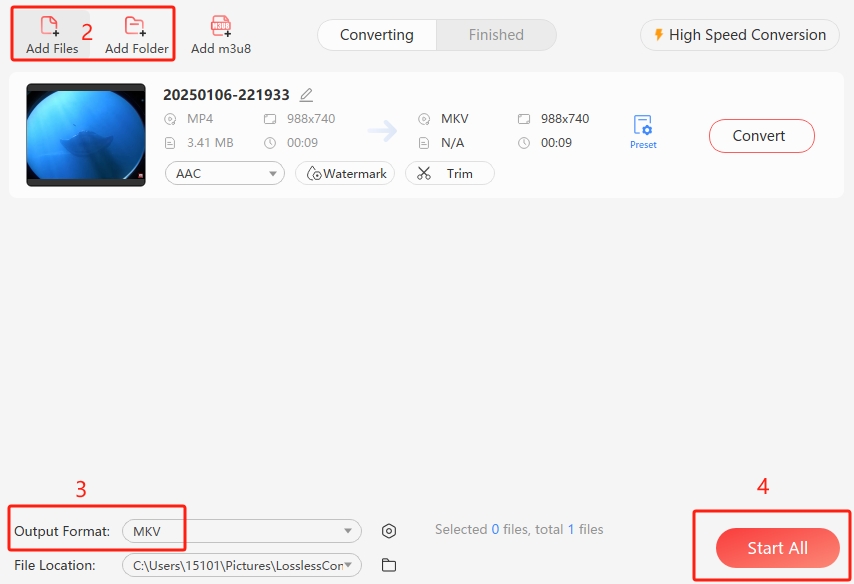
This example converts an MP4 source to MKV. The steps are the same for combinations such as MKV to MP4, MOV to AVI, or WebM to MP4.
- Open LosslessConverter and choose Video Converter.
- Drag the source file into the window, or use Add Files or Add Folder.
- Open Output Format and choose MKV.
- Select Convert for one item or Start All for the full queue.
Video to audio
Extract audio from a video
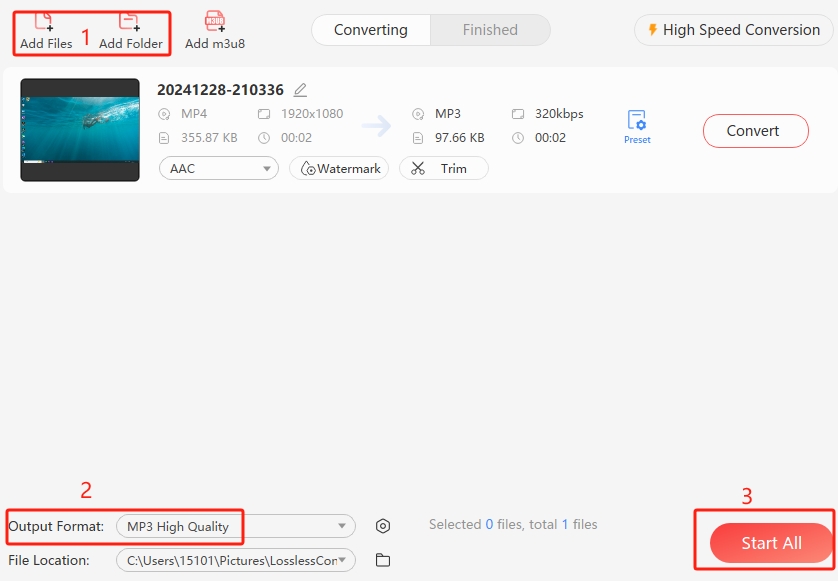
- Open Video Converter and add one or more video files.
- Open Output Format, switch to Audio, and choose MP3, AAC, OGG, FLAC, WAV, PCM, or another supported format.
- Select Convert or Start All.
Device profiles
Convert video for a phone, tablet, TV, or console
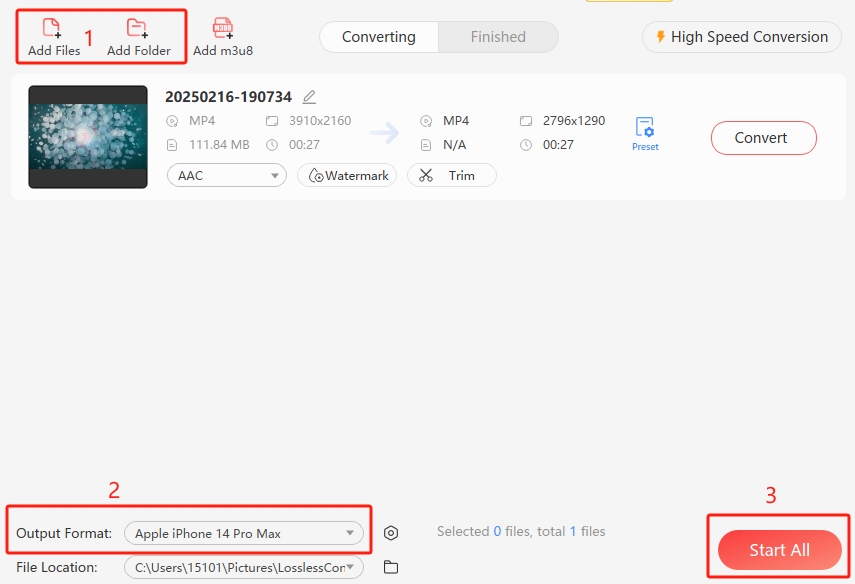
Device profiles select compatible settings for common Apple, Huawei, Samsung, Google, Lenovo, Microsoft, Sony, Android, TV, and console families.
- Choose Video Converter and add the source file.
- Open Output Format, choose Device, and select the intended device or family.
- Select Convert or Start All.
Web profiles
Prepare video for a website
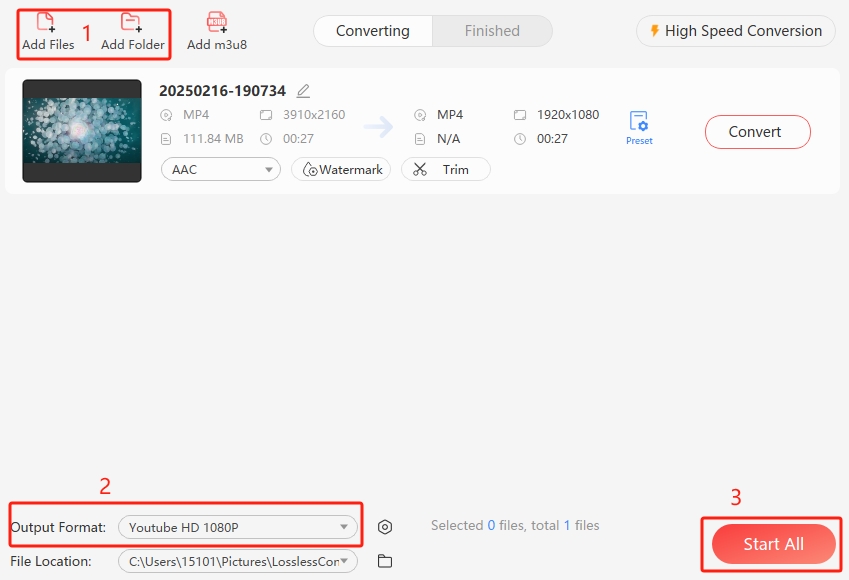
Ready-made profiles help produce compatible output for YouTube, Facebook, Vimeo, TikTok, and other common platforms.
- Choose Video Converter and add the source file.
- Open Output Format, choose Web Video, and select the destination website.
- Convert the file, then upload the finished output through the platform itself.
Audio to audio
Convert an audio file
Choose the output based on your priorities: MP3 offers broad compatibility and compact files; M4A/AAC is efficient and common on Apple devices; FLAC preserves audio losslessly; WAV is uncompressed and useful in production; OGG is an open format used by many games and web projects.
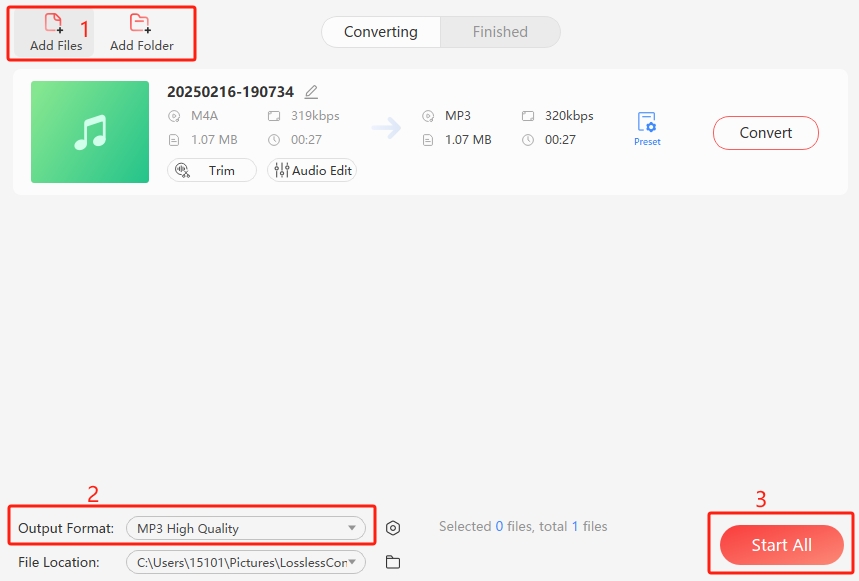
- Open Audio Converter and add the source audio.
- Open Output Format, choose Audio, and select the target format.
- Adjust sample rate, bitrate, or channels if needed, then select Convert or Start All.
Output size
Change video resolution
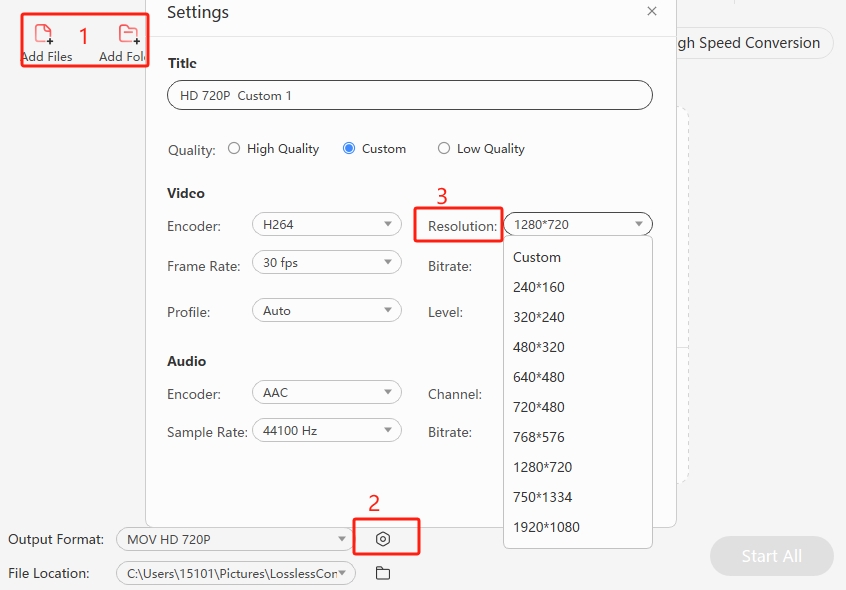
To use a preset resolution, add the video, open Output Format, choose a video format, and select the required resolution. To enter a custom value, choose the settings icon beside Output Format, open the Resolution menu, select Custom, enter the dimensions, and confirm.
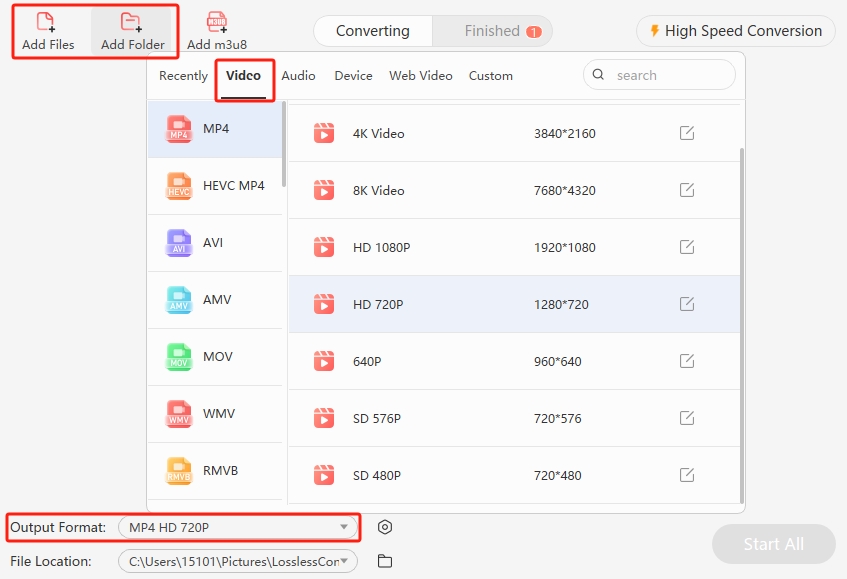
To downscale for a smaller screen or file, follow the same steps and choose a lower output resolution such as 1080p, 720p, or 480p.