MTS and M2TS guide

Play Canon VIXIA MTS on Android

Create a device-friendly MP4 while retaining suitable resolution and audio.

Updated September 4, 2026By

The free version limits many processing operations to the first three minutes. Check compatibility and trial limits.

  • MTS/M2TS footageAVCHD or M2TS files
  • Choose AndroidOutput matched to this workflow
  • An Android device checkVerify before batch processing

Problem and solution

Check the AVCHD source before choosing a workflow.

Keep the original camera folder when available, then confirm the recording mode, frame rate, and destination support before converting.

Converting Canon Vixia MTS to MP4 videos for Android tablet/phone

If you got some videos shot with a Canon Vixia camcorder and hope can share the files with your friends and families, why not transfer and play these MTS/M2TS recordings on your Android device for sharing as long as you have one? In this article, we introduce an easy approach to assist you play Canon VIXIA MTS files on Android device with excellent quality.

Canon Vixia, a popular series from Canon for videographers, which can store the recordings in highly-compressed and high definition AVCHD video format with .mts or .m2ts file extension. It includes the hot products including but not limit to Canon VIXIA HF R40, HF R42, HF R400, M300, HF M500, HF M40, HF S200, HF S21, HV40, XA10, HG21 and more. However, these MTS clips can't be recognized by Android device, as Android can't accept the MTS, M2TS format.

Part I: Convert Canon Vixia MTS to Android
Solution direction

Apply the solution in the workflow below.

Create a device-friendly MP4 while retaining suitable resolution and audio.

Three-step workflow

Create and verify one test output before processing the full batch.

Create a device-friendly MP4 while retaining suitable resolution and audio.

01

Add the source

Load the Canon VIXIA MTS clips

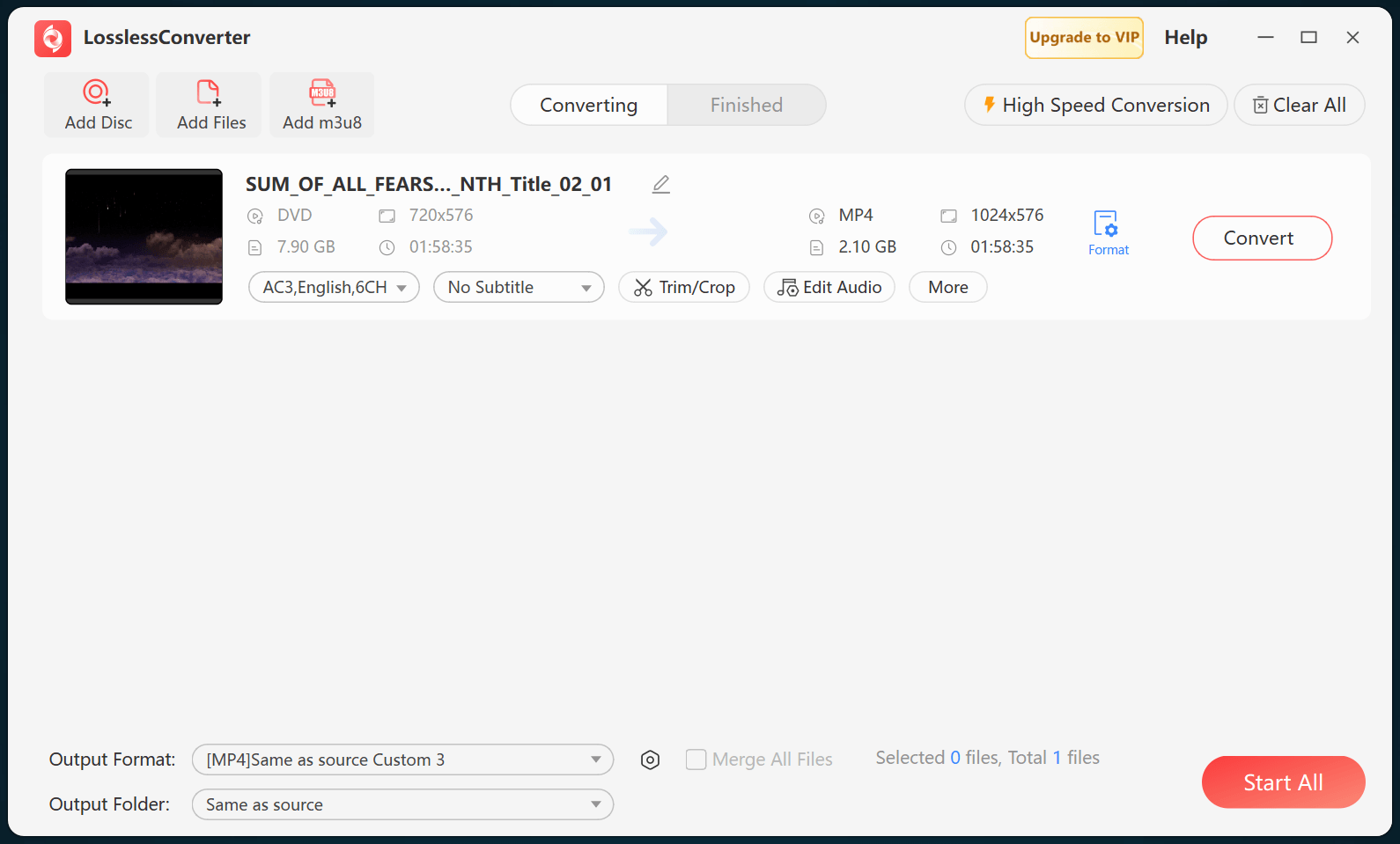
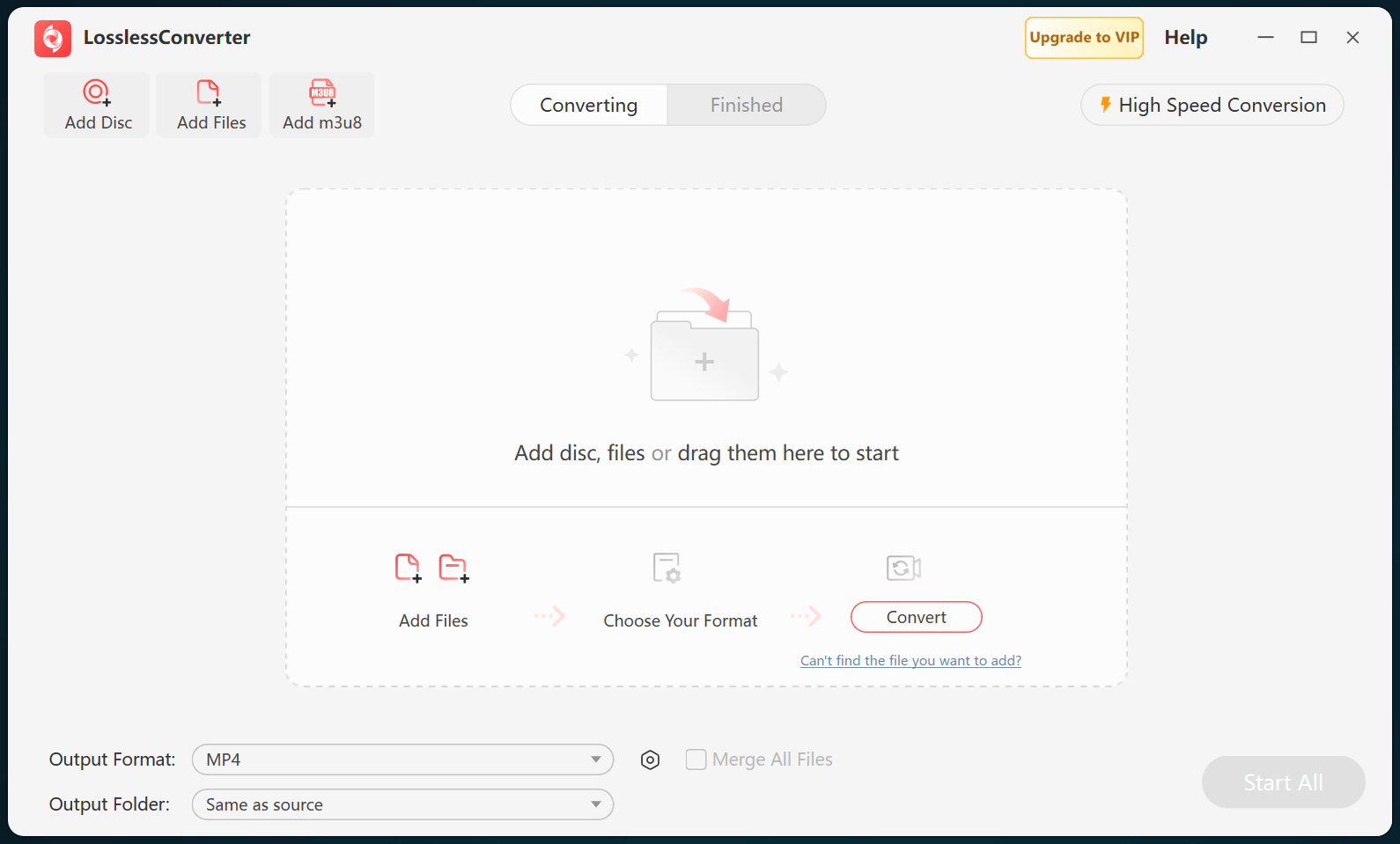
Open LosslessConverter and select Add Files. Add the Canon VIXIA MTS clips and select the files required for this workflow.

LosslessConverter main window with the source controls visible
Source toolbarLoad the source from the main toolbar.
02

Match the Android tablet

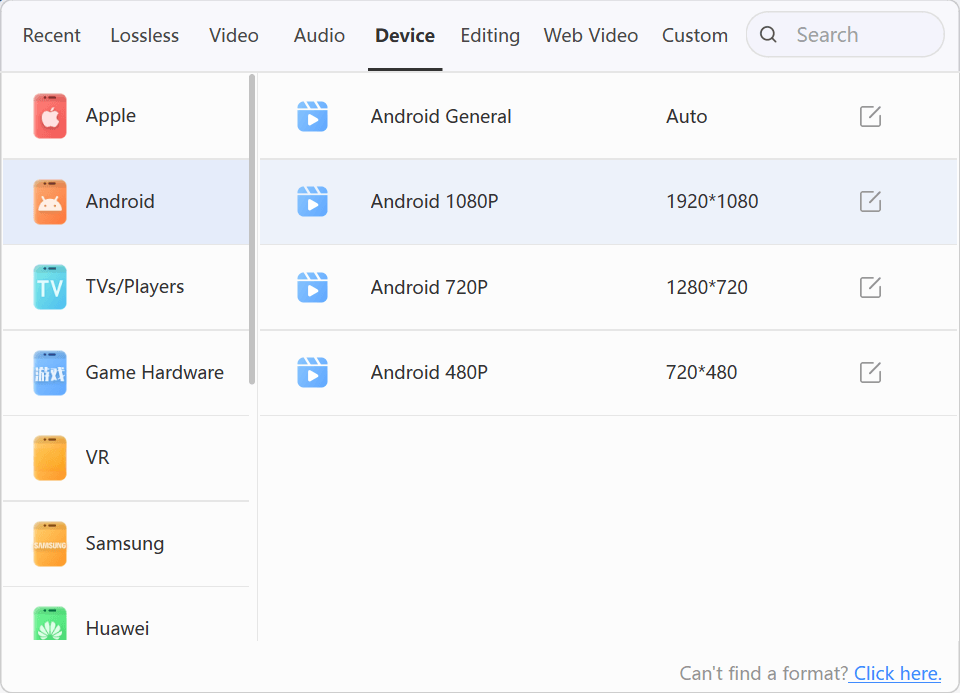
Choose Device > Android 1080P

Open Output Format, select the Device group, choose Android, and select Android 1080P. Use Android 720P for a lower-resolution display or a smaller file.

LosslessConverter Output Format menu with Android 1080P selected
Android 1080PSelect Device, Android, then Android 1080P.
03

Create the current output

Select Start All, then verify on an Android device

Choose an output folder and select Start All. When processing finishes, transfer the MP4 files to the Android device and verify picture, audio, and sync.

LosslessConverter main window with Start All ready at the lower right
Start AllRun the task, then verify the result.

Try it with your own media

Process one file, verify the result, then run the full batch.

The free version limits many processing operations to the first three minutes. Check compatibility and trial limits.

Primary sources

Official references for this workflow

Use these first-party references to confirm current format, application, or device support. Capabilities can change after this guide is updated.