Your MTS recording will not open, and the AVI does not look right
You have a musical recorded as MTS files and want to edit it in Pinnacle Studio 14, the editor you already use for other projects, but the MTS footage will not open.
You try converting the recording to AVI. With default settings, the image looks clear but the performers appear stretched and too thin. A second conversion at 1280 × 720 gives more natural proportions, yet the picture looks less detailed.
The goal is to get back to editing with natural-looking people, clear footage, and settings you understand. You need to know which output format and picture settings to choose, rather than keep repeating conversions with different defaults.
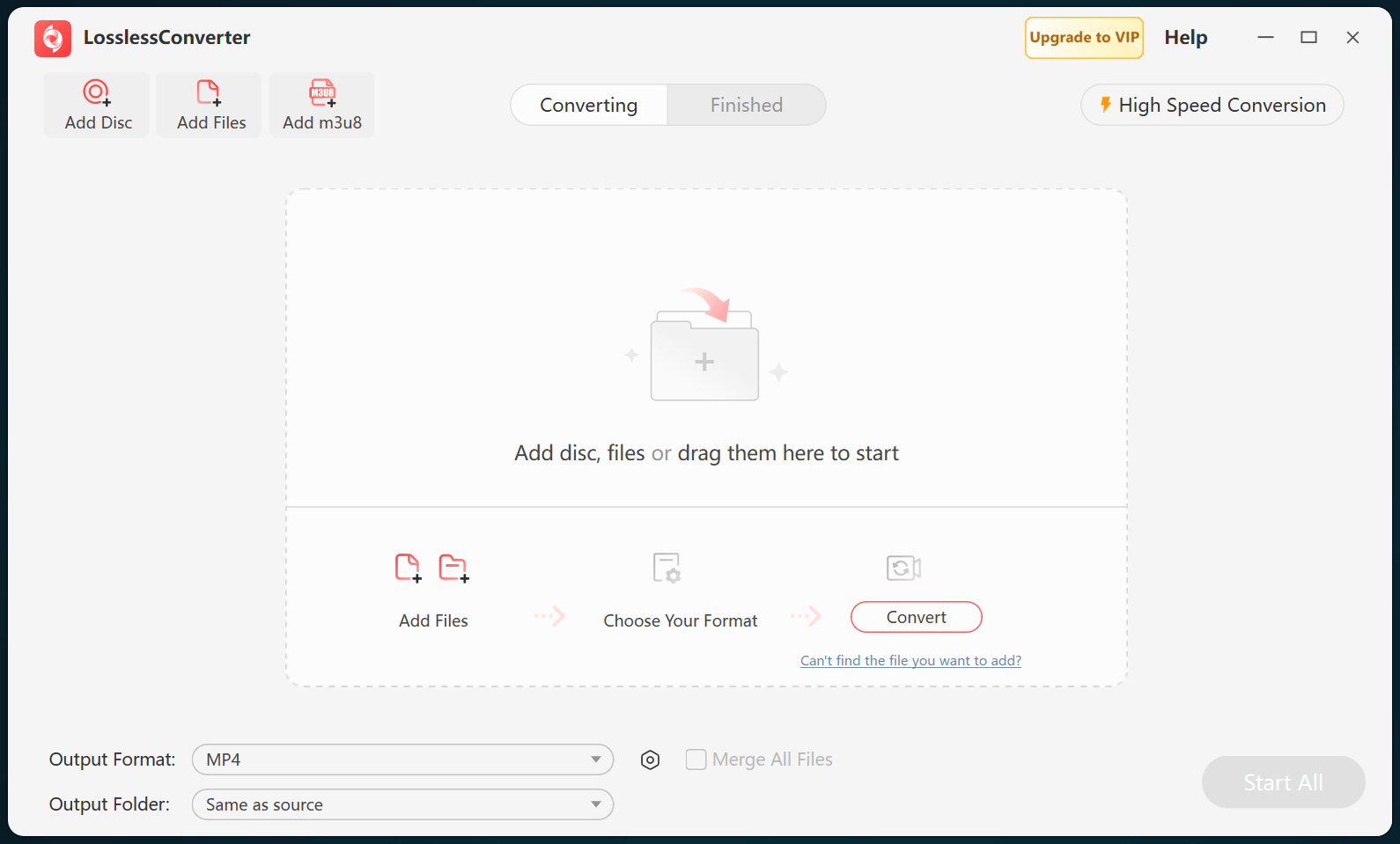
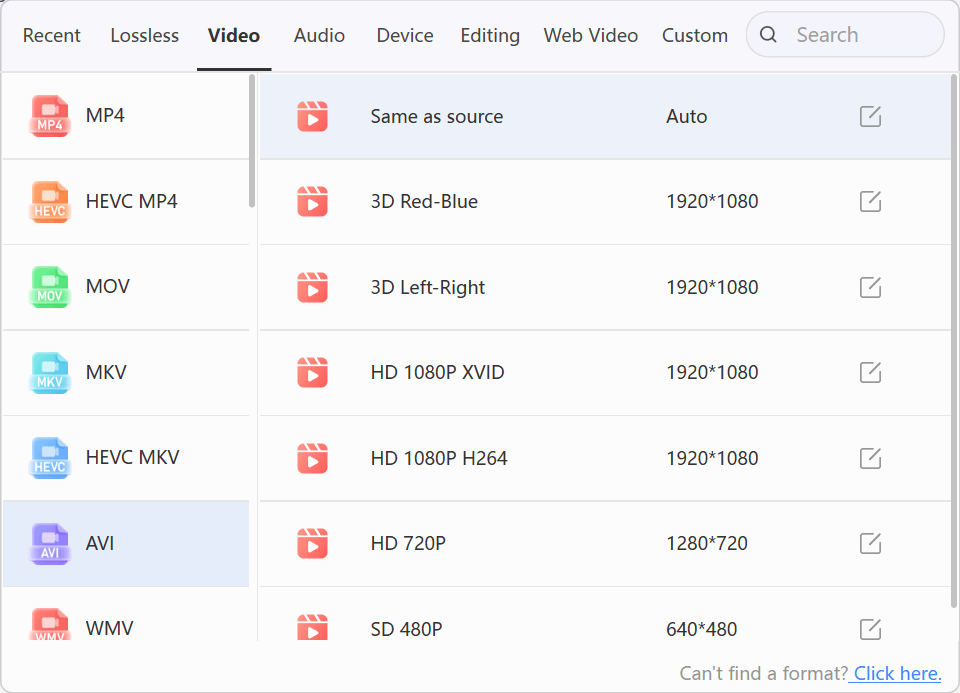
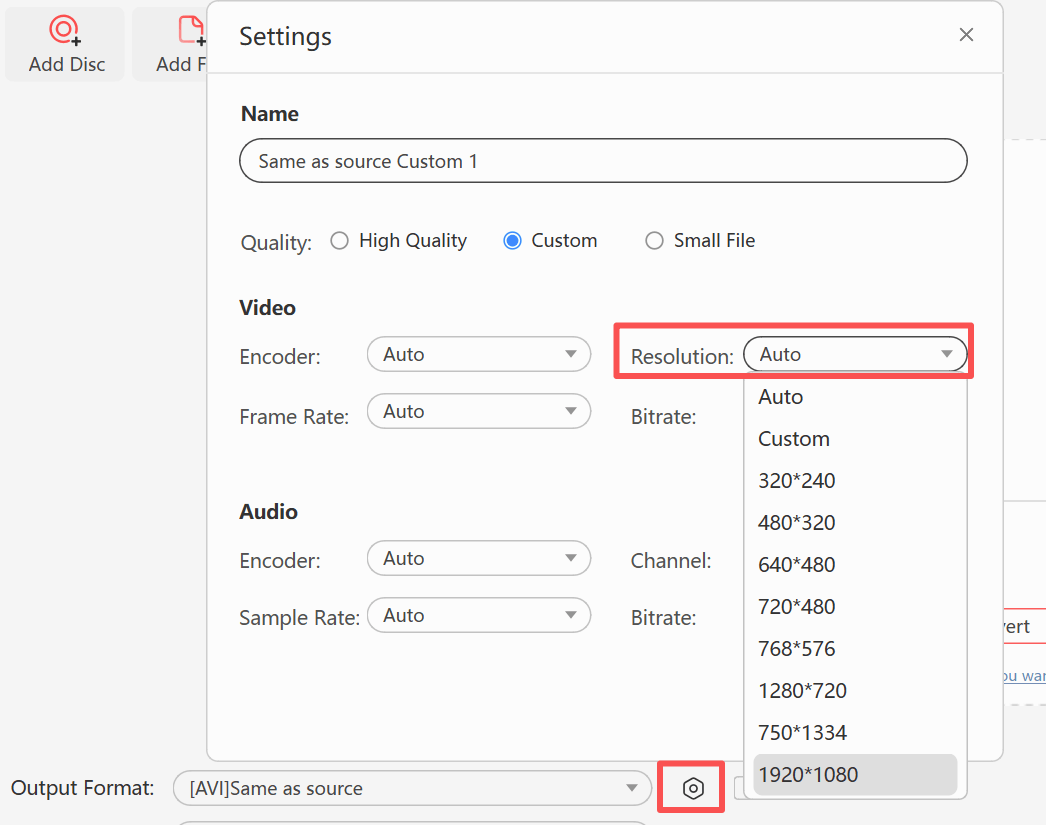
The sections below explain what each symptom means. Then follow the illustrated LosslessConverter workflow to prepare an editing copy, check it in Pinnacle, and apply the confirmed settings to the rest of the recording.
Why will Pinnacle not open my MTS file?
An older editor may reject the source container or the codec inside it. Converting to a supported editing format can provide another path into the editor.
The useful distinction is container versus codec: AVI is the file container, while DivX or Xvid describes the video encoding inside it. Both the file type and its encoding need to be supported. Corel's Studio 14 documentation lists AVI, DivX, and MPEG-2 among its supported workflows, with edition-specific component requirements.
In LosslessConverter, start with an AVI sample if that is your intended workflow. If it still will not open, choose the MPEG-2 editing route instead. This creates a different editing file for the same source footage.
Why do people look stretched or too thin?
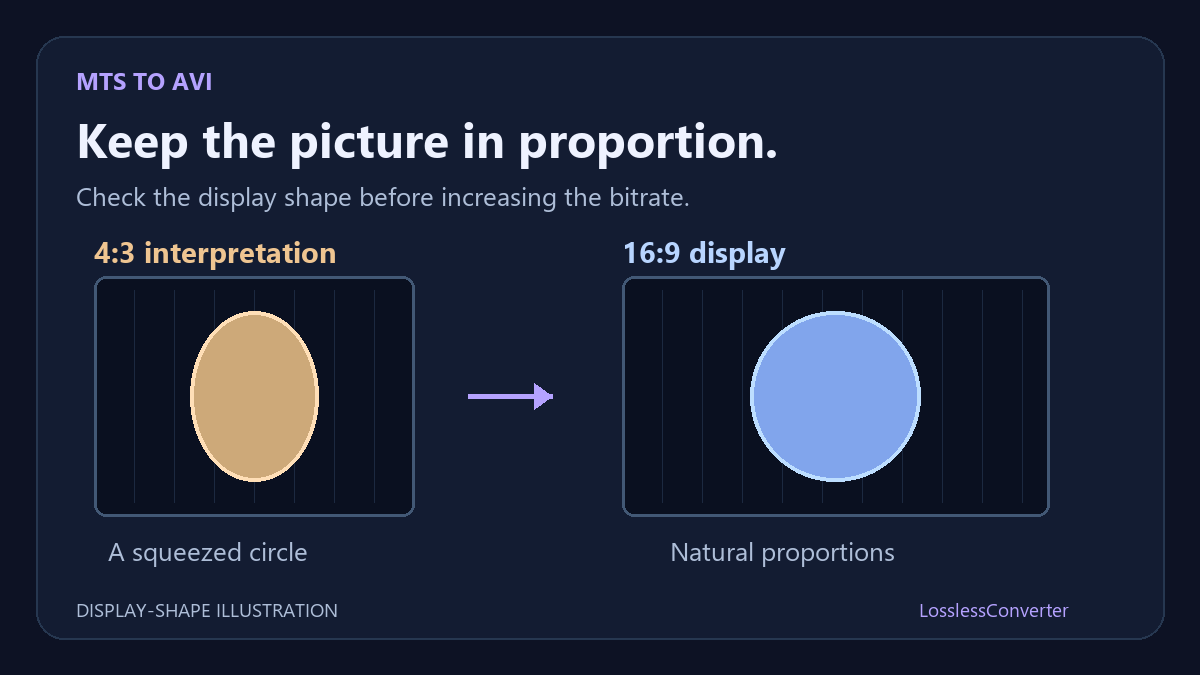
A sharp picture can still have the wrong shape. If performers look too thin, check display proportions separately from image quality. Compare the original and converted files in a player, then compare the AVI inside Pinnacle. If only Pinnacle looks wrong, check the project's picture format and how it interprets the clip.
Frame size and display aspect ratio are not always identical. For example, some 1440 × 1080 recordings use non-square pixels to display at 16:9. Treating those pixels as square can make the picture look too narrow. Check your source properties before applying this explanation to your footage. Adobe explains this distinction.
Preserve the intended display shape, and avoid stretching or cropping simply to fill the screen. A higher bitrate will not correct squeezed proportions.
Why does the converted video look blurry?
Choosing 1280 × 720 may produce a correctly shaped widescreen image, but it reduces detail if the original has a higher resolution. If the source is already 720p, check compression settings and Pinnacle's preview quality instead. Choose the output from your source properties rather than assuming every MTS recording needs 1920 × 1080.
Keep useful source resolution and start with a high-quality output setting. If you adjust bitrate manually, judge the result with the chosen AVI codec: a bitrate used for an H.264 source is not automatically suitable for DivX or Xvid. Compare motion and fine detail in a short exported clip.
Before batching, also check the source frame rate and whether it is interlaced. These affect motion as well as sharpness. The optional technical notes below explain how to inspect those properties.