Blu-ray to Android

Rip Blu-ray for Android phones & tablets.

Turn a Blu-ray disc into a portable H.264 MP4 file, retain the subtitle track you need, and play it on Google Pixel Tablet or another Android device.

Updated September 4, 2026By

The free version limits many processing operations to the first three minutes. Check compatibility and trial limits.

  • Phone or tabletDevice-ready profiles
  • MP4 / H.264Broad playback support
  • AAC audioPortable stereo sound

Why conversion is needed

A Blu-ray disc cannot go straight into an Android device.

Android phones and tablets do not include Blu-ray drives or native disc navigation. The practical route is to read the movie on a computer, convert it to an Android-compatible video, and then transfer the finished file.

H.264 video in an MP4 container remains the broad compatibility baseline. For Google Pixel Tablet and other modern Android tablets, the Android 1080P preset is a practical starting point for a 1080p Blu-ray source; keep a 720p source at 720p rather than enlarging it.

Select the required subtitle language before conversion. Blu-ray titles often contain several subtitle streams, so verify the chosen track instead of assuming the first stream matches the movie language.

Recommended baseline

A portable profile for most Android devices.

Use this as a starting point, then reduce resolution or bitrate when storage space matters more than maximum detail.

Container
MP4
Video
H.264
Audio
AAC
Resolution
Match device
Subtitles
Selected track

Four-step workflow

Create and verify one test output before processing the complete disc.

The Windows and Mac workflows use the same decisions even when individual controls look slightly different.

01

Add the movie

Load the Blu-ray source

Insert the disc in a Blu-ray drive, open LosslessConverter, and add the movie. Select the main title, required audio stream, and the subtitle language you want in the Android copy.

  • Physical Blu-ray and DVD discs
  • Previously copied disc folders
  • Supported ISO and IFO sources
  • Confirm the subtitle language before processing
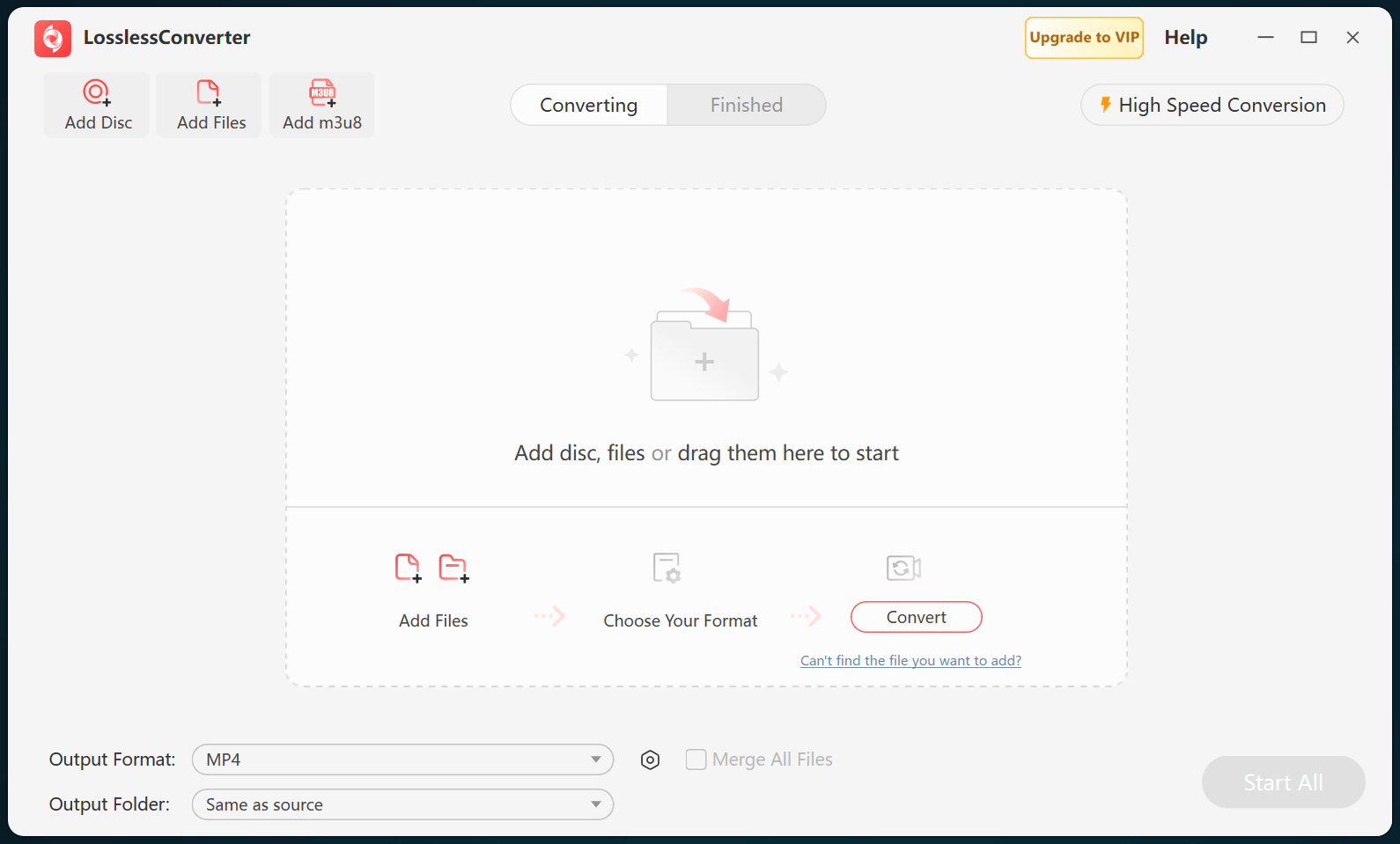
LosslessConverter main window before a Blu-ray source is added
Add DiscLoad the Blu-ray from the main toolbar.
02

Set compatibility

Choose H.264 MP4 or an Android preset

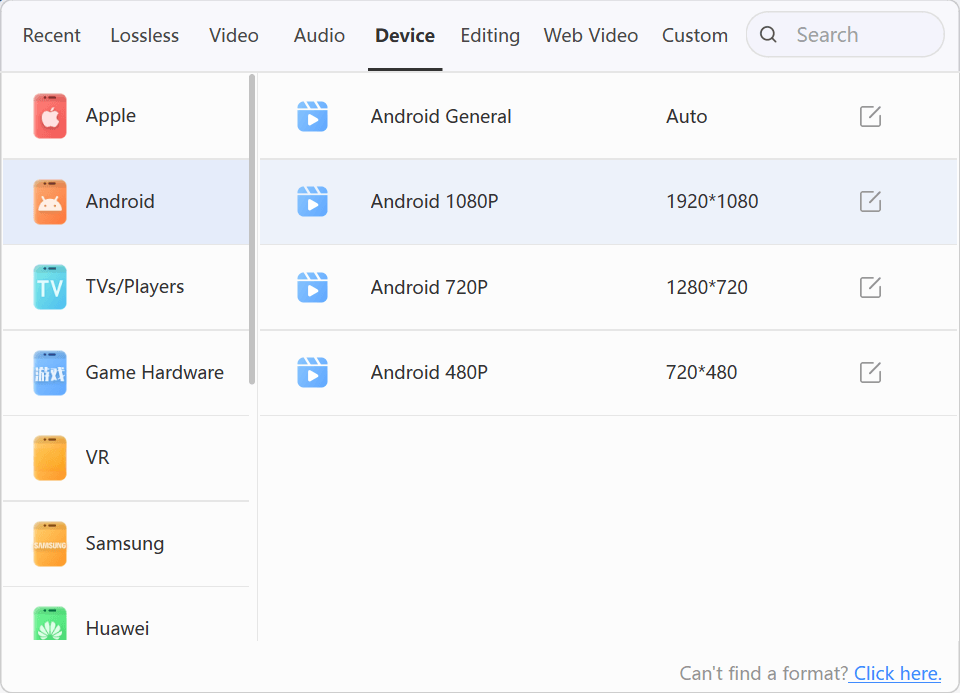
For the widest phone and tablet support, choose H.264 Video (*.mp4) from the common video profiles. For Google Pixel Tablet or another modern Android tablet, choose Device > Android 1080P when the source is 1080p.

  • MP4 works across most Android players
  • H.264 balances quality and hardware support
  • Android 1080P avoids unnecessary upscaling of Full HD sources
LosslessConverter device profiles with Android 1080P selected
Android 1080PChoose the preset that matches the device.
03

Balance quality and size

Adjust profile settings when needed

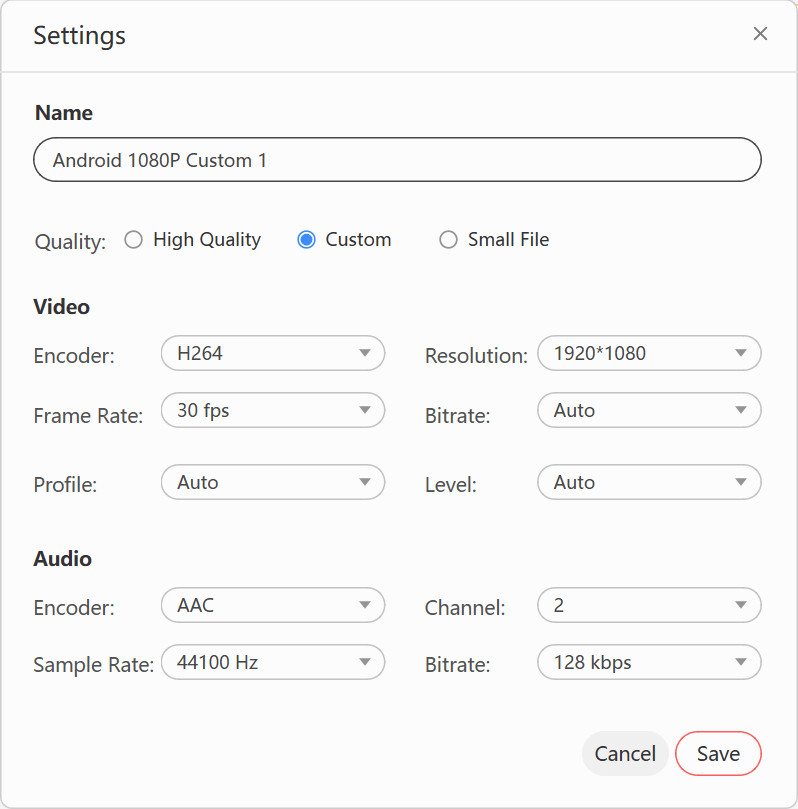
Open Settings to match the video resolution to the Android screen and adjust video bitrate. Bitrate usually affects file size more directly than resolution: a higher bitrate creates a larger file and generally preserves more visible detail.

  • Keep the source frame rate unless required
  • Use AAC for portable Android audio
  • Test a short sample before a large batch
LosslessConverter Android profile settings showing video resolution and bitrate controls
Resolution & bitrateMatch the output to the Android screen and storage target.
04

Finish the workflow

Convert, open the file, and transfer it

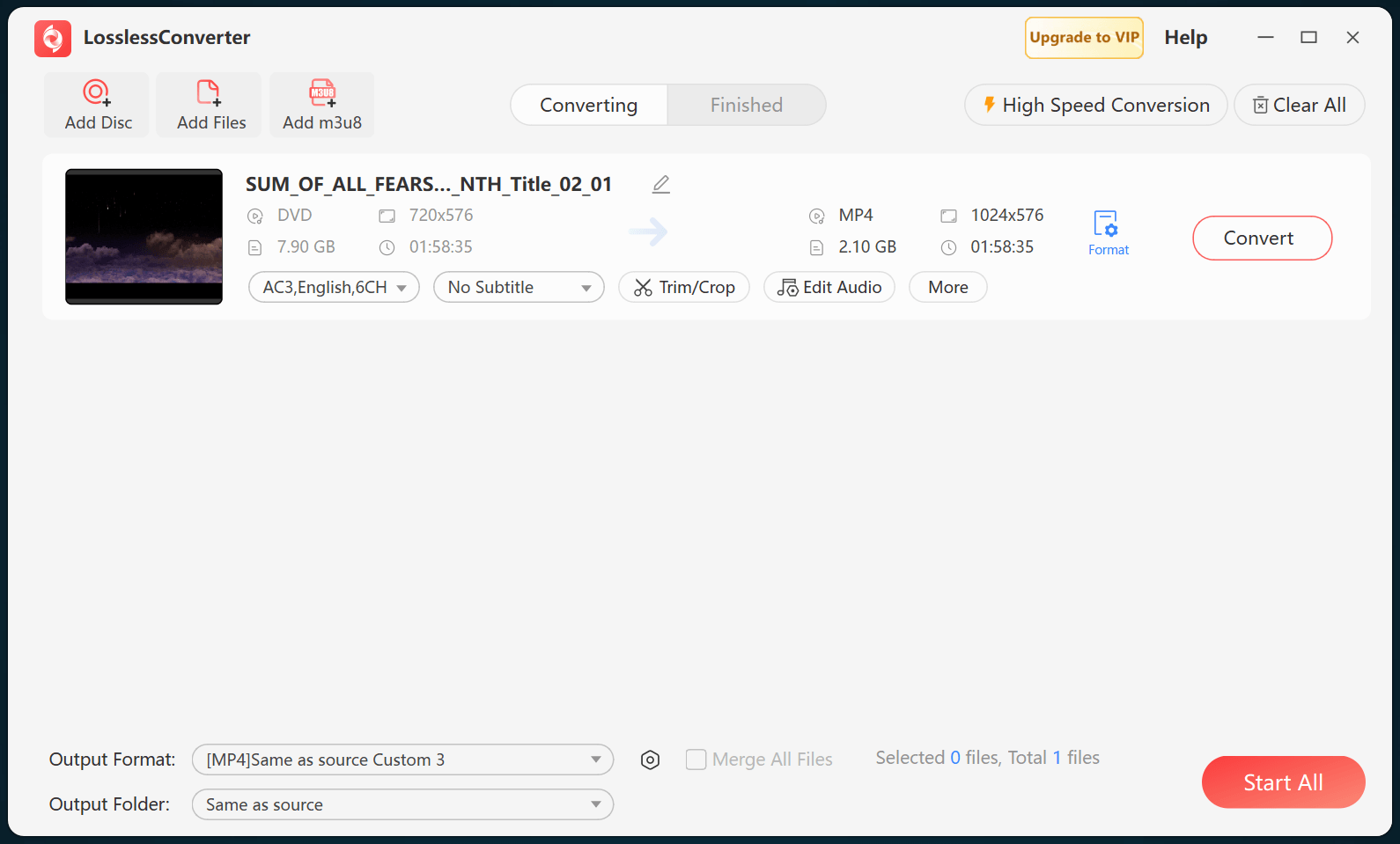
Choose the output folder and start conversion. When processing finishes, open the destination, connect the Android device, and copy the MP4 file to local storage or your preferred media library.

  • Confirm the movie plays before deleting sources
  • Use USB, local network, or cloud transfer
  • Open the file with an Android video player
LosslessConverter main window with a source loaded and Start All ready at the lower right
Start AllSet the output folder, then start conversion.

Playback questions

Before you start.

Why can't an Android device play a Blu-ray disc directly?

Phones and tablets do not include a Blu-ray drive or the disc-navigation layer required to read a movie disc. A converted video file removes that hardware dependency. Process only discs you are authorized to copy.

What is the most compatible general output choice?

H.264 video in an MP4 container with AAC audio remains a broadly supported starting point for Android phones, tablets, televisions, and third-party media players.

How do I keep the correct subtitle language?

Select the required subtitle track after loading the main movie title and before starting conversion. If the disc contains several similarly named tracks, process a short sample and confirm the language and timing before converting the complete movie.

Should I lower resolution or bitrate first?

Bitrate has a strong effect on output size. Match resolution to the target screen, then adjust bitrate to balance detail and storage. Test a short section before converting the full movie.

Does the same workflow apply on Mac?

Yes. The interface may differ, but the decisions are the same: load the source, choose MP4 or an Android profile, adjust settings, convert, and transfer.

Try it with your own media

Process one title, verify Android playback, then convert the complete disc.

The free version limits many processing operations to the first three minutes. Check compatibility and trial limits.

Primary source

Official Android media reference

Use the platform documentation to confirm current codec and container support. Individual Android devices and player apps may add their own limits.