Prepare an authorized ISO movie title for Apple TV
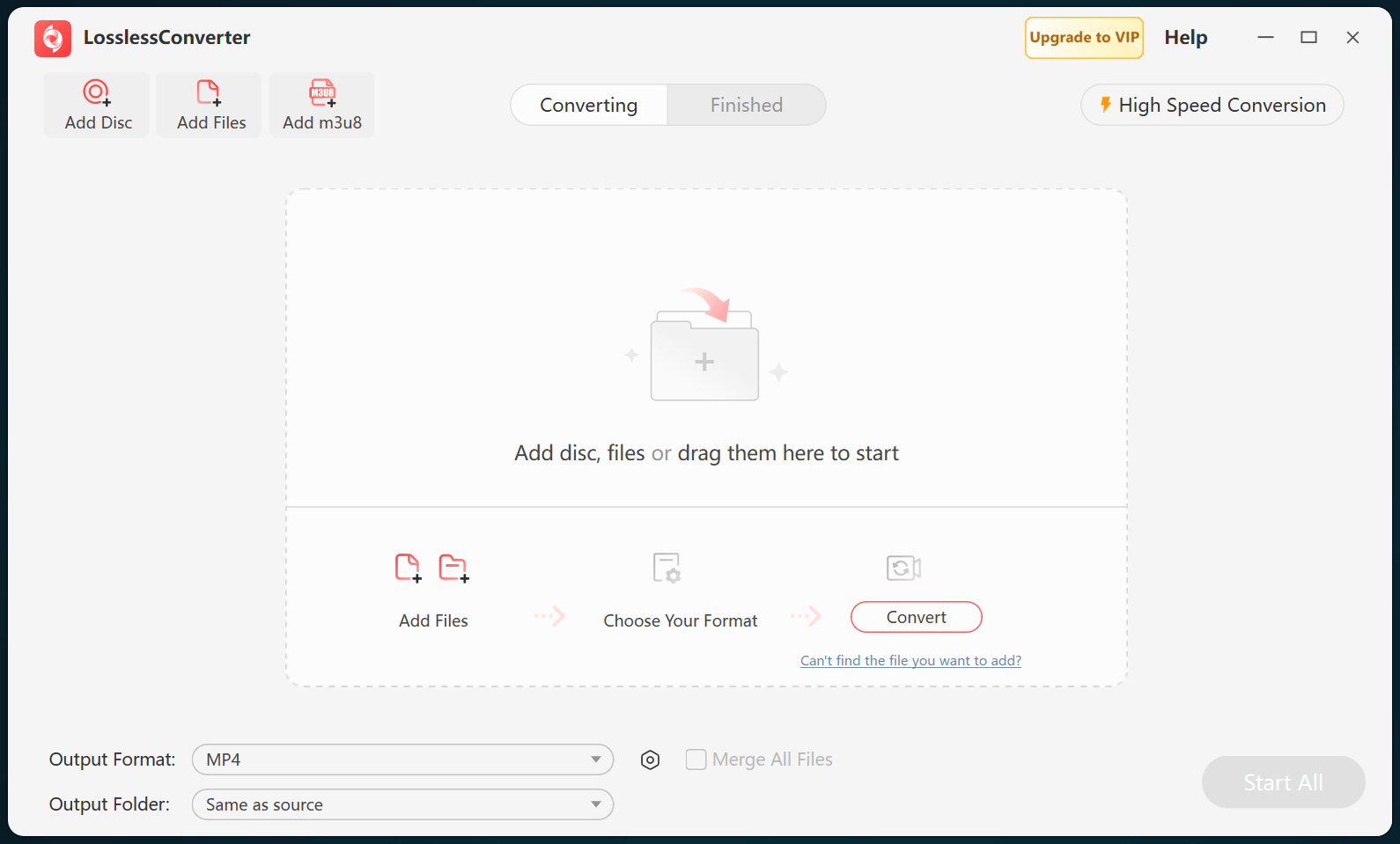
Apple TV does not play a DVD or Blu-ray ISO as a normal video file, so load the authorized image and select the intended title, audio, and subtitles before conversion. Confirm that the image opens correctly and that you have permission to process the source.
Check the disc title and tracks
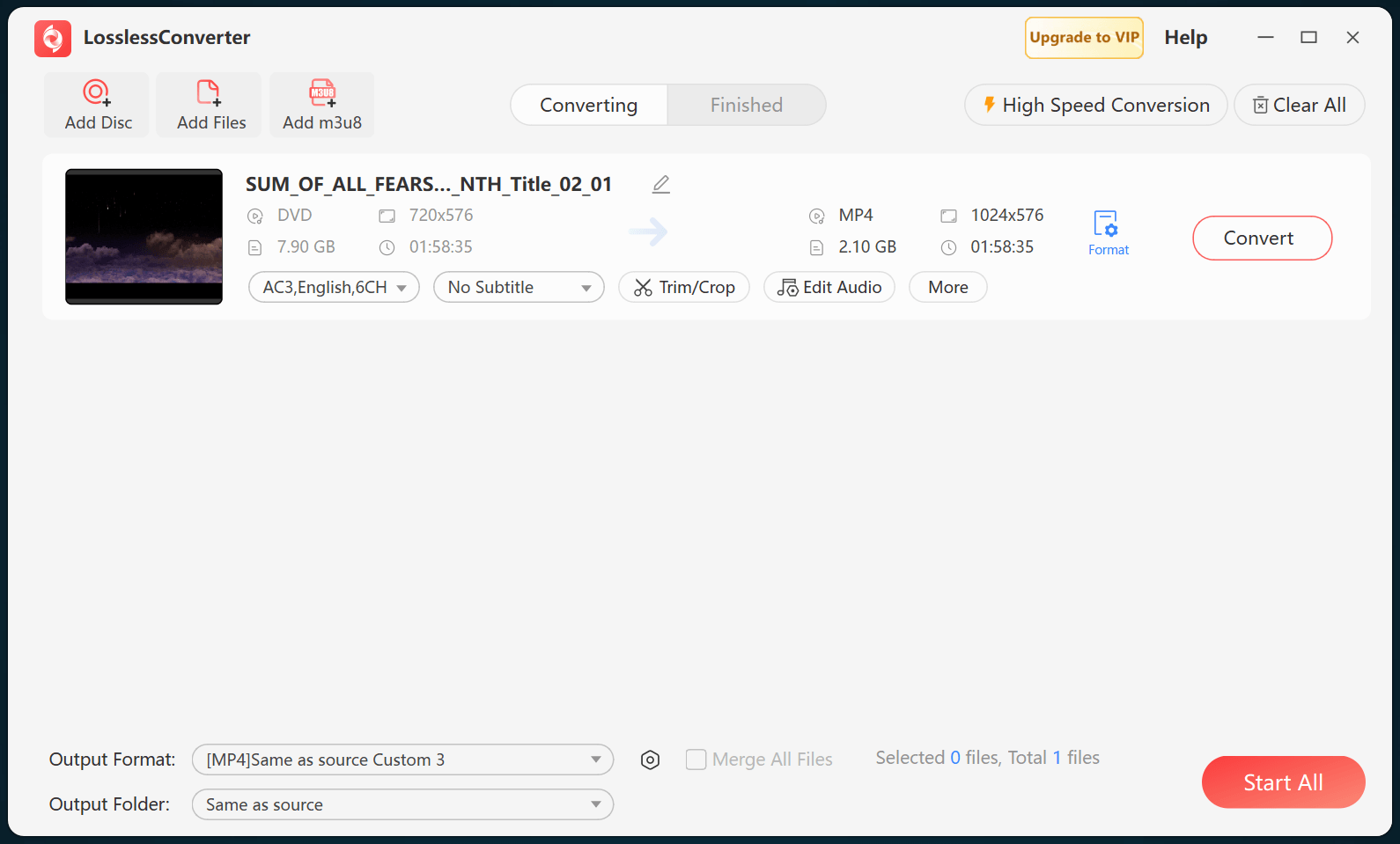
A disc image can contain trailers, extras, multiple angles, several audio languages, and more than one subtitle stream. Select the main movie title rather than assuming the longest title is correct, then choose the audio language and subtitle behavior required by the Apple TV app. Keep the original ISO until the output has passed verification.
Choose H.264/AAC MP4
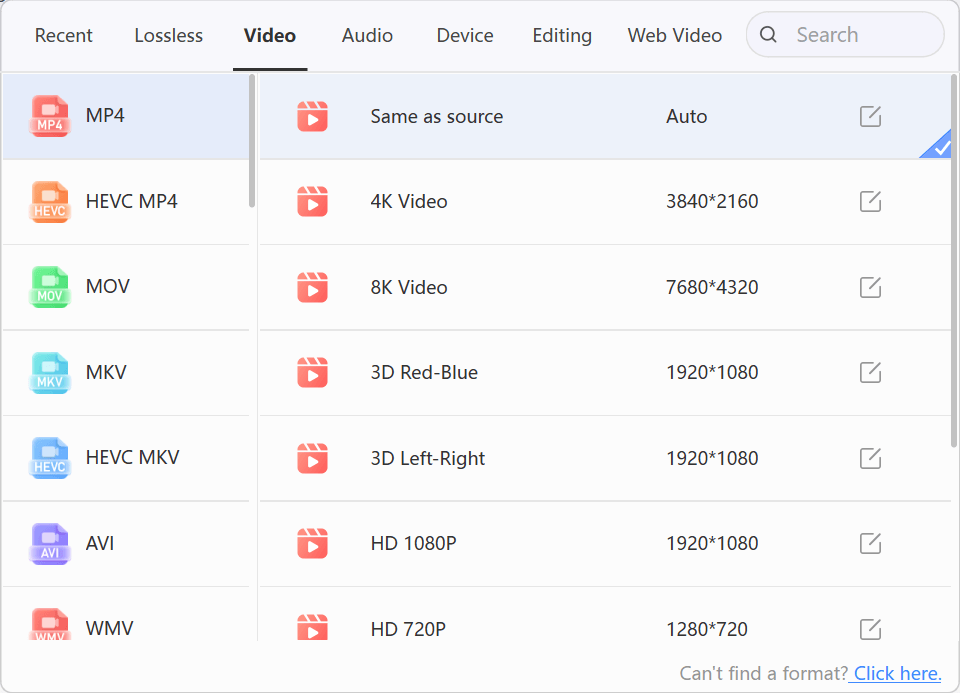
Create an MP4 with H.264 video and compatible AAC audio for broad Apple TV playback. Preserve the source aspect ratio and frame rate, and use the destination resolution as a ceiling rather than enlarging standard-definition DVD material. Keep surround audio only when the entire playback path supports the selected channel layout.
Verify the Apple TV copy
Test one converted file in the intended Apple TV library or playback app. Check picture geometry, motion, audio channels, subtitles, seeking, and sync from beginning to end. If the result fails, identify whether the problem is the selected title, codec profile, audio track, subtitle mode, or app before processing another ISO.