Blu-ray guide

Legacy PlayStation Vita workflow. Create a compatible H.264 MP4 on a supported computer, then transfer and test it with the PS Vita system software in use.

Prepare Blu‑ray or DVD video for a legacy PS Vita

Create a compatible H.264 MP4 file for PS Vita and verify picture, AAC audio, subtitles, and sync on the device.
Updated September 4, 2026By

Use a supported Windows or Mac computer. The free version limits many processing operations to the first three minutes. Check compatibility and trial limits.

  • Blu-ray sourceDisc, folder, or ISO
  • Choose H.264 MP4Output matched to this workflow
  • PS Vita checkVerify before batch processing

Before you begin

Confirm the disc source and playback goal.

Select the correct title, audio, and subtitle tracks, then match the output to the player, device, or archive workflow.

Legacy PlayStation Vita workflow. This article applies specifically to PlayStation Vita hardware. Confirm the available transfer method and test H.264 video, AAC audio, subtitles, and sync on the device.

Historical PS Vita playback workflow

PlayStation Vita launched between 2011 and 2012 and is now a legacy handheld. This page is retained for owners who still maintain an authorized local media workflow for that hardware.

Create an H.264 MP4 file with compatible AAC audio, then transfer it through a method supported by the device and installed system software. Test picture, audio, and sync on the PS Vita before converting additional titles.

Workflow direction

Create a compatible H.264 MP4 file for PS Vita and verify picture, AAC audio, subtitles, and sync on the device.

Recommended output

Use the output parameters required by this guide.

Only parameters stated by this workflow are shown. Match any remaining settings to the source and destination.

Container
MP4
Video
H.264 / AVC
Audio
AAC

Three-step workflow

Create and verify one test output before processing the full batch.

Create a compatible H.264 MP4 file for PS Vita and verify picture, AAC audio, subtitles, and sync on the device.

01

Add the source

Load the Blu-ray or DVD disc

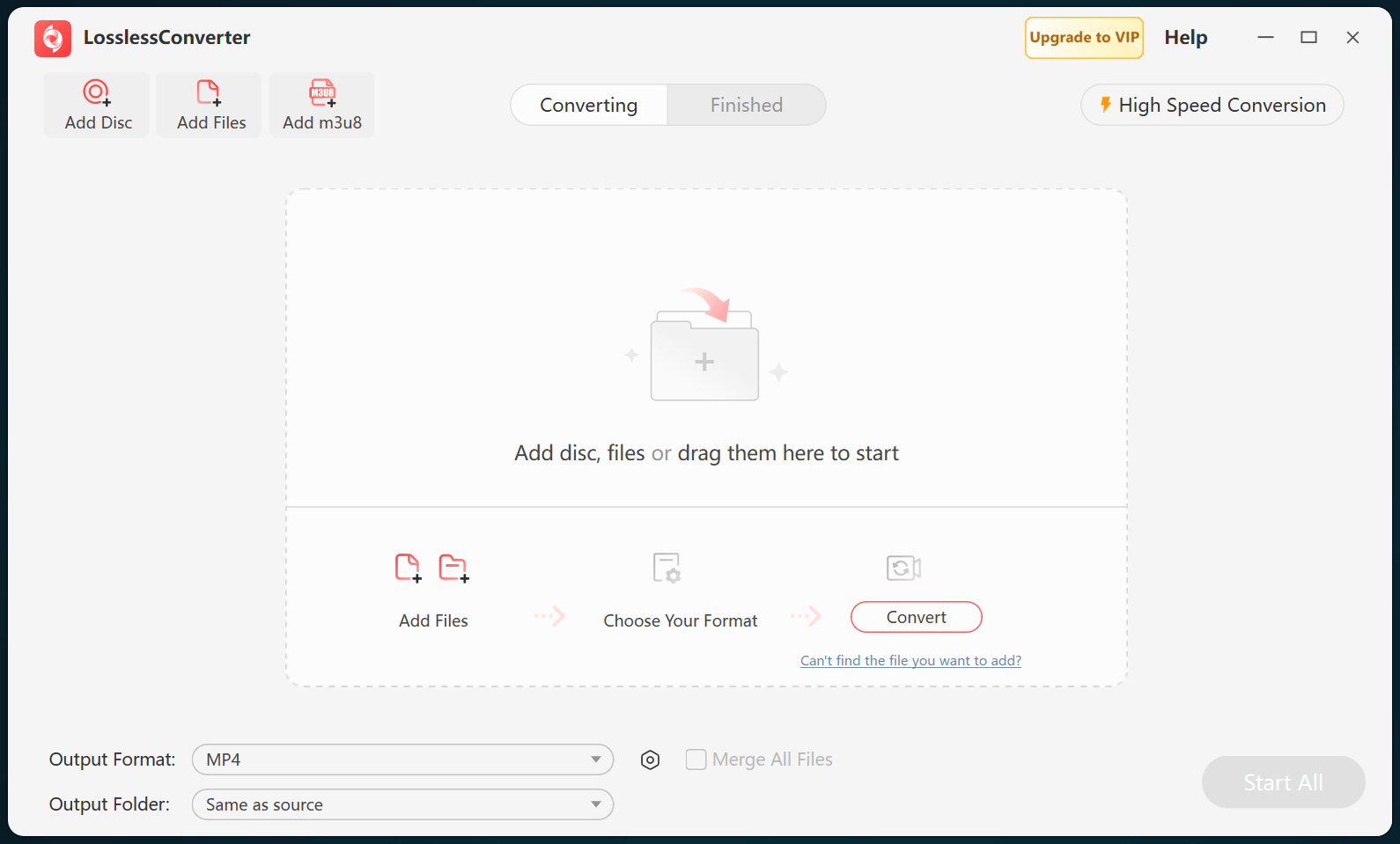
Open LosslessConverter and select Add Disc. Add the Blu-ray or DVD disc, then select the required title, audio, and subtitle tracks.

LosslessConverter main window with the source controls visible
Source toolbarLoad the source from the main toolbar.
02

Match PS Vita playback

Choose an H.264 MP4 profile with AAC audio

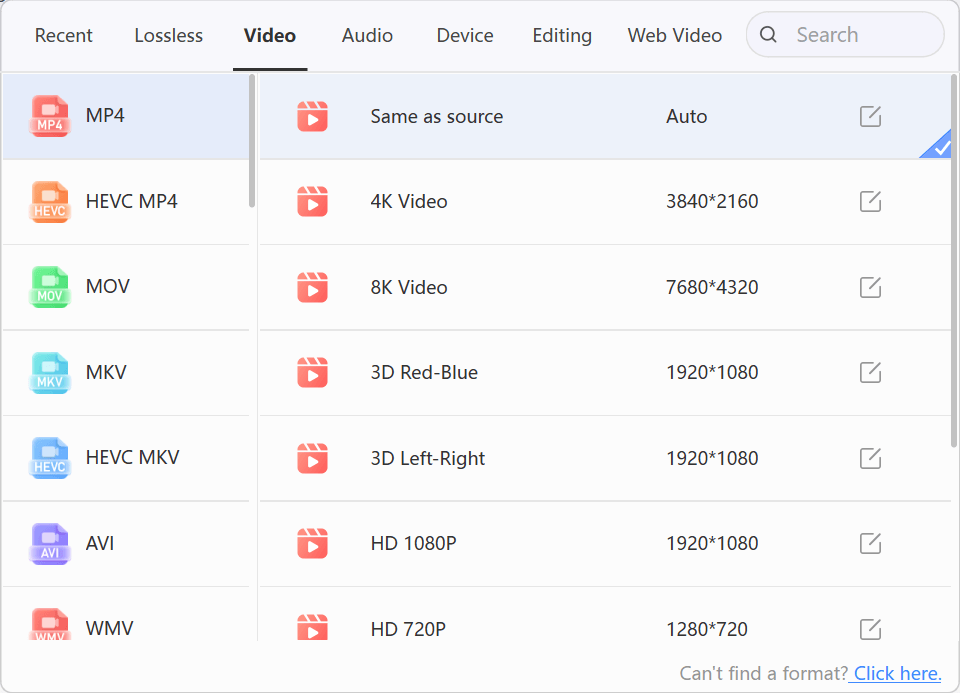
Open Output Format, choose an MP4 profile with H.264/AVC video and AAC audio, and keep the output within the limits supported by the PS Vita system software in use.

LosslessConverter Output Format menu with Video and MP4 selected
MP4Select Video, then choose MP4.
03

Create the current output

Select Start All, then verify on PS Vita

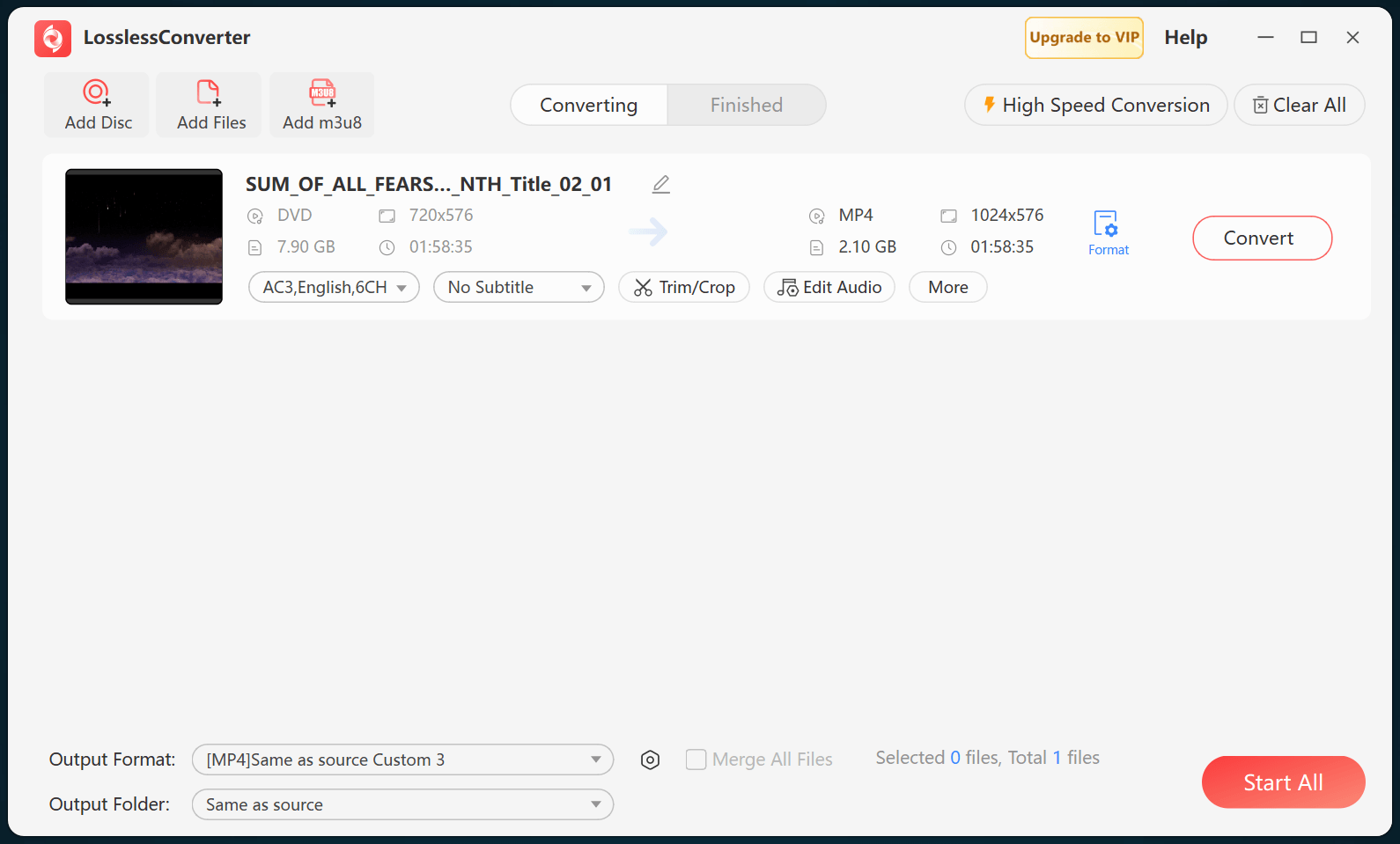
Choose an output folder and select Start All. When processing finishes, transfer the MP4 file to the authorized legacy device and verify picture, audio, and sync.

LosslessConverter main window with Start All ready at the lower right
Start AllRun the task, then verify the result.

Try it with your own media

Create one H.264/AAC MP4, then transfer and test it on the PS Vita.

Use a supported Windows or Mac computer. The free version limits many processing operations to the first three minutes. Check compatibility and trial limits.