Automatic detection
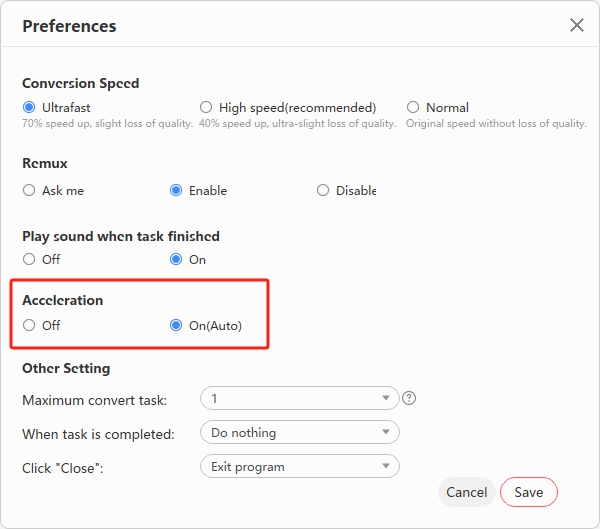
Enable hardware acceleration
LosslessConverter can automatically check CPU and GPU availability and use compatible acceleration for encoding, decoding, editing, rendering, and supported AI operations.
- Install and open LosslessConverter.
- Choose Help > Preferences.
- Enable Acceleration.
- Review the detected hardware and the available H.264 and HEVC encoder and decoder capabilities.
Processing
Choose a feature and run the task
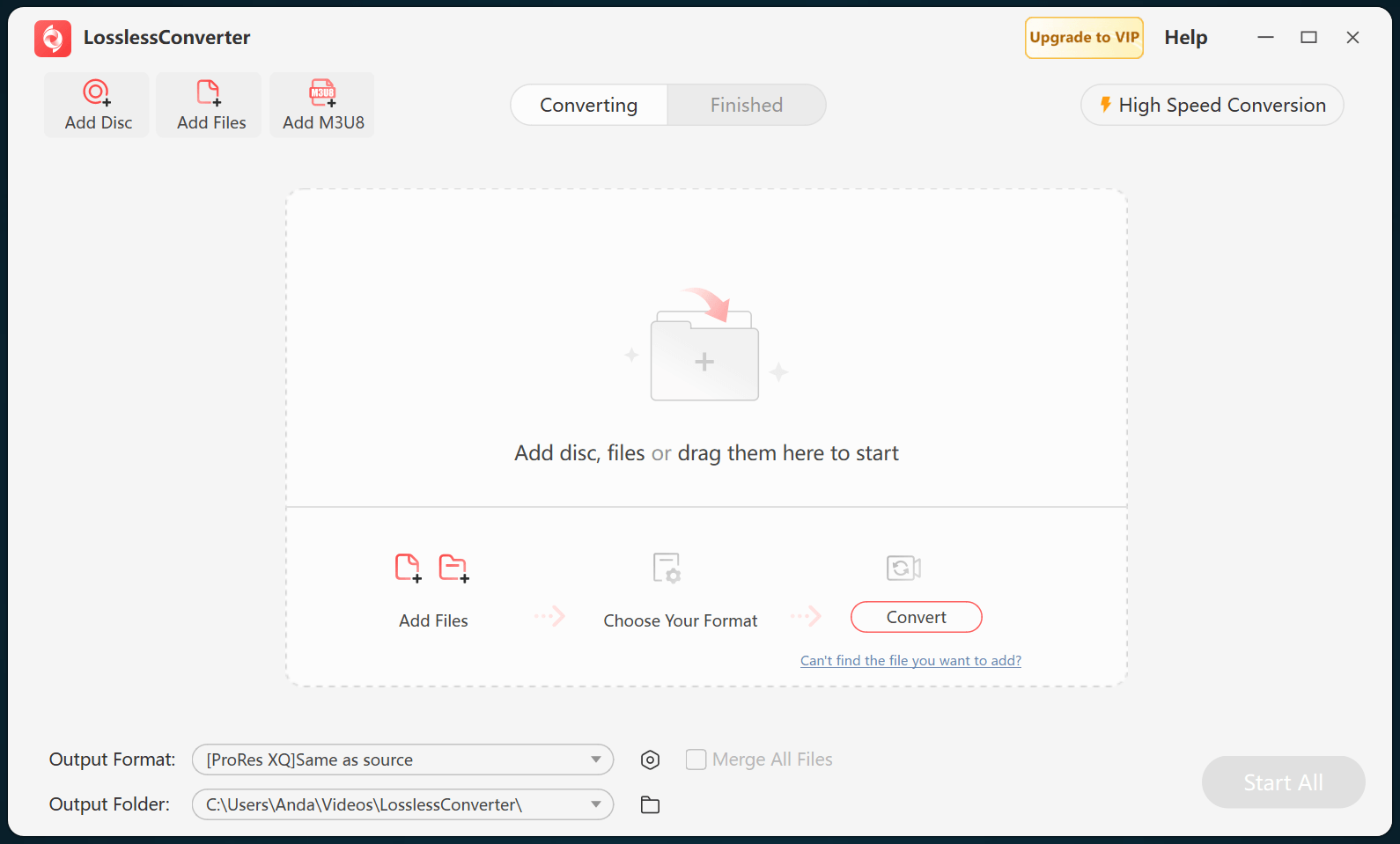
- Return to the home screen and choose a module such as Video Converter or Compressor.
- Add the source files and choose the intended output settings.
- Select Convert, Compress, or Start All. LosslessConverter will use compatible acceleration for the active workflow.
Not every codec or operation can use every accelerator. If acceleration is unavailable, confirm the selected codec, disable Auto Copy when shown, and update the graphics driver.
Windows driver setup
Identify your graphics hardware
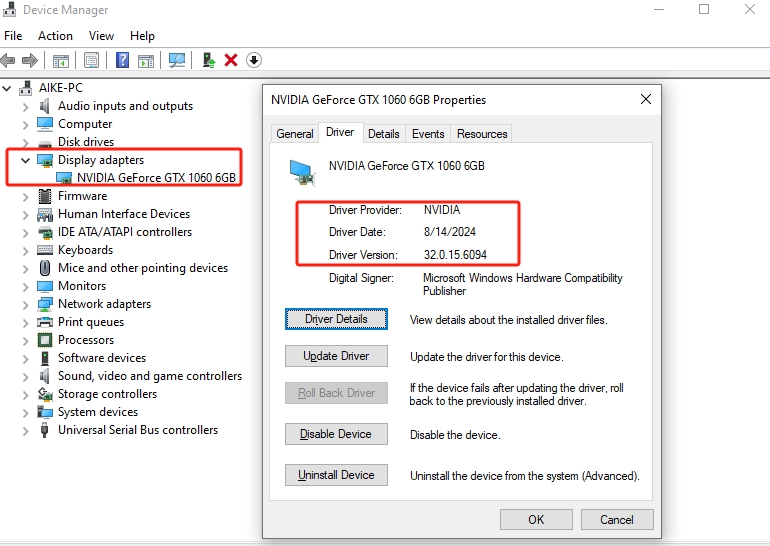
- Open Control Panel > Hardware and Sound > Device Manager.
- Expand Display adapters.
- Double-click the adapter and open the Driver tab to see the provider, version, and date.
Download drivers only from the computer manufacturer or the official GPU vendor.
NVIDIA
Update an NVIDIA driver
- Open the official NVIDIA driver page.
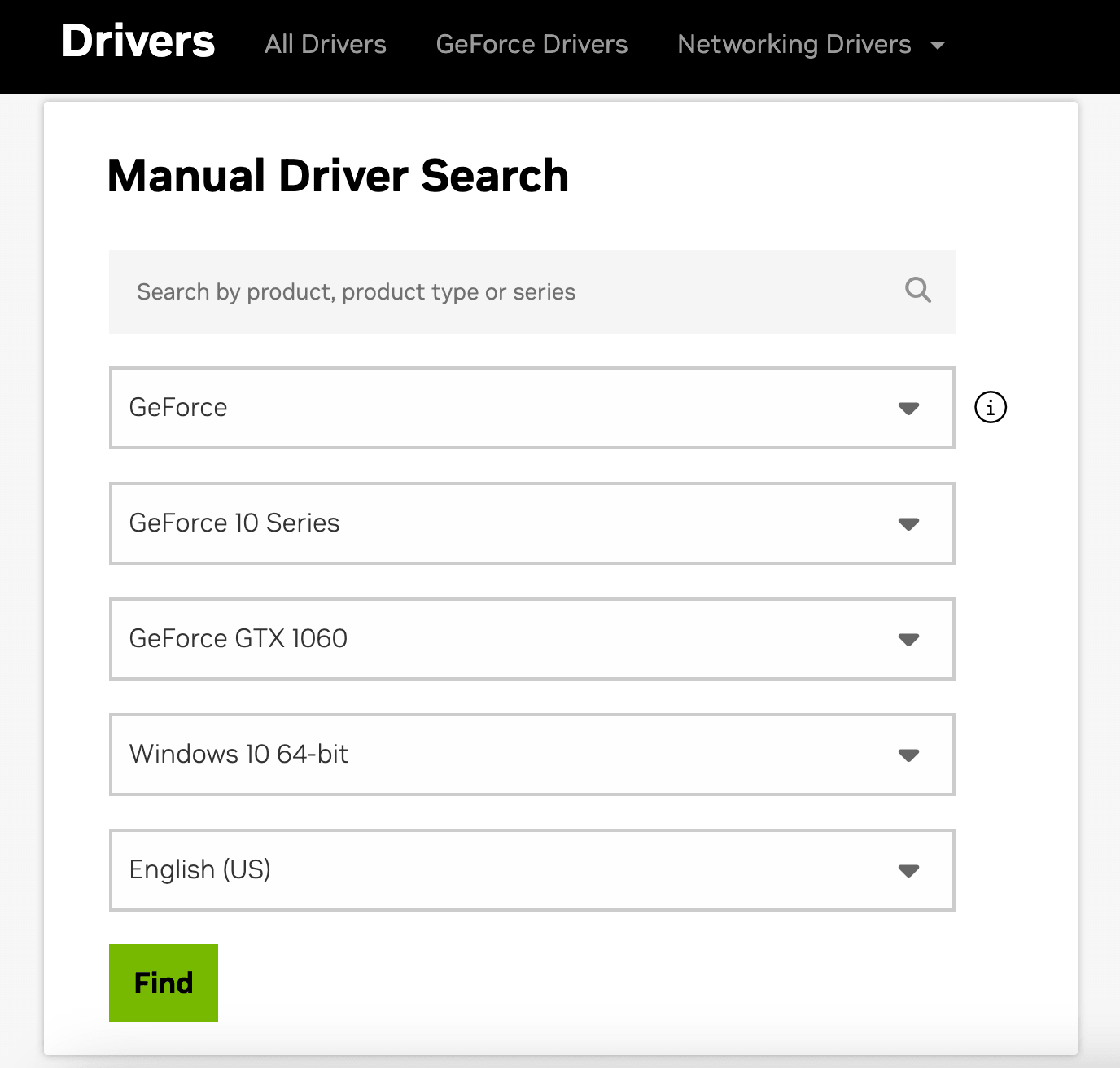
- Select the product type, series, model, and operating system, then choose Find.
- Review the latest appropriate Game Ready or Studio driver and choose Download.
- Run the downloaded installer, follow its instructions, and restart Windows.
AMD
Update an AMD driver
- Open the official AMD driver support page.
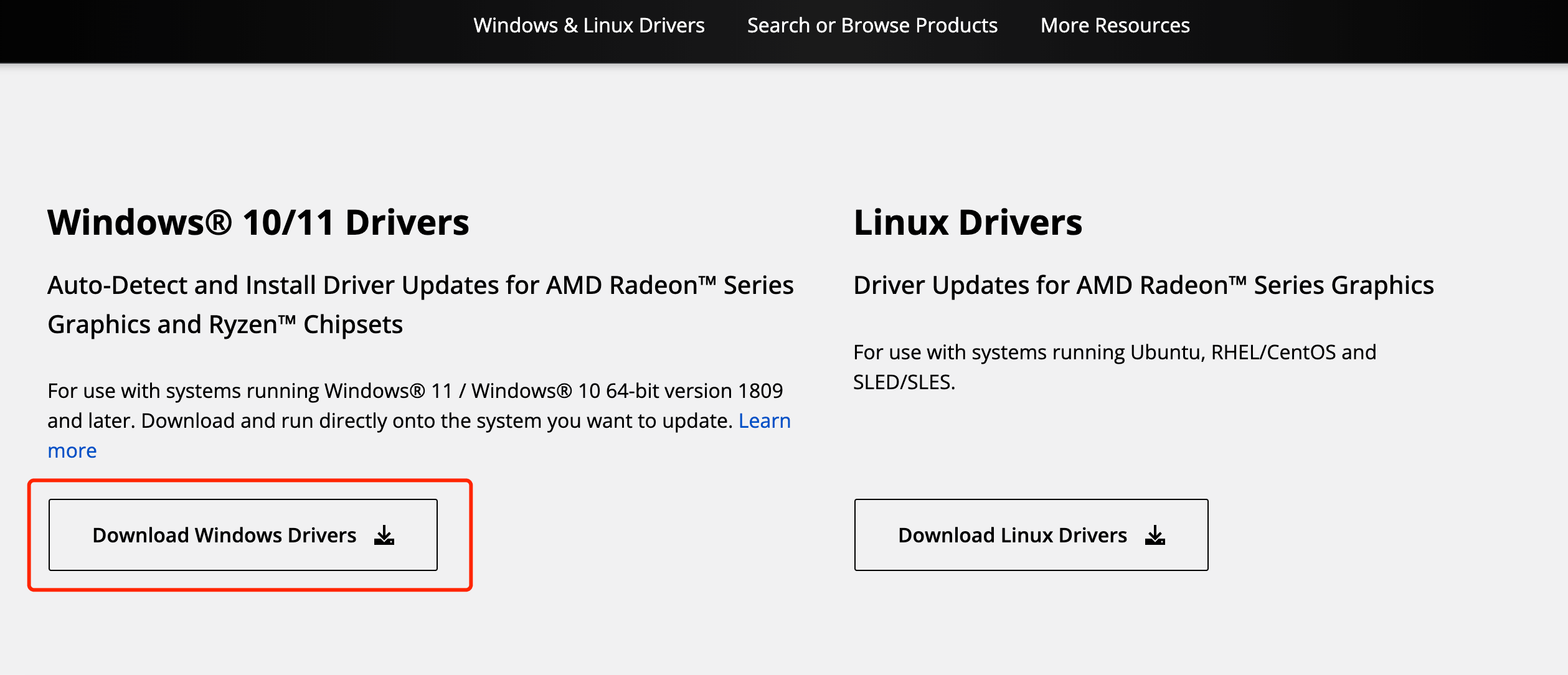
- Use the auto-detect tool on supported current Windows systems, or search and browse by product.
- Choose the correct operating-system package and download it.
- Run the setup wizard and restart Windows after installation.
Intel
Update an Intel graphics driver
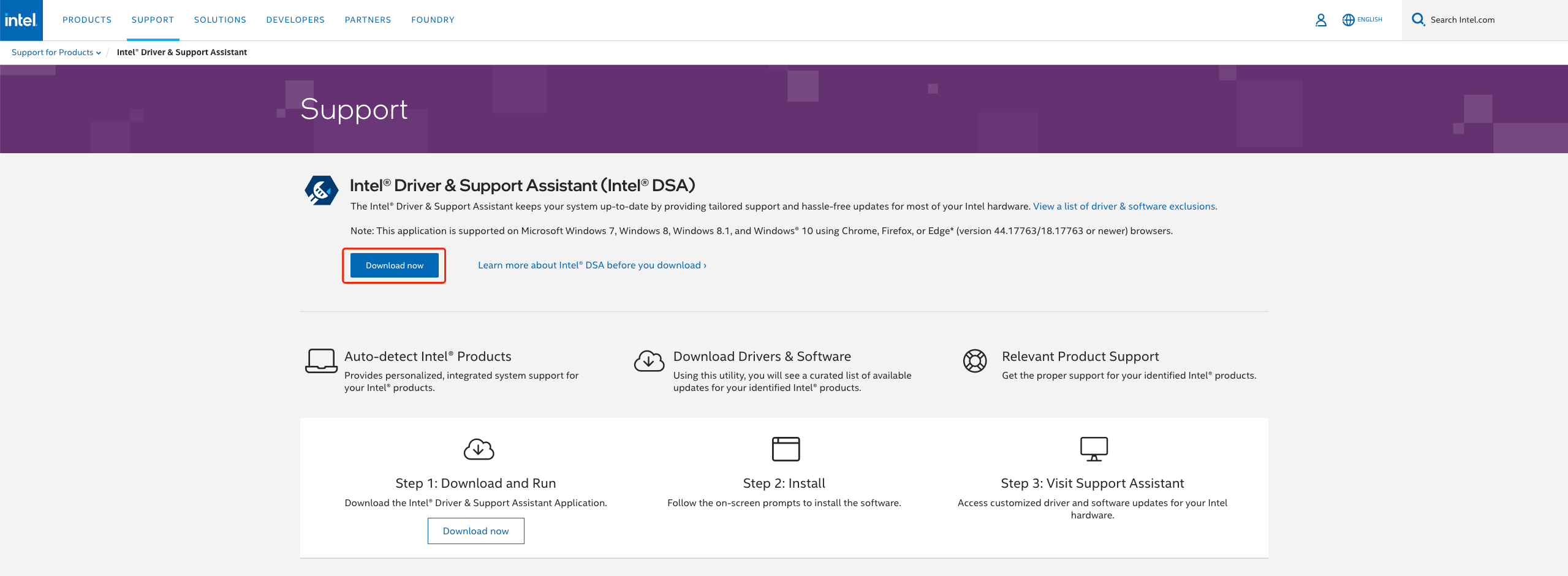
- Open the official Intel Driver & Support Assistant page.
- Choose Download now.
- Run the installer and select Begin Installation.
- After installation completes, restart Windows and reopen LosslessConverter.